Turn learning into practice with assignments and meaningful feedback
Give learners a clear way to complete and submit work while giving instructors the tools to review, respond and guide the next step.
- Text, files or a link
- Score and written feedback
- Return for revision
Real work, reviewed by a person
An assignment is a lesson in a course. Learners hand in their work, and an instructor reviews it before it counts toward their progress.
A clear brief
Formatted instructions, the points available, the due date and how many attempts are allowed, all on one screen.
Three ways to submit
A written response, file uploads or an external link, in any combination the assignment allows.
Due dates and windows
Set a due date, plus optional open and close dates. Work handed in after the due date is marked Late.
Instructor review
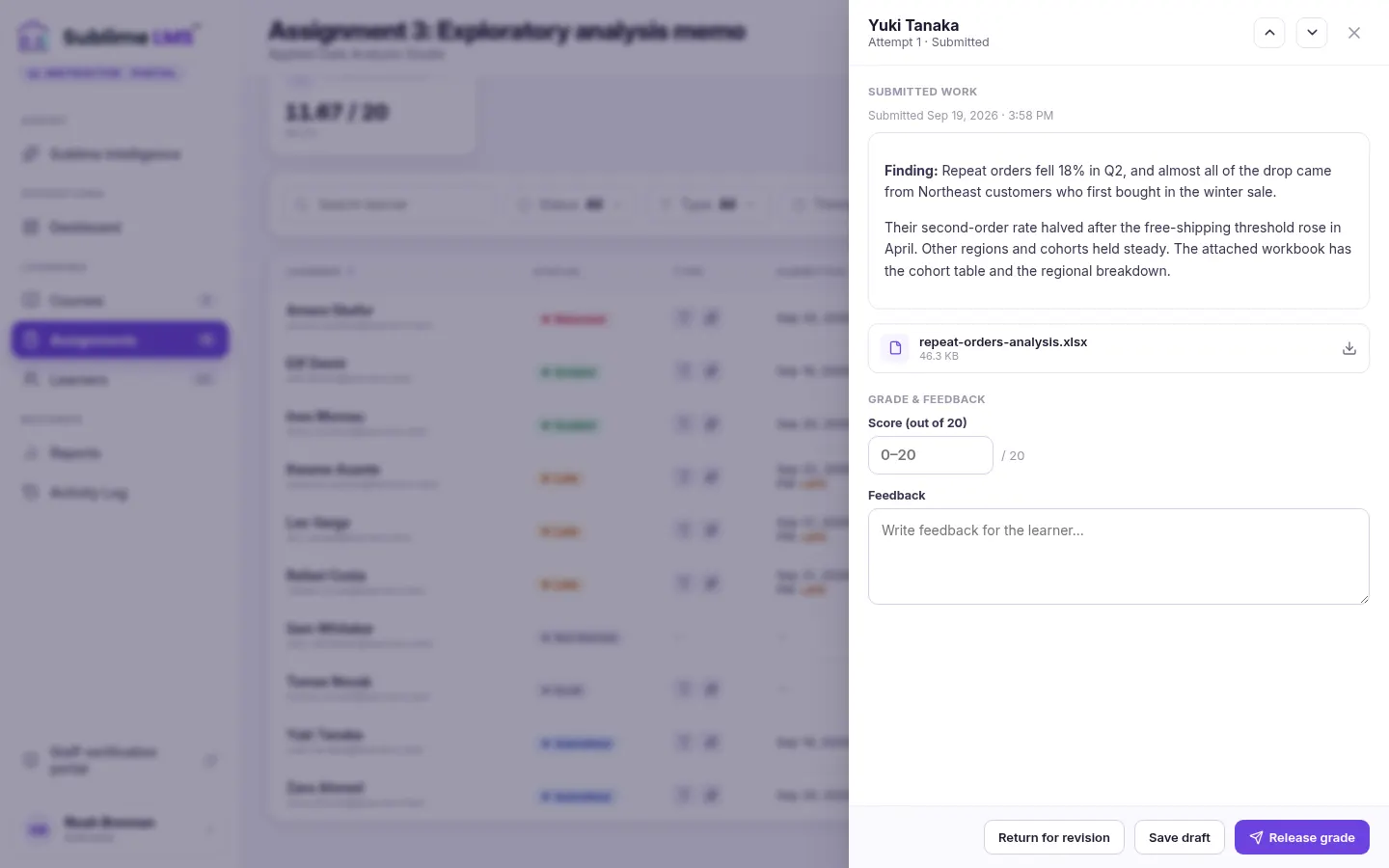
Instructors see every learner’s submission, open the work, score it and write feedback.
Release or return
Nothing reaches the learner until it’s released. Or send the work back for revision, with every attempt kept.
Part of the learning path
A released grade that meets the course pass mark completes the lesson and counts toward the course and its certificate.
From the brief to the next step
What learners and instructors actually do. Select a step to see that screen.
For learners
-
Read the brief
Instructions, points, due date and attempts left.
See the screen -
Do the work
Write, upload files or add a link. Drafts are saved.
See the screen -
Submit
Confirm and hand in. It goes to the instructor for review.
See the screen -
Track status
Every assignment with its status: submitted, graded or needs revision.
See the screen -
Get feedback
The score and written feedback, once released.
See the screen -
Revise or move on
Resubmit work that was returned, or carry on to the next lesson.
See the screen
For instructors
-
Open submissions
Everyone enrolled, with status, timing, attempt and score.
See the screen -
Review the work
Read the response, open the link and download files.
See the screen -
Score and comment
Enter a score up to the assignment’s points and write feedback.
See the screen -
Release or return
Release the grade to the learner, or return the work for revision.
See the screen -
Complete the review
Graded and ungraded counts show what’s left to review.
See the screen
The assignment experience, screen by screen
Real screens from the Sublime LMS student portal, shown with a fictional demo cohort.
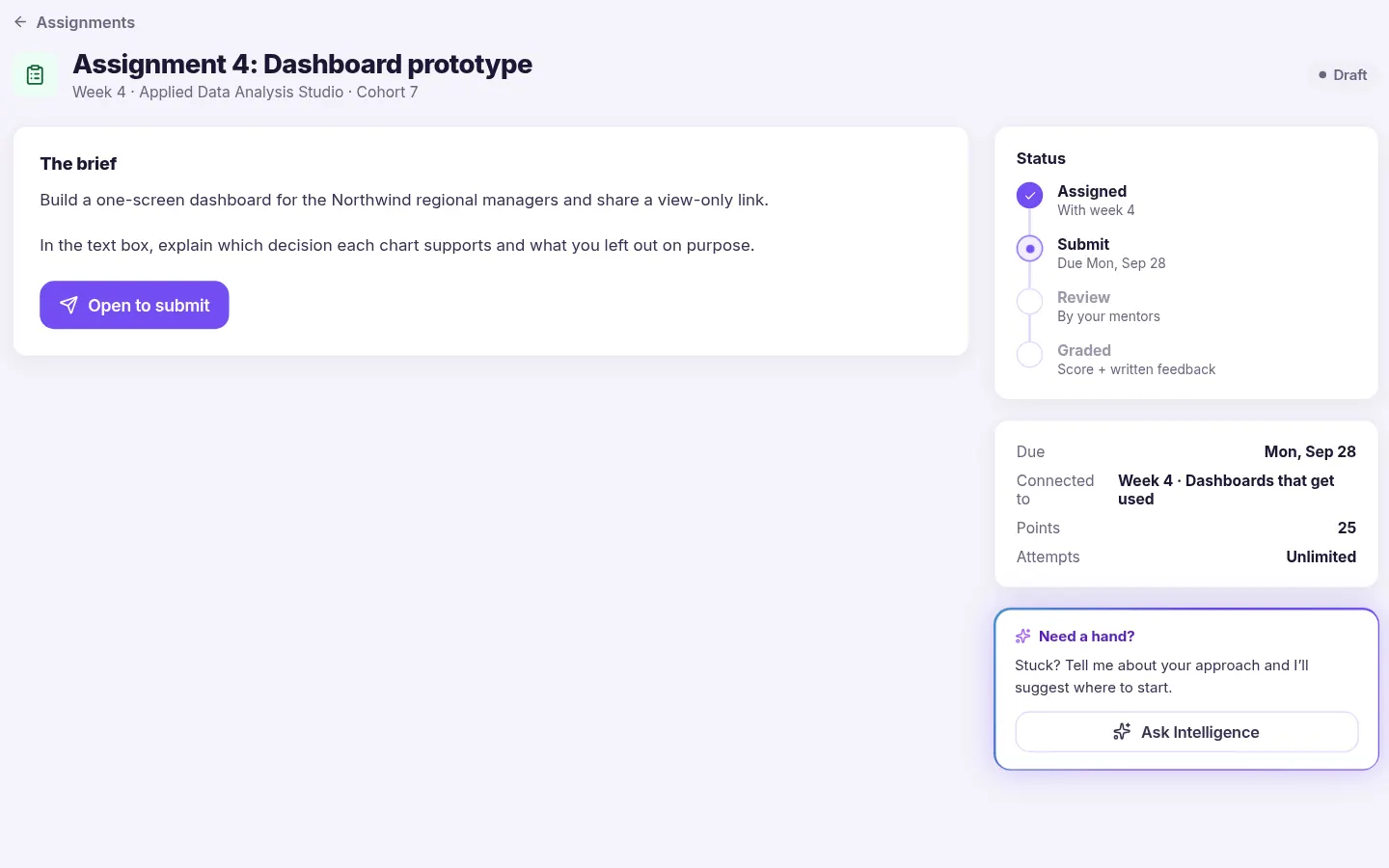
Assignment details. Each assignment has its own page: the brief, which week it belongs to, the due date, the points available, attempts used, and a status timeline from assigned to graded.
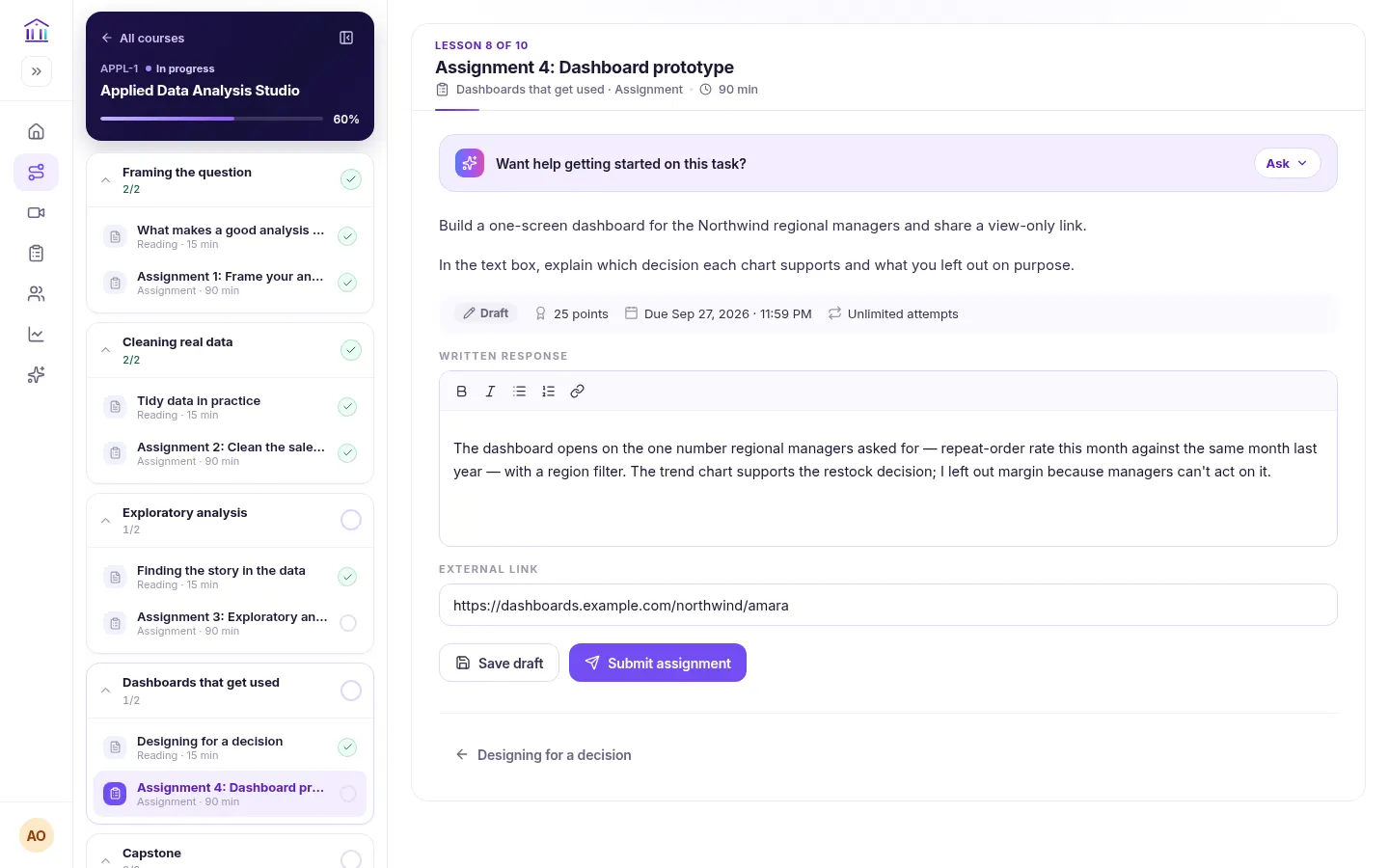
Submitting work. Learners work on the assignment inside the course. Depending on the assignment they write a formatted response, upload files or add a link. Drafts are saved, and submitting asks for confirmation first.
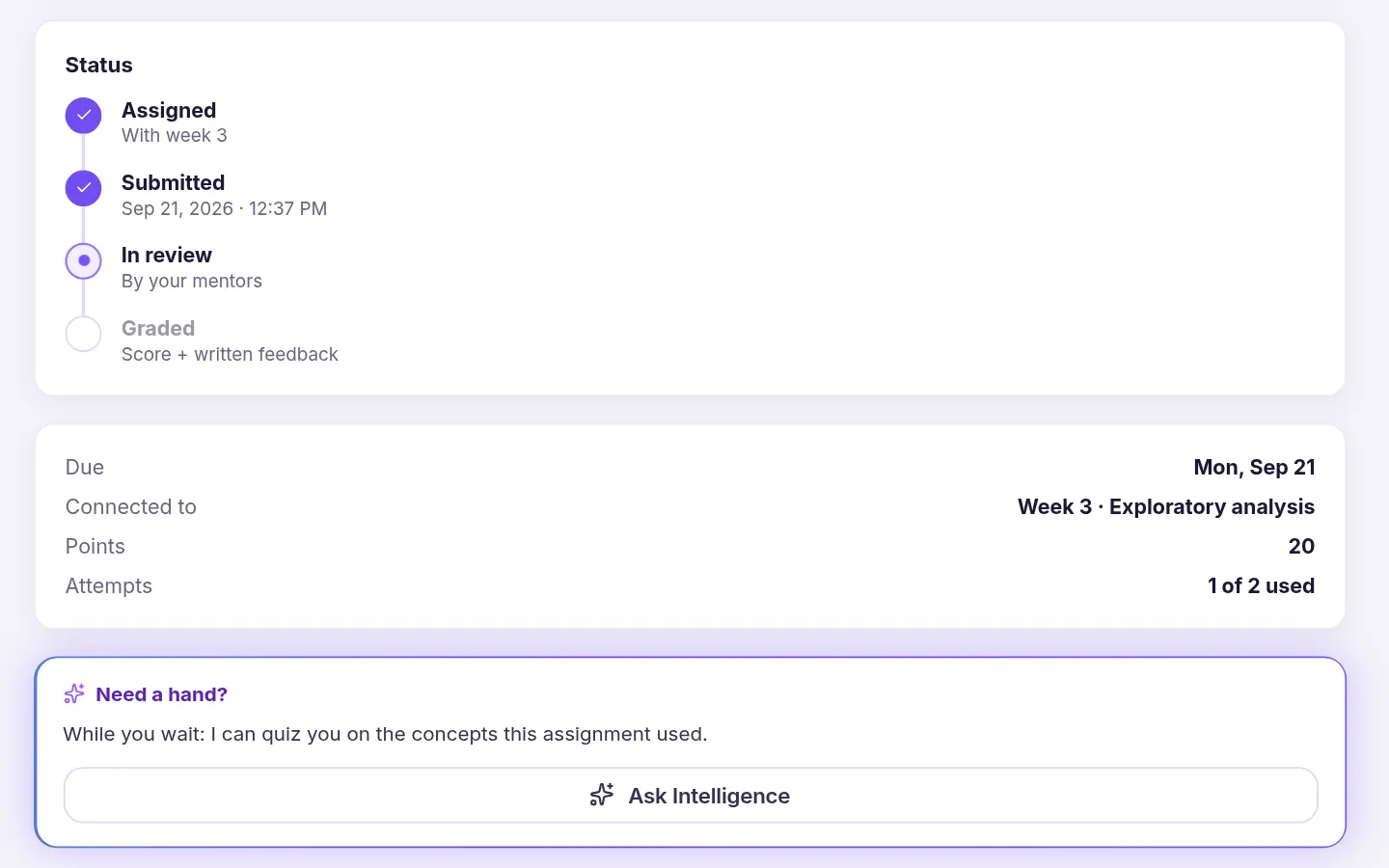
Submitted. Once submitted, the assignment shows when it was handed in and that it’s with the instructor for review. While attempts remain and the assignment is open, the learner can still hand in a new attempt.
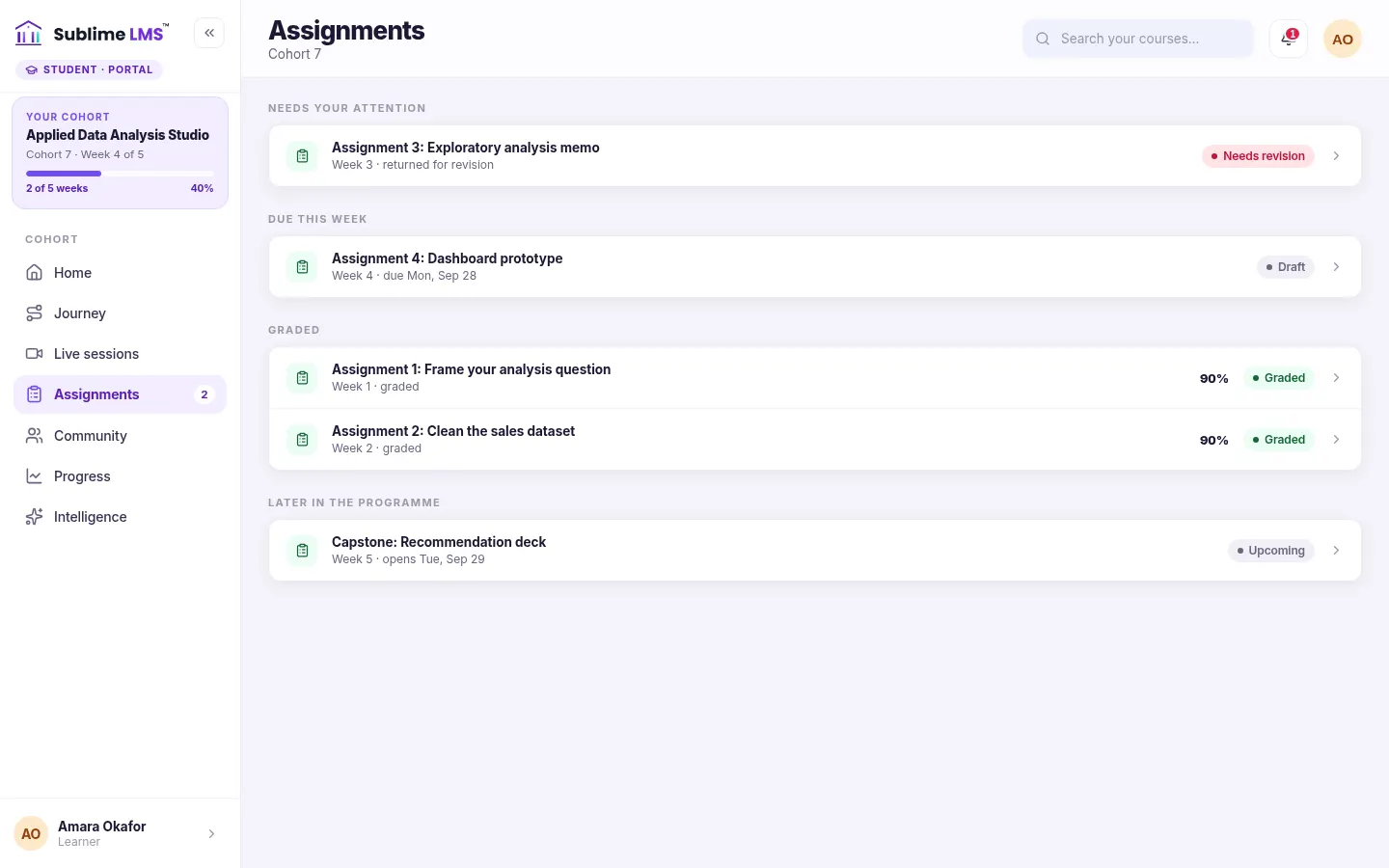
Assignment status. A single list of the cohort’s assignments, grouped by what needs attention, with each one’s due date, status and score once graded.
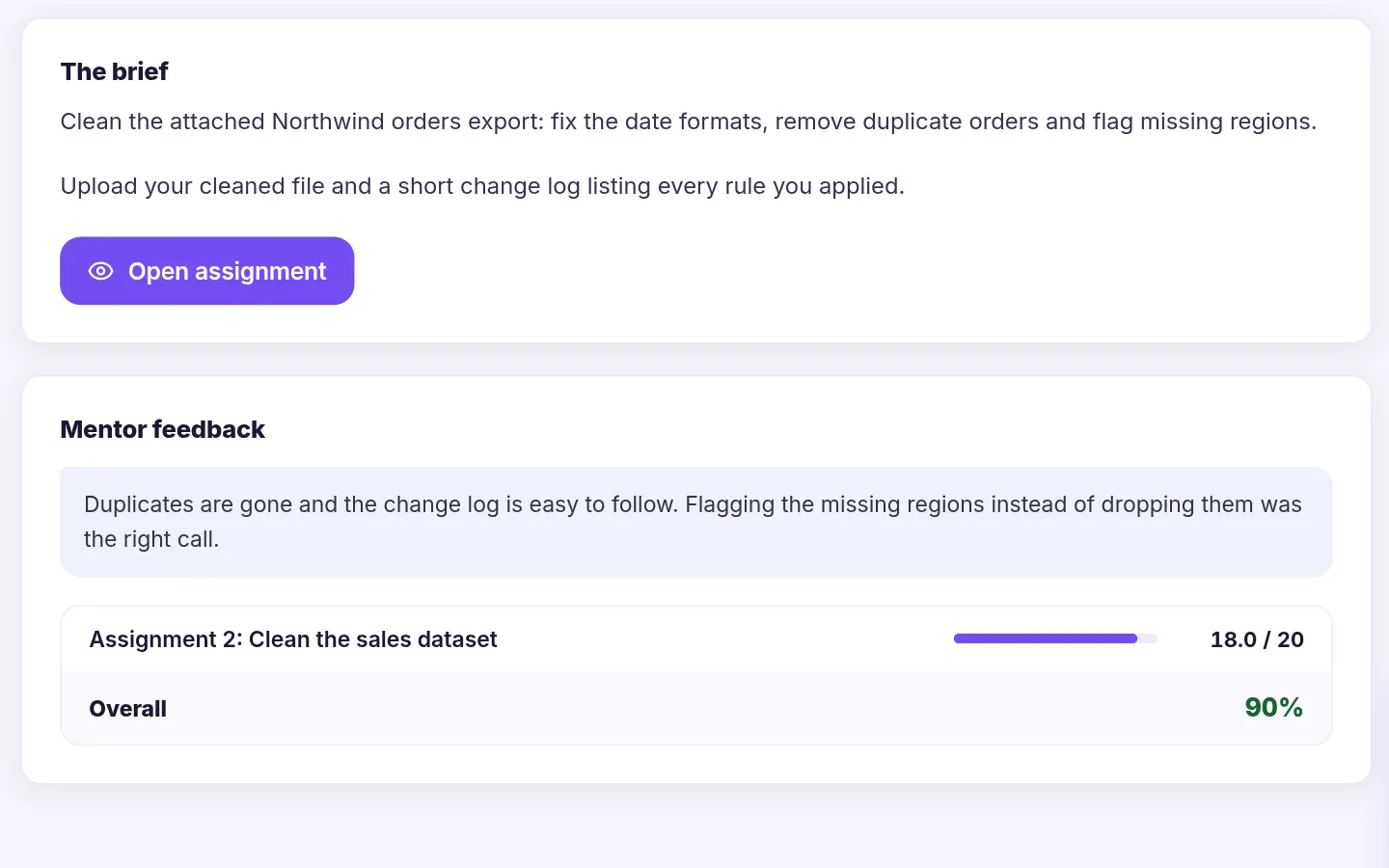
Feedback and grade. When the instructor releases the grade, the learner sees the written feedback and the score out of the assignment’s points. A draft grade the instructor saved but hasn’t released is never shown.
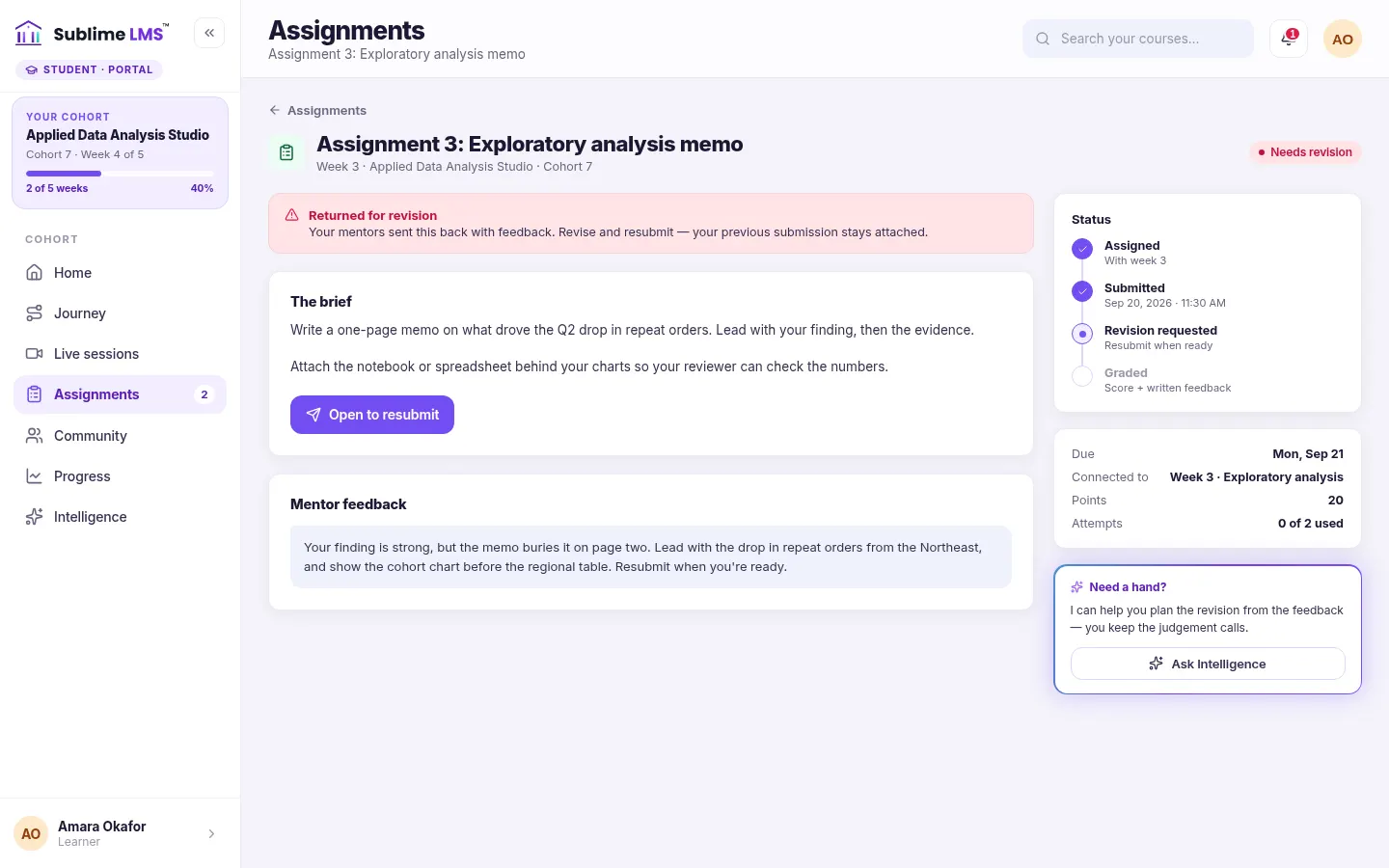
Returned for revision. An instructor can send work back instead of grading it. The learner sees the feedback and a notice to revise, and can start a new attempt. A returned attempt doesn’t use up one of their attempts.
Review work and send feedback
What instructors see in the teacher portal, and admins in the admin portal.
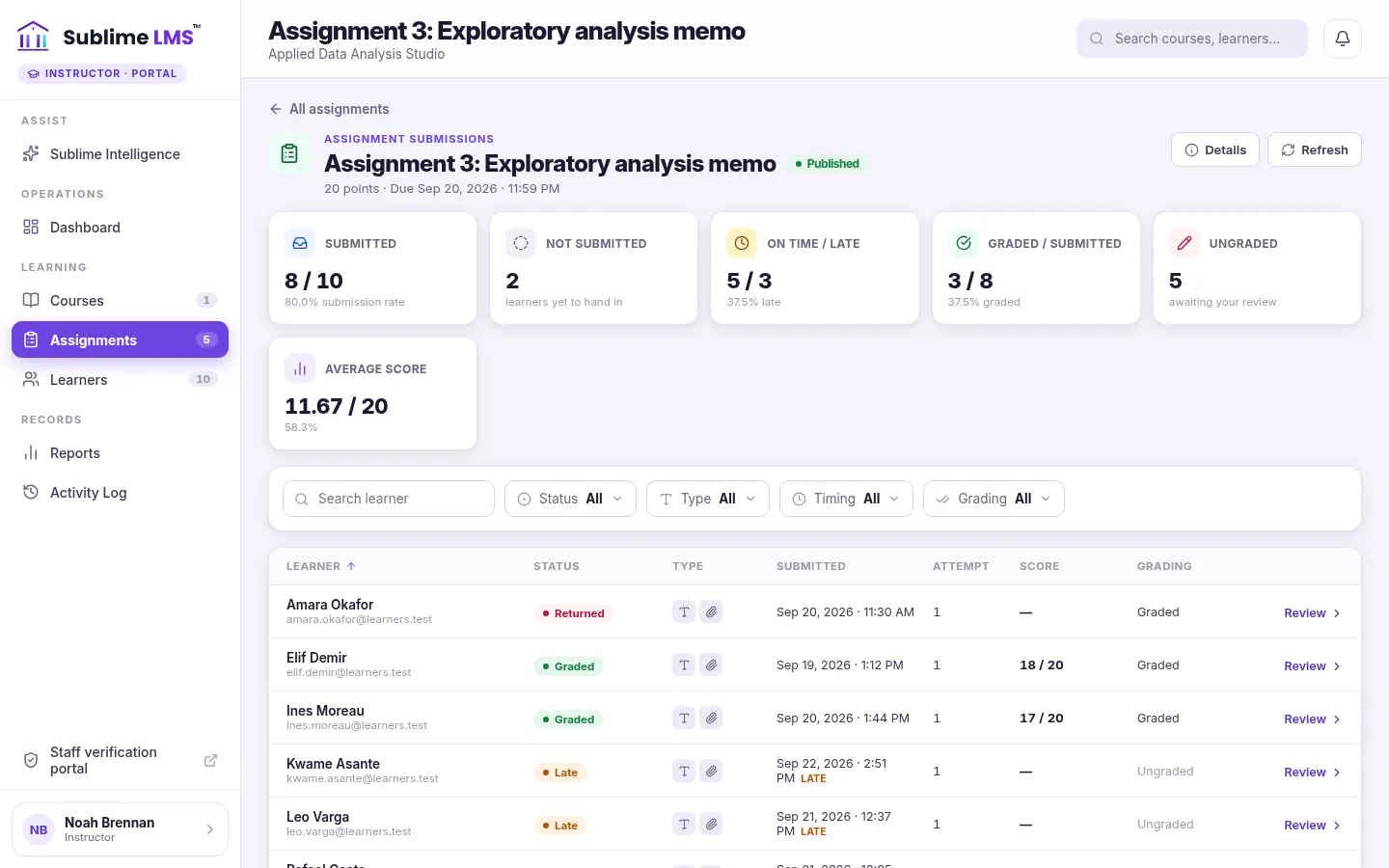
All submissions. For each assignment: submitted and not submitted, on time and late, graded and ungraded, and the average released score. Filter by status, submission type, timing and grading, or search for a learner.
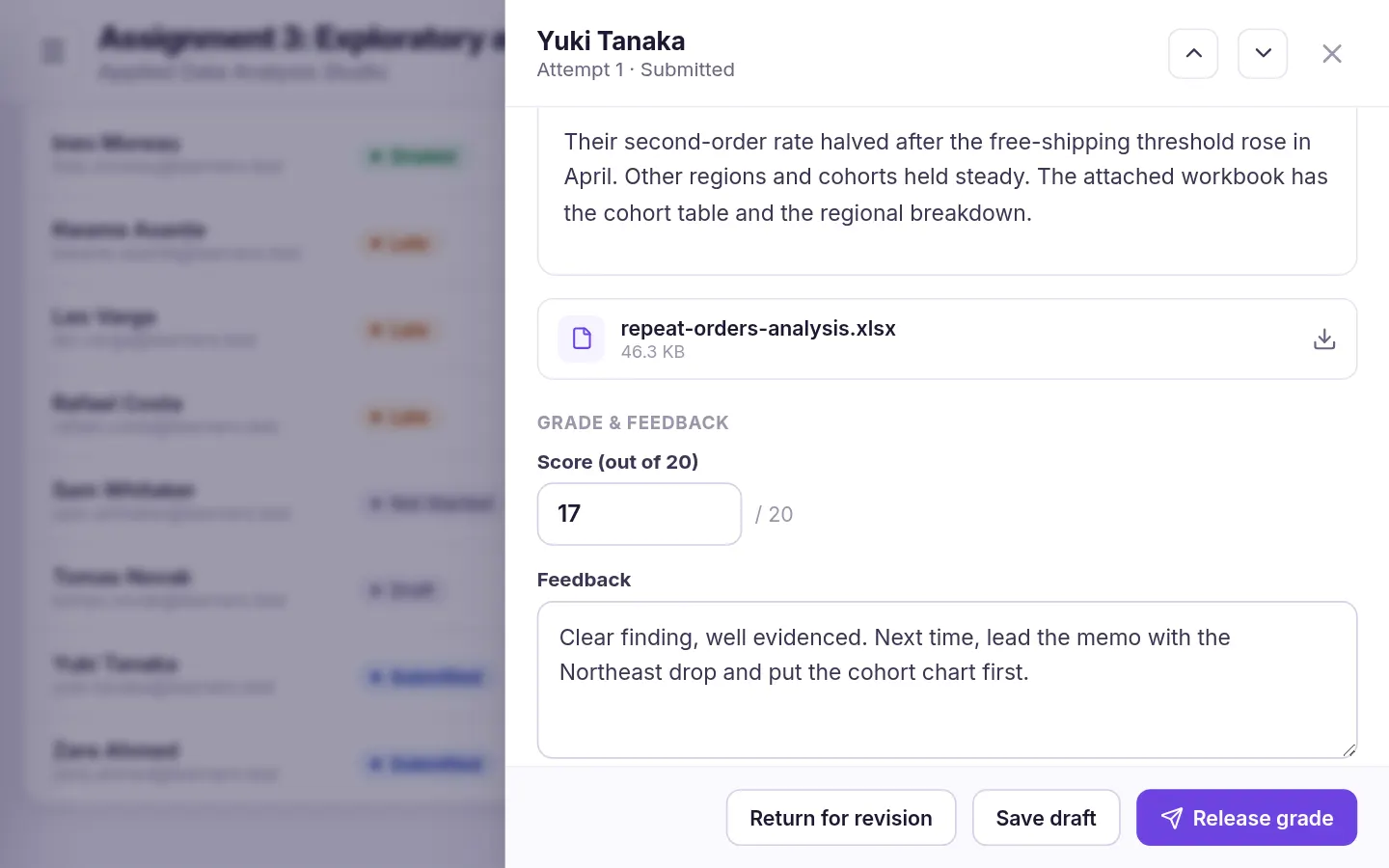
Review and grade. Open a submission to read the response, follow the link or download files. Enter a score up to the assignment’s points and write feedback, then save it privately, release it, or return the work for revision.
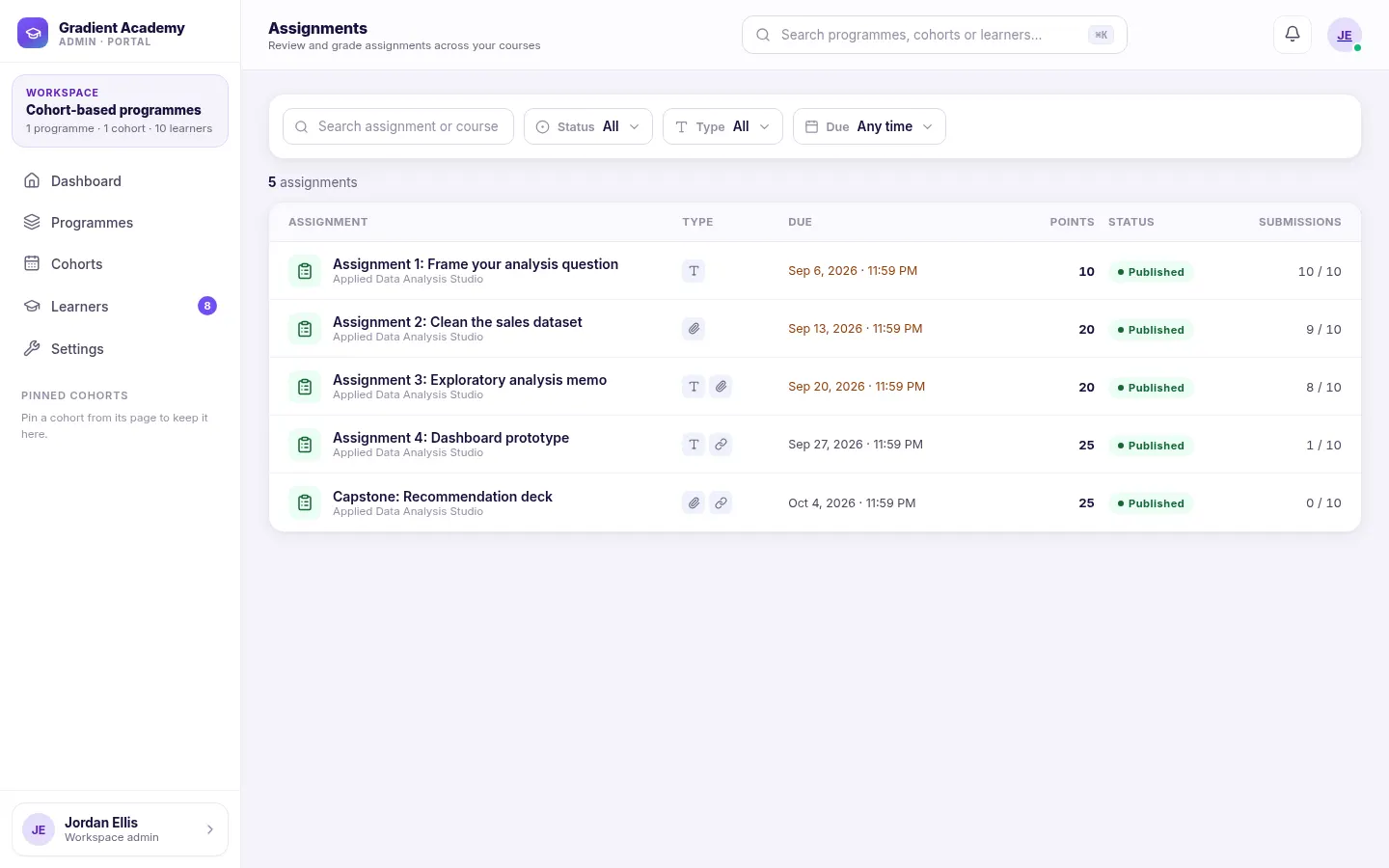
Across the organization. Workspace admins get an Assignments hub listing every assignment across courses with its settings and submission counts, and can grade in any course. Instructors see only the courses they teach.
Every setting, as it works today
Submitting work
- Instructions
- A formatted brief on the assignment, with the points available, due date and attempts shown alongside it.
- Submission types
- Text entry with basic formatting, file upload and external link. An assignment can enable any combination.
- Files
- Several files per attempt. Each assignment sets the accepted file types and the maximum size (20 MB unless changed), checked when the file is uploaded.
- Drafts
- Work is saved as a draft until the learner submits it, and submitting asks for confirmation.
- Due dates
- A due date, and optional dates when the assignment opens and closes for submission. Work handed in after the due date is accepted and marked Late; to stop submissions at a set time, use a close date.
- Attempts
- A limit per assignment, or unlimited. Work returned for revision doesn’t use up an attempt, and every attempt is kept.
- Status
- Not started, draft, submitted, graded or returned, with work handed in after the due date flagged Late.
Reviewing and feedback
- Submissions view
- Every enrolled learner with status, submission time, attempt and score, plus submitted, on-time, late, graded and average-score counts.
- Filters
- By status, submission type, on time or late, and graded or ungraded, with a search by learner.
- Reviewing work
- Read the written response, open the link, and download files. Files are only handed out after checking the viewer is the course’s instructor or an admin.
- Grading
- A score out of the assignment’s points, never above the maximum. Assignments can also be set up without points.
- Feedback
- A written comment for the learner, saved with the grade.
- Release or return
- Save a grade privately, release it to the learner, or return the work for revision so they can submit again.
- Notifications
- In-app notifications: learners when work is received, graded or returned; instructors when a learner submits; admins for activity across the workspace.
- Progress and completion
- Submitting doesn’t complete an assignment. It completes when a released grade meets the course pass mark, or on release when the assignment has no points, and then counts toward course completion and the certificate.
Clear roles, clear access
Each person sees the work they’re responsible for, and nothing more.
Learners
- Read the brief, save drafts and submit work
- See their own status, grade and feedback once released
- Resubmit returned work or use remaining attempts
- See only their own submissions
Instructors
- Create and configure assignments in the courses they teach
- Review, score and give feedback on those courses’ submissions
- Release grades or return work for revision
- No access to courses they don’t teach
Workspace admins
- See every assignment in the workspace in one hub
- Review and grade in any course
- Get notified of submissions and grades across the workspace
Where assignments fit
Practical exercises
Learners apply a week’s lesson to a real task and upload the result for review.
See it in the product — Practical exercisesWritten submissions
Essays, memos and reflections written straight into the assignment, then scored with feedback.
See it in the product — Written submissionsProject work
Share files and a link to a live project, with room to revise and resubmit.
See it in the product — Project workInstructor-reviewed training
Work only counts once an instructor has reviewed it and released the grade.
See it in the product — Instructor-reviewed trainingAcademic coursework
Due dates, late tracking, points and attempt limits for graded coursework.
See it in the product — Academic coursework
Turn learning into demonstrated work
See how submissions, instructor review and feedback fit the programs you run.