Manage learning at scale with Cohorts
Organize learners into meaningful groups and manage their learning experiences through one streamlined workflow.
- Dates, seats and enrollment per cohort
- One roster with progress and status
- Message the whole cohort at once
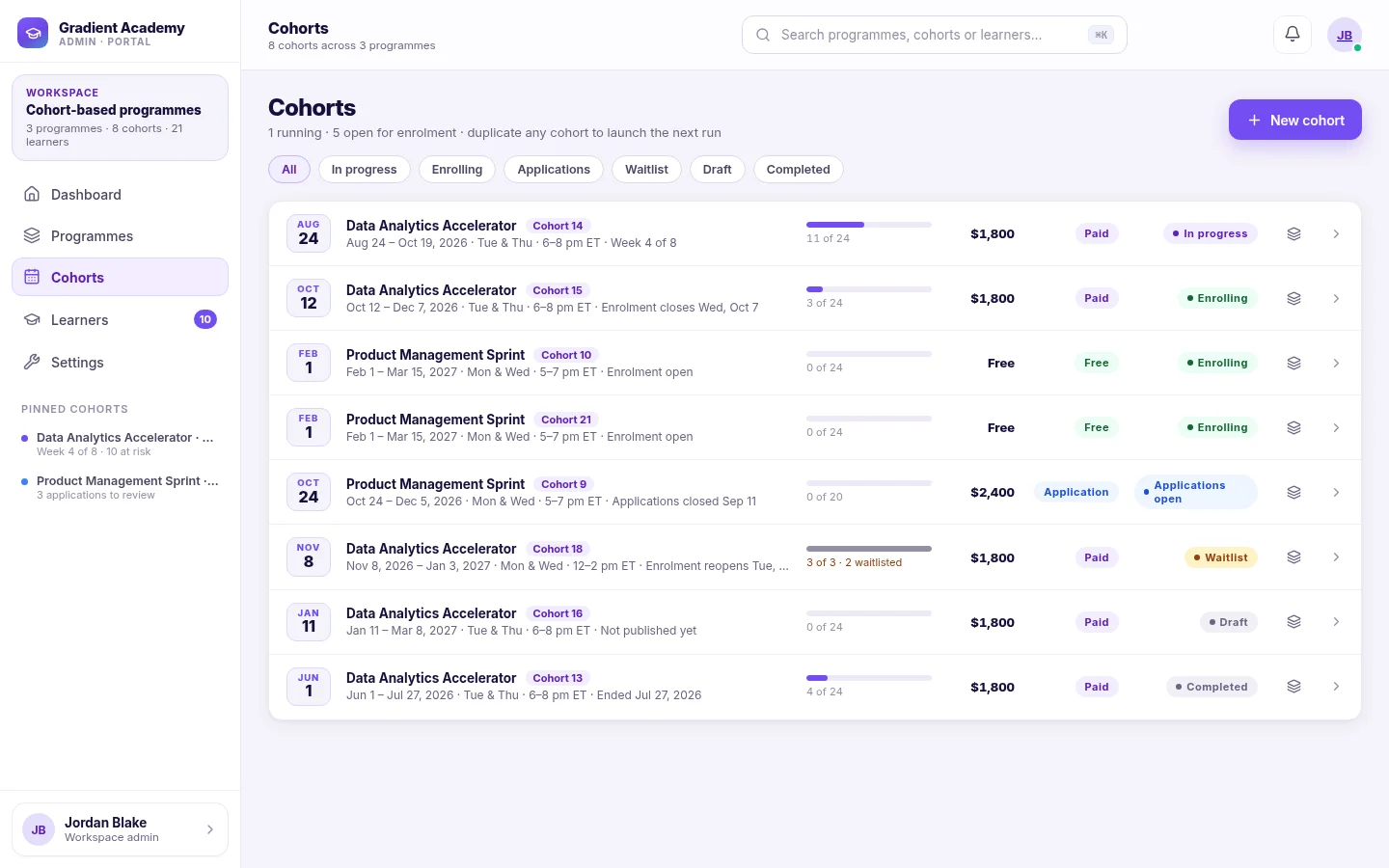
Every learner group, organized and in view
A cohort is a scheduled run of one of your programs — its own dates, seats and roster, managed from one console.
Create cohorts
Schedule a run of a program with its own dates, weekly schedule and seats — or duplicate the last one.
Manage members
Add learners by email in one go. Seats fill in order; once full, extra learners join the waitlist.
Organize learners
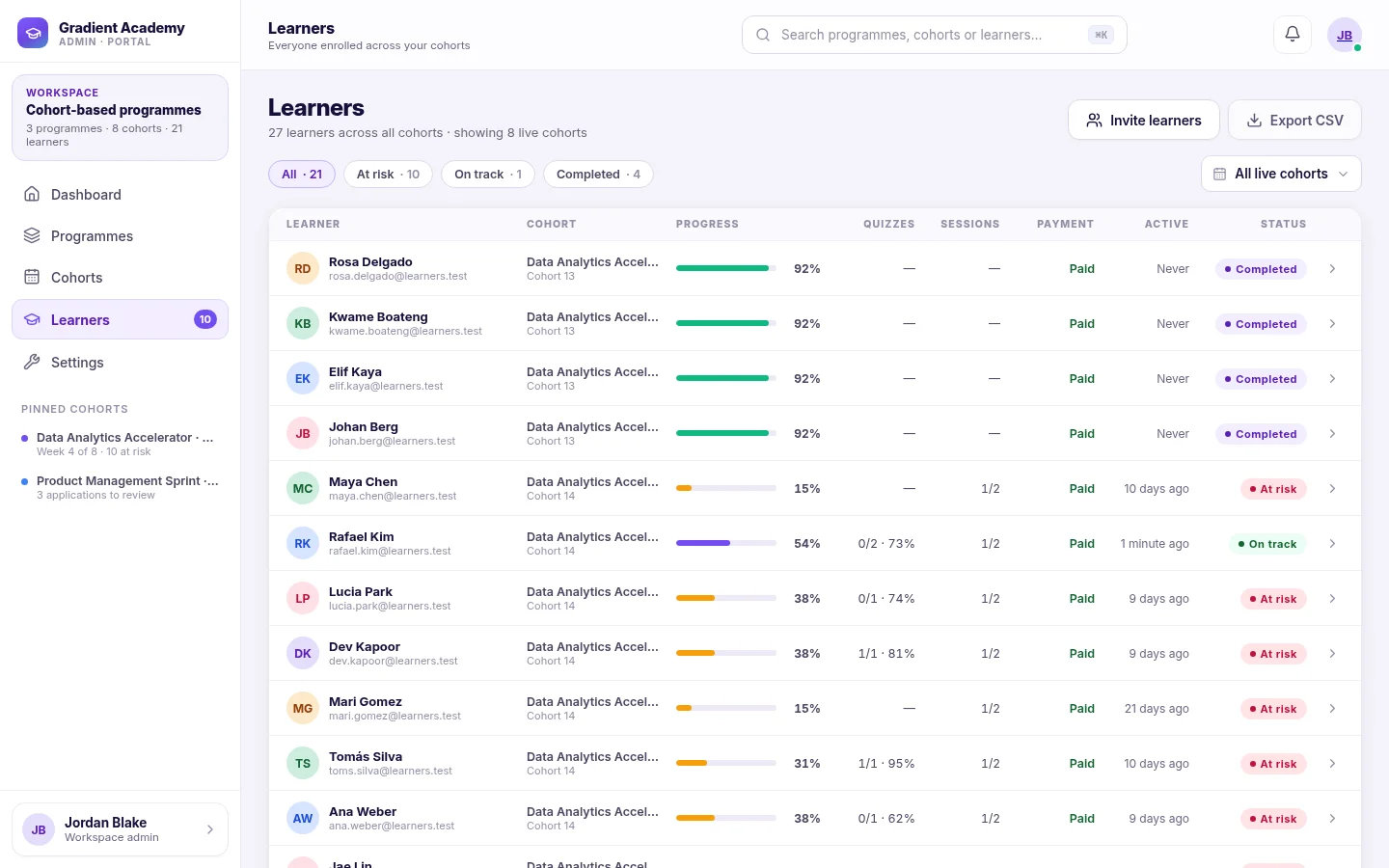
One roster per cohort with progress, quizzes, sessions, payment and status — filter to who needs you.
Cohort-based learning
Program modules become cohort weeks that unlock on schedule, with live sessions and attendance.
Targeted communication
Post announcements, email the whole roster, or nudge every at-risk learner in one click.
Cohort insights
Enrollment, progress, attendance and at-risk counts for each cohort and across the workspace.
See Cohorts in Sublime LMS
Real screens from the cohort console, shown with a fictional demo workspace.
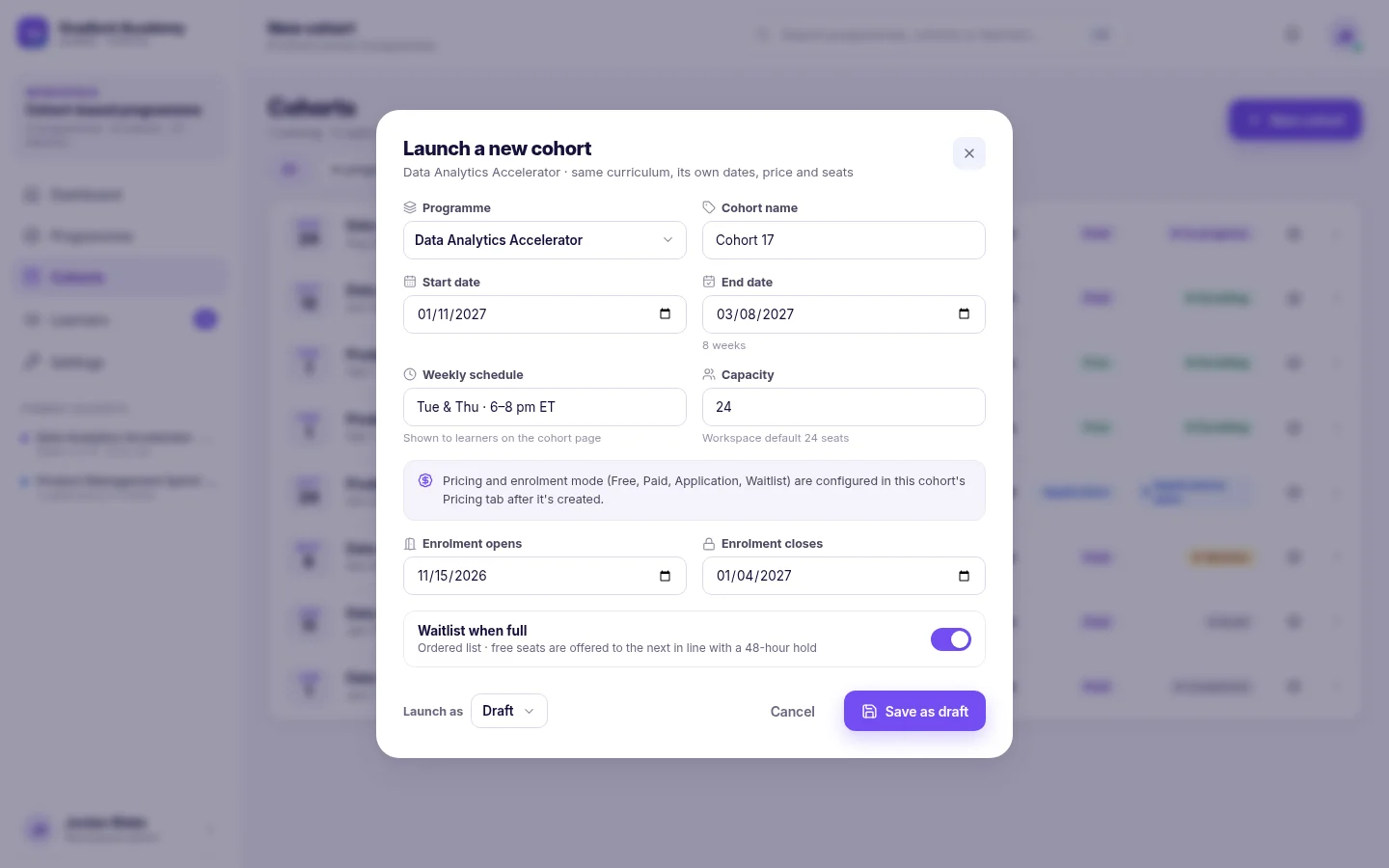
Create cohorts. Each cohort runs one of your programs with its own dates, weekly schedule, capacity and enrollment window. Save it as a draft or open enrollment straight away.
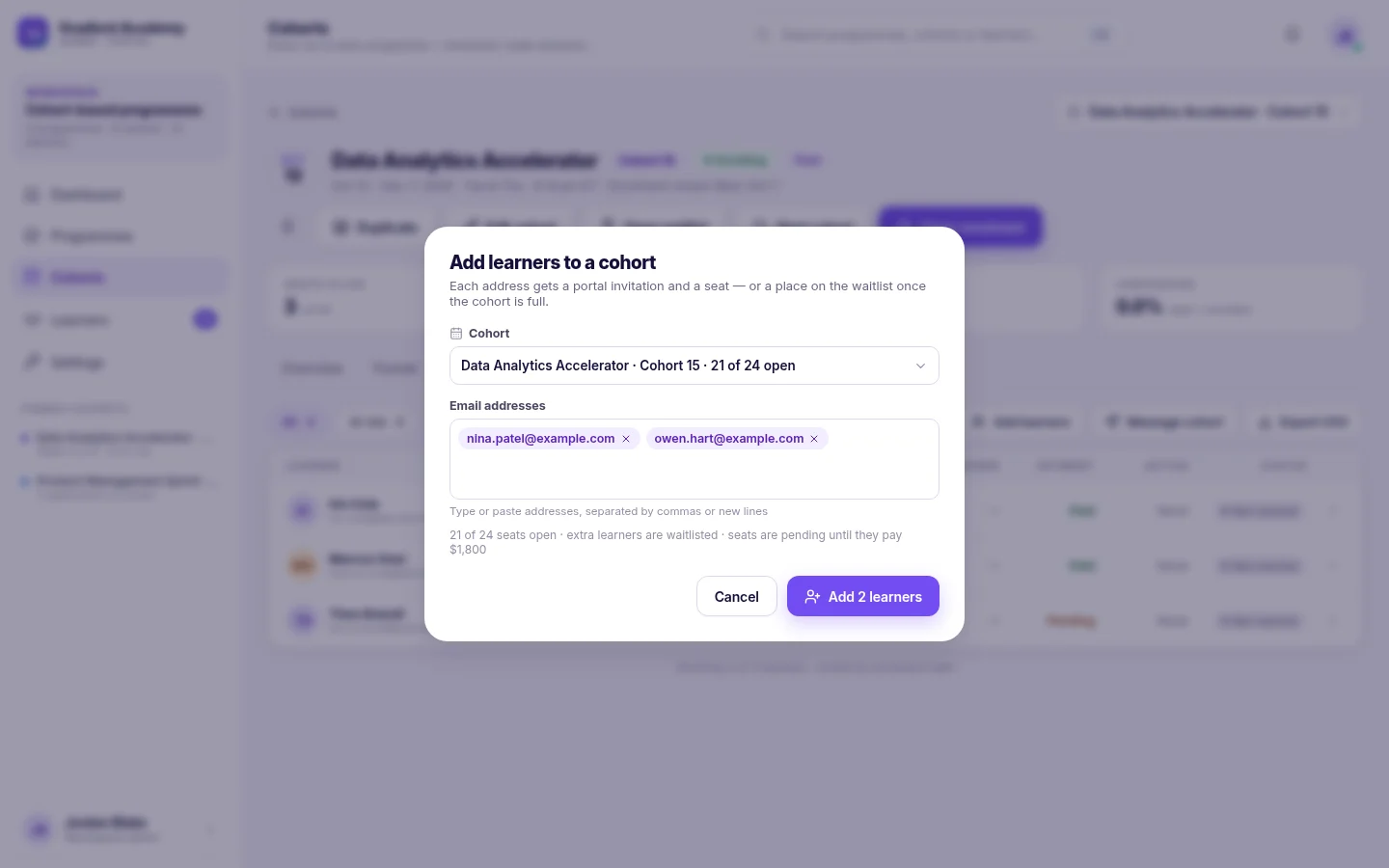
Add learners. Type or paste addresses and each learner gets a portal invitation and a seat. When the cohort is full, the rest are waitlisted — or refused if the waitlist is off.
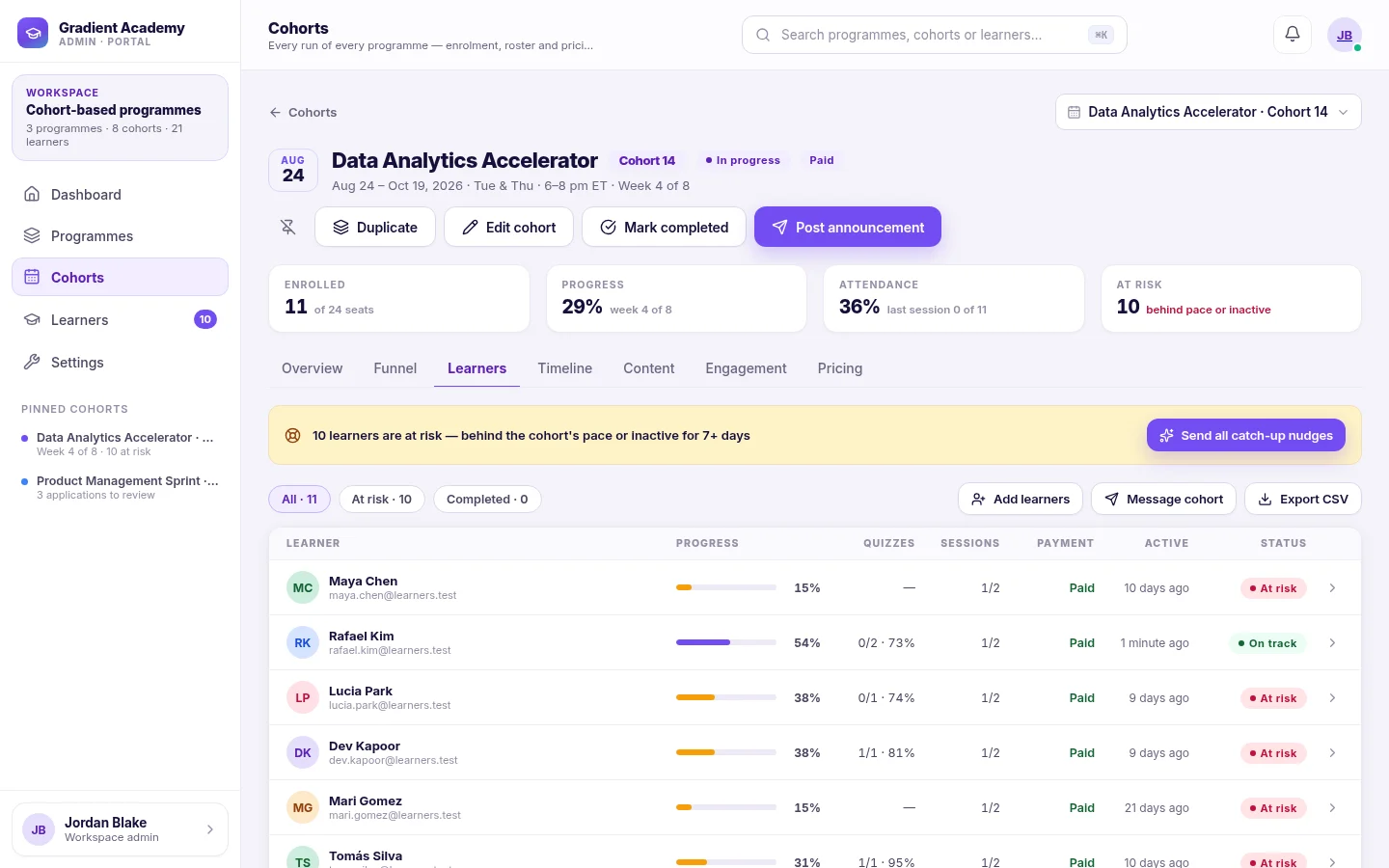
Manage members. See everyone on the cohort with progress, quiz results, session attendance, payment and last activity. Filter to At risk or Completed, message the cohort or export the roster as CSV.
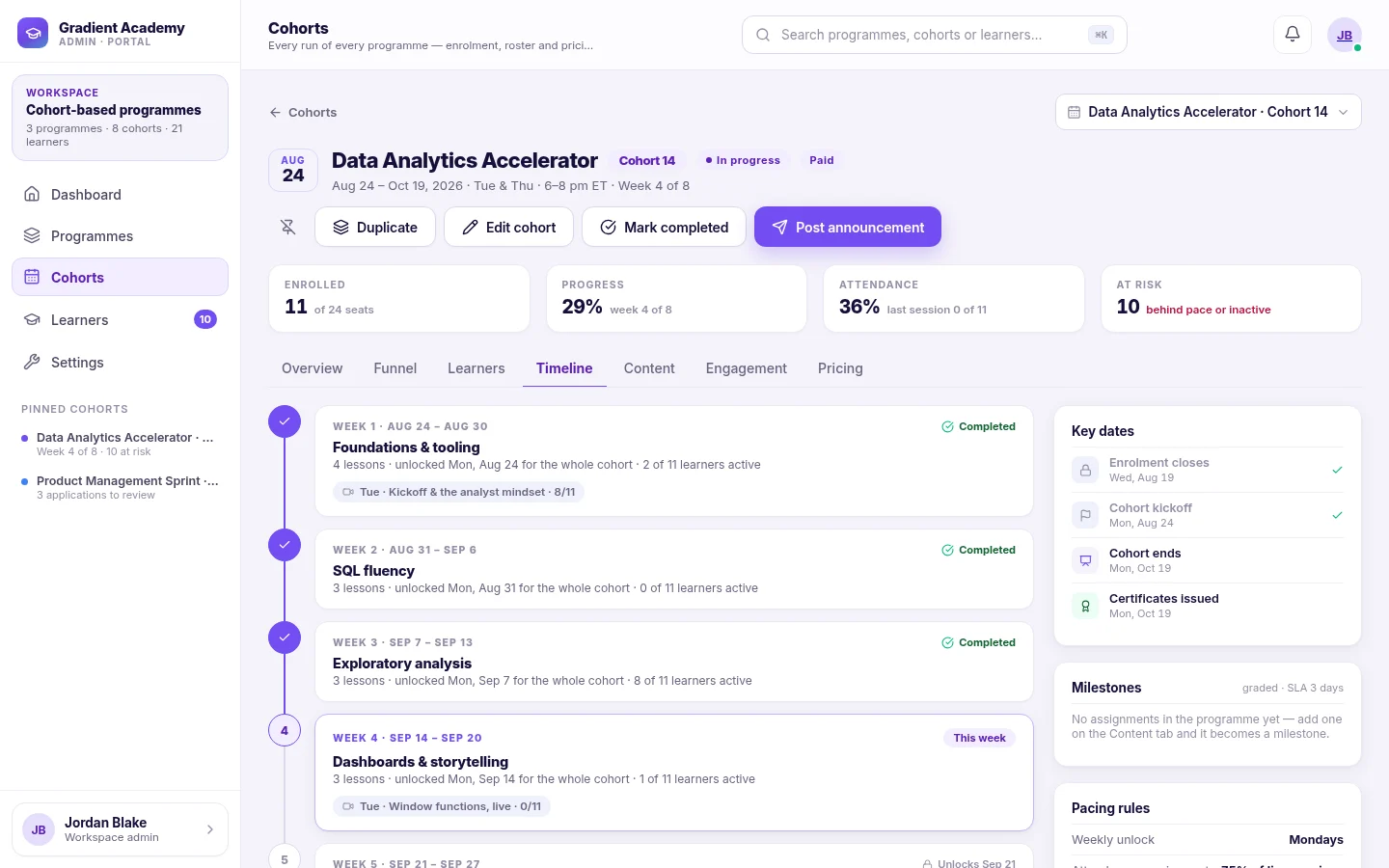
Run the program. The cohort timeline maps each program module to a week that unlocks for the whole cohort, alongside live sessions, key dates and how many learners are active each week.
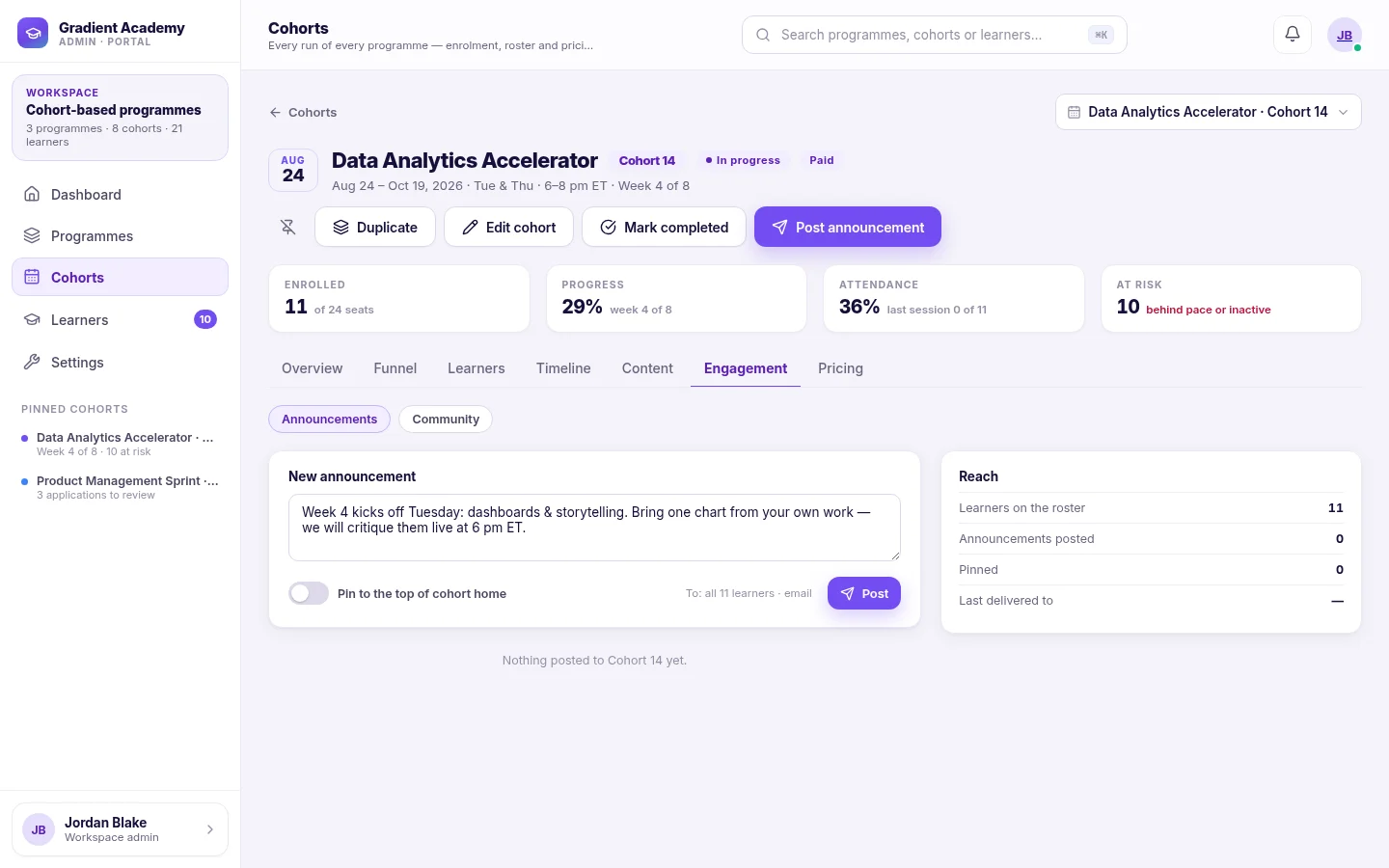
Communicate. Write once and every learner on the roster gets it by email; pin it to the top of the cohort home. You can also email the roster directly or nudge at-risk learners in bulk.
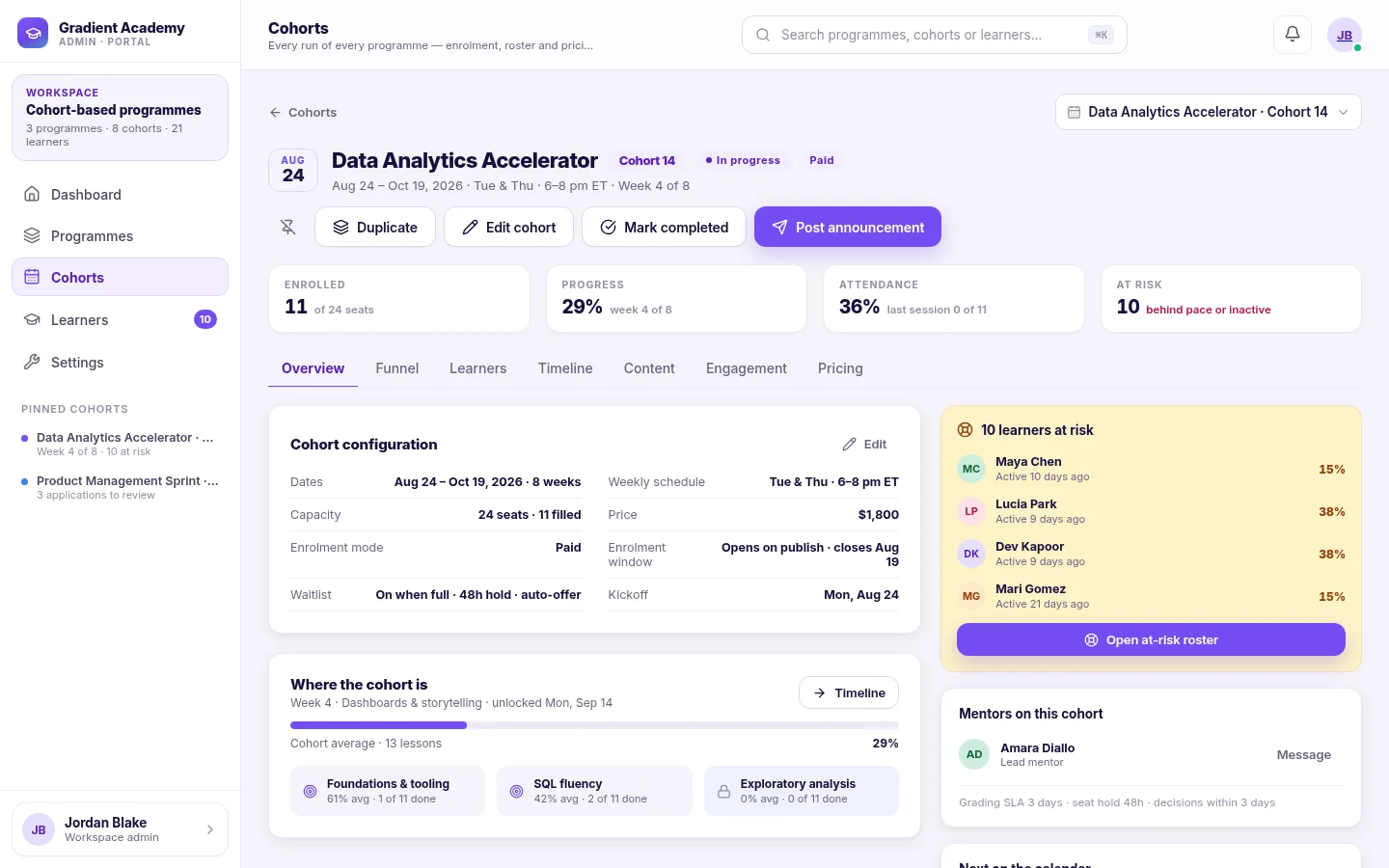
Track activity. Every cohort opens on its numbers — seats filled, average progress, attendance and learners at risk — with its configuration and the at-risk list one click away.
Launch the next run in one form
The same curriculum, with its own dates, price and seats. These are the fields the form actually has.
Name your cohort
Pick the program it runs and give it a name like “Cohort 17”.
Schedule it
Start and end dates, a weekly schedule learners see, and a seat capacity.
Set enrollment
When enrollment opens and closes, and whether a waitlist takes over when it’s full.
Launch
Save as a draft, or create it and open enrollment immediately.
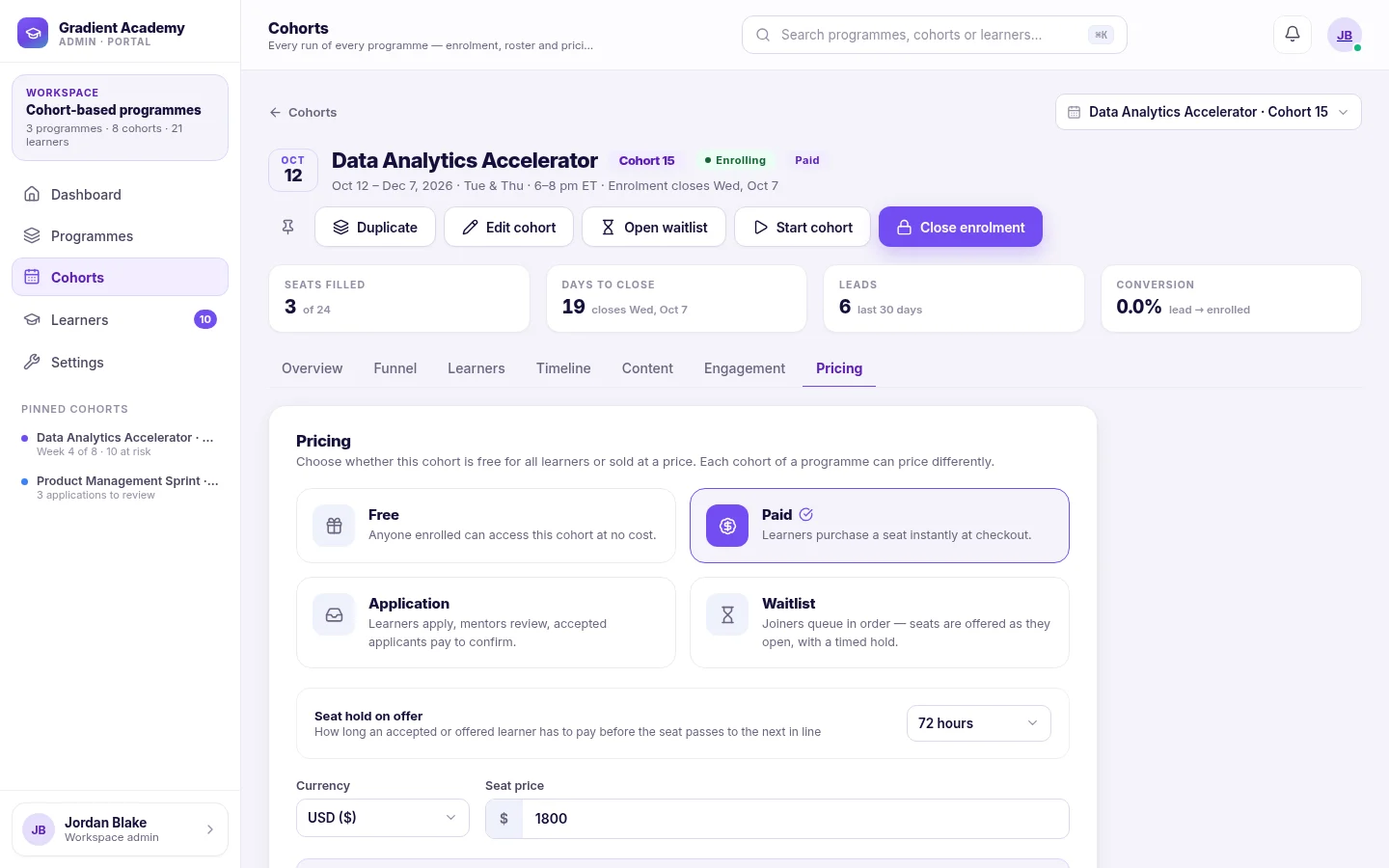
Pricing and enrollment mode — Free, Paid, Application or Waitlist — are set on the cohort’s Pricing tab after it’s created.
Manage your cohort from one place
Quickly see who belongs to a cohort and make membership changes without managing learners individually across multiple screens.
- Add in bulk — paste many emails at once; each gets a seat or a waitlist place.
- Status at a glance — Not started, On track, At risk or Completed, shown in words on every row.
- Filter the roster to At risk or Completed, or view learners across all live cohorts.
- Act on the whole group — message the cohort, send catch-up nudges, export the roster as CSV.
- Handle enrollment — review applications, offer waitlist seats, withdraw a learner.
Connect groups with the right learning
Each cohort runs one program on its own calendar, so the whole group moves through the same weeks together.
What admins see
Modules map to cohort weeks that unlock on schedule, with live sessions and attendance per week.
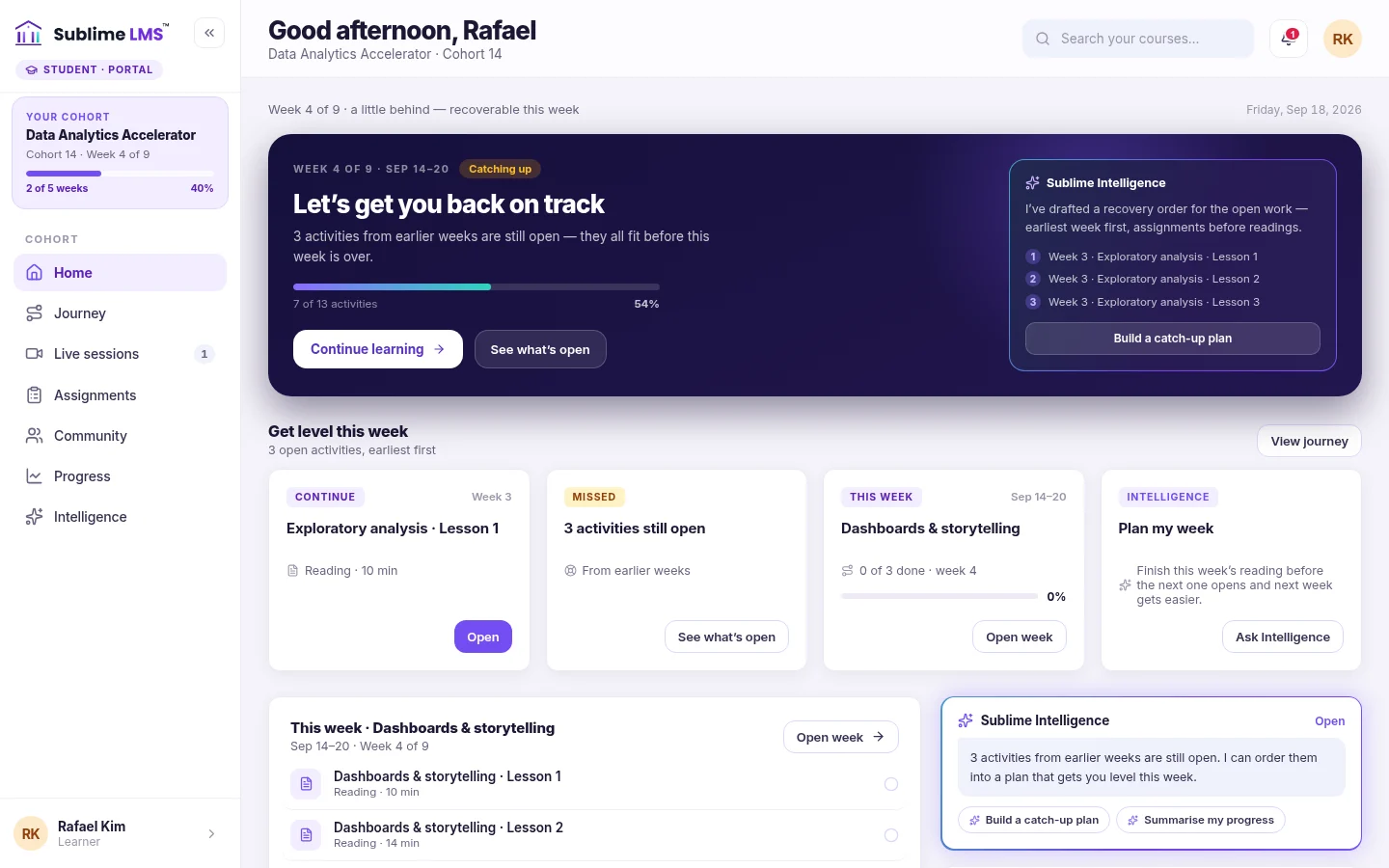
What learners see
Their cohort, the current week and exactly what is still open — so they can catch up before the week ends.
Create. Organize. Manage.
- Step 1
Create
Create a cohort representing a learner group — a scheduled run of a program.
- Step 2
Organize
Add and manage the right learners — invitations, enrollment, waitlist and applications.
- Step 3
Manage
Run the weeks, message the group and follow progress from the cohort console.
Built for programs that run in groups
-
Certification prep
Run each exam-prep intake as its own cohort with fixed dates, seats and a shared weekly pace.
See it in the product — Certification prep -
Workforce programs
Group career-transition or upskilling participants into cohorts and watch who is falling behind.
See it in the product — Workforce programs -
Employee onboarding
Start each new-hire class as a cohort and add the whole class by email in one step.
See it in the product — Employee onboarding -
Academic batches
Give every batch its own roster, calendar and announcements while sharing one curriculum.
See it in the product — Academic batches -
Customer training
Offer free or paid cohorts with an enrollment window and let customers enroll from the cohort page.
See it in the product — Customer training -
Program-based learning
Run the same program again and again — duplicate a cohort to schedule the next intake.
See it in the product — Program-based learning
Reusable groups, less repeat work
A cohort keeps its learners together, so you stop re-selecting the same people for every message, report and enrollment change.
Before Cohorts
- Pick learners one by one for each email or reminder
- Track who is in which intake in a separate spreadsheet
- Manage seats, deadlines and waitlists by hand
- Open each learner to find out who is falling behind
With Cohorts
- Message or nudge the whole roster at once
- One roster per cohort, and one list across cohorts
- Capacity, enrollment window and waitlist set on the cohort
- At-risk learners flagged on the roster automatically
See how Cohorts simplify learner management
Discover how structured learner groups can make learning administration easier to manage at scale.