Deliver training through an engaging video learning experience
Bring training videos into structured learning experiences so learners can watch, progress and continue through their training in one place.
- Resume where you left off
- Captions and transcript
- Real viewing, not just clicks
Video lessons inside structured training
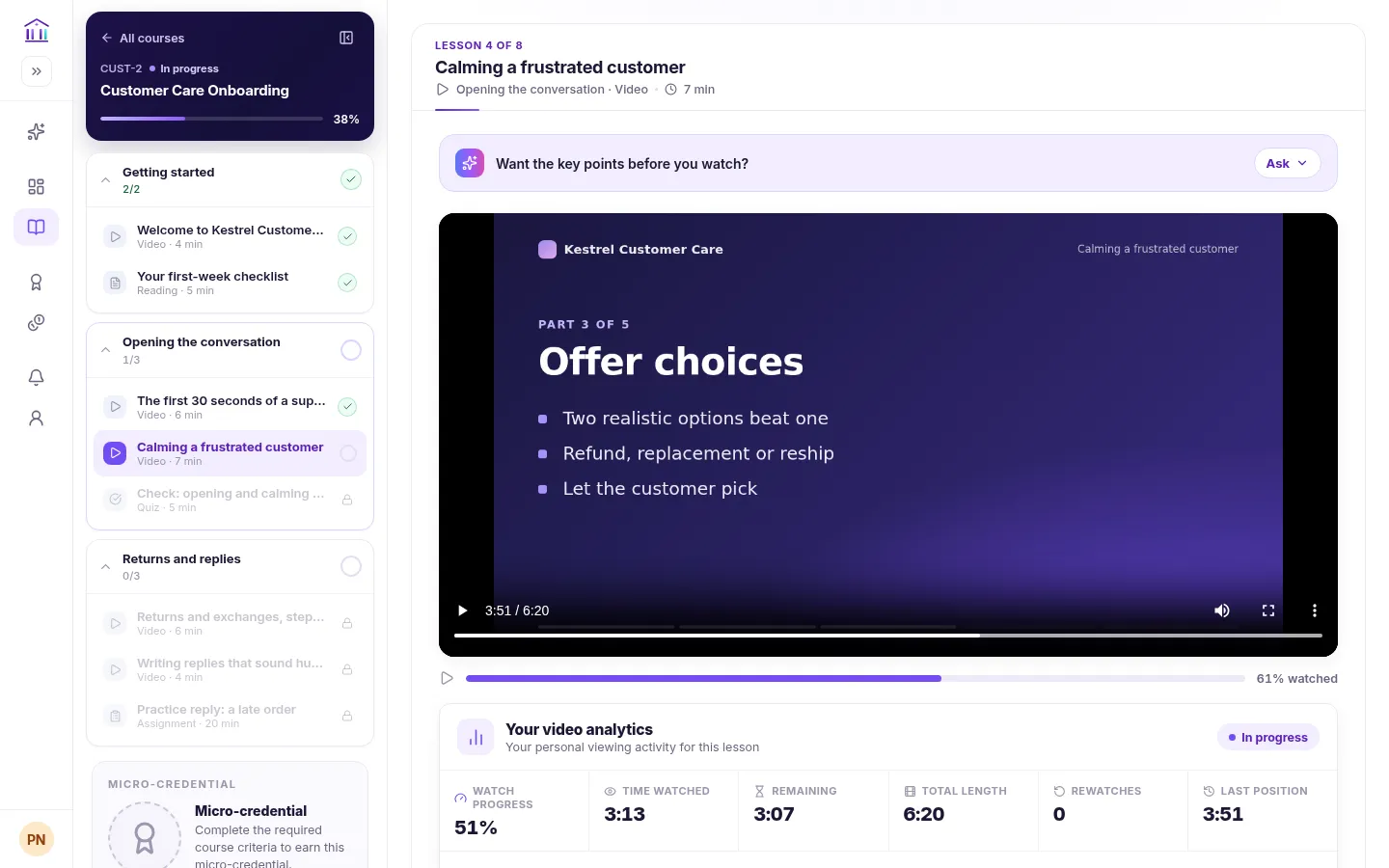
A training video is a lesson in a course, alongside readings, quizzes and assignments, so watching counts toward the same progress.
Upload or link
Upload a short video file, or link a YouTube or Vimeo video or a hosted MP4 or WebM file.
Captions and transcript
Add a caption file for on-screen captions and a transcript learners can click to jump to that moment.
Pick up where they left off
Each video reopens at the learner’s last position, including on another device.
Real viewing, second by second
Sublime records which parts of a video were actually watched, so skipped sections show up for learners and staff.
Completion and progress
A video completes when it plays to the end or the learner marks it watched, and course progress updates straight away.
A clear next step
Lessons can unlock in order, so the quiz or video that follows opens once the one before it is done.
From opening a course to the next lesson
What a learner actually does. Select a step to see that screen.
-
Open training
The dashboard shows the next lesson in each assigned course.
See the screen -
Watch the video
The player opens at the lesson, where the learner left off.
See the screen -
Follow along
Captions on the video, and a transcript that jumps to any line.
See the screen -
Complete the video
Watch to the end, or mark the video watched.
See the screen -
Progress updated
Course progress moves on and the next lesson unlocks.
See the screen -
Continue learning
Go straight to the next lesson, or come back to it from the dashboard.
See the screen
The video experience, screen by screen
Real screens from the Sublime LMS student portal, shown with a fictional onboarding course.
Resume playback. Opening a video lesson returns the learner to their last position, saved as they watch and kept across devices. The course outline shows what’s done, what’s current and what’s still locked.
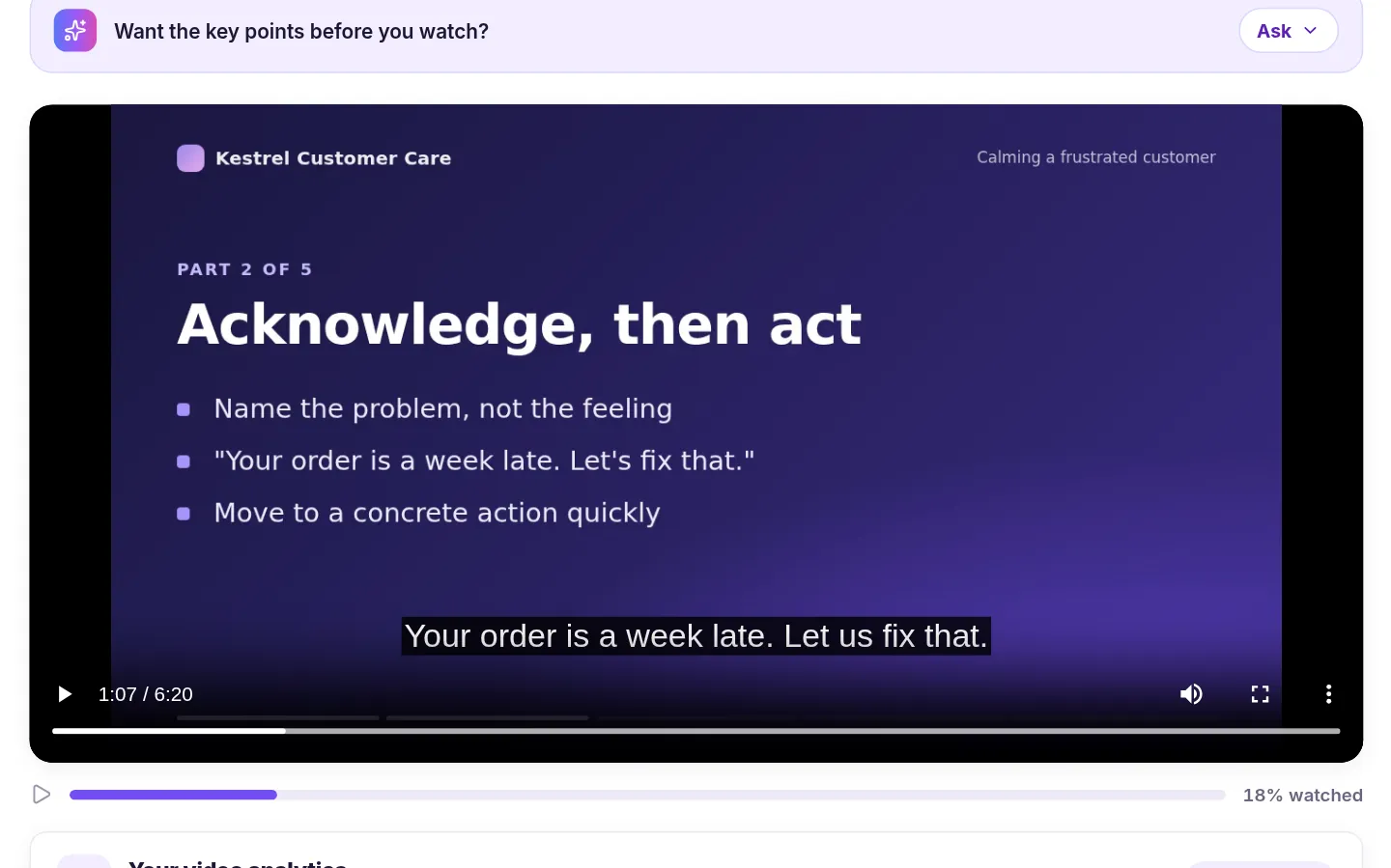
Captions. When a caption file is attached, captions appear on the video. Uploaded videos play in the browser’s own player, with its play, volume and full-screen controls.
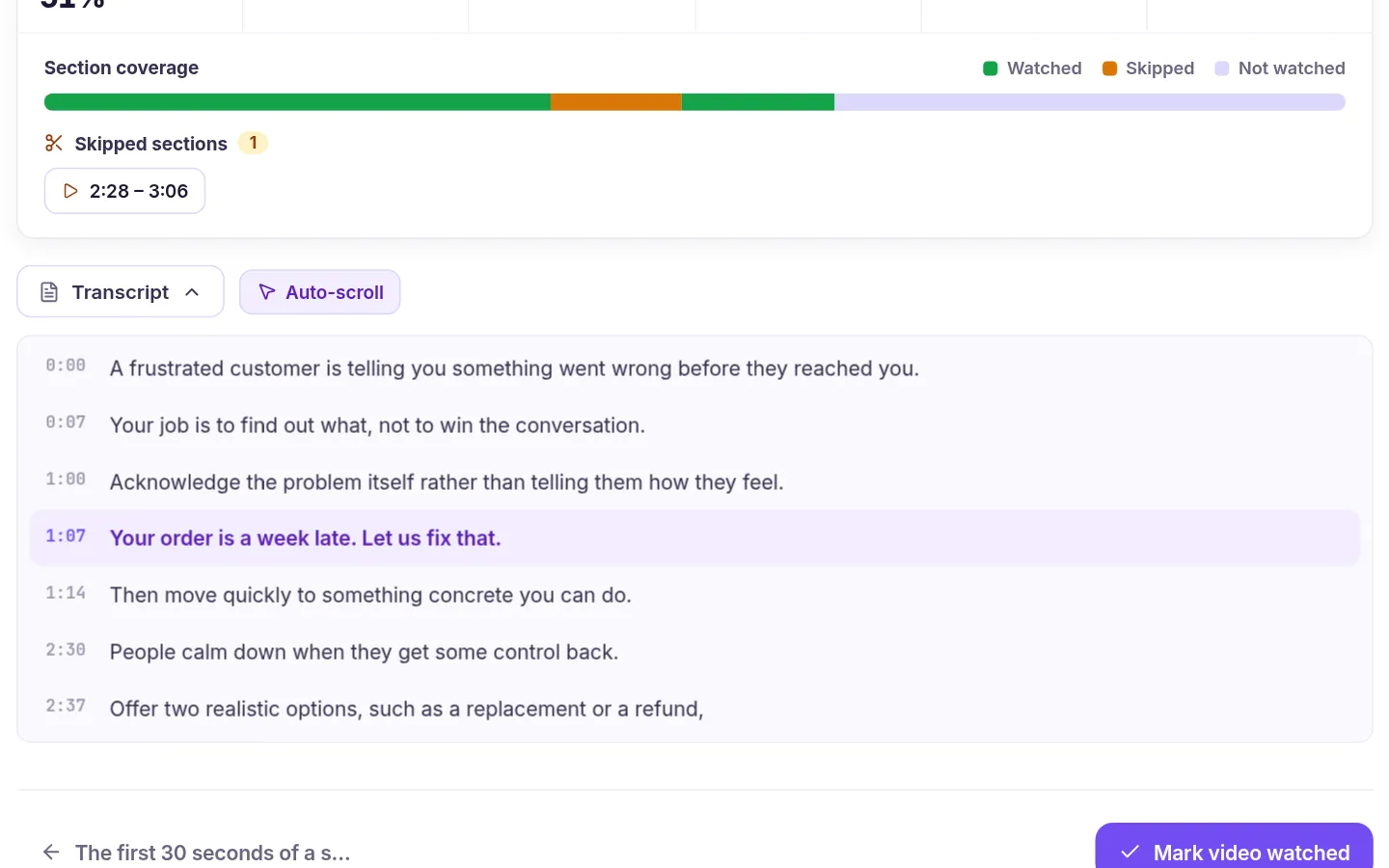
Interactive transcript. Captions also power a transcript under the video. The current line is highlighted as the video plays, and clicking any line jumps the video to it. Without a caption file, a plain-text transcript can be shown instead.
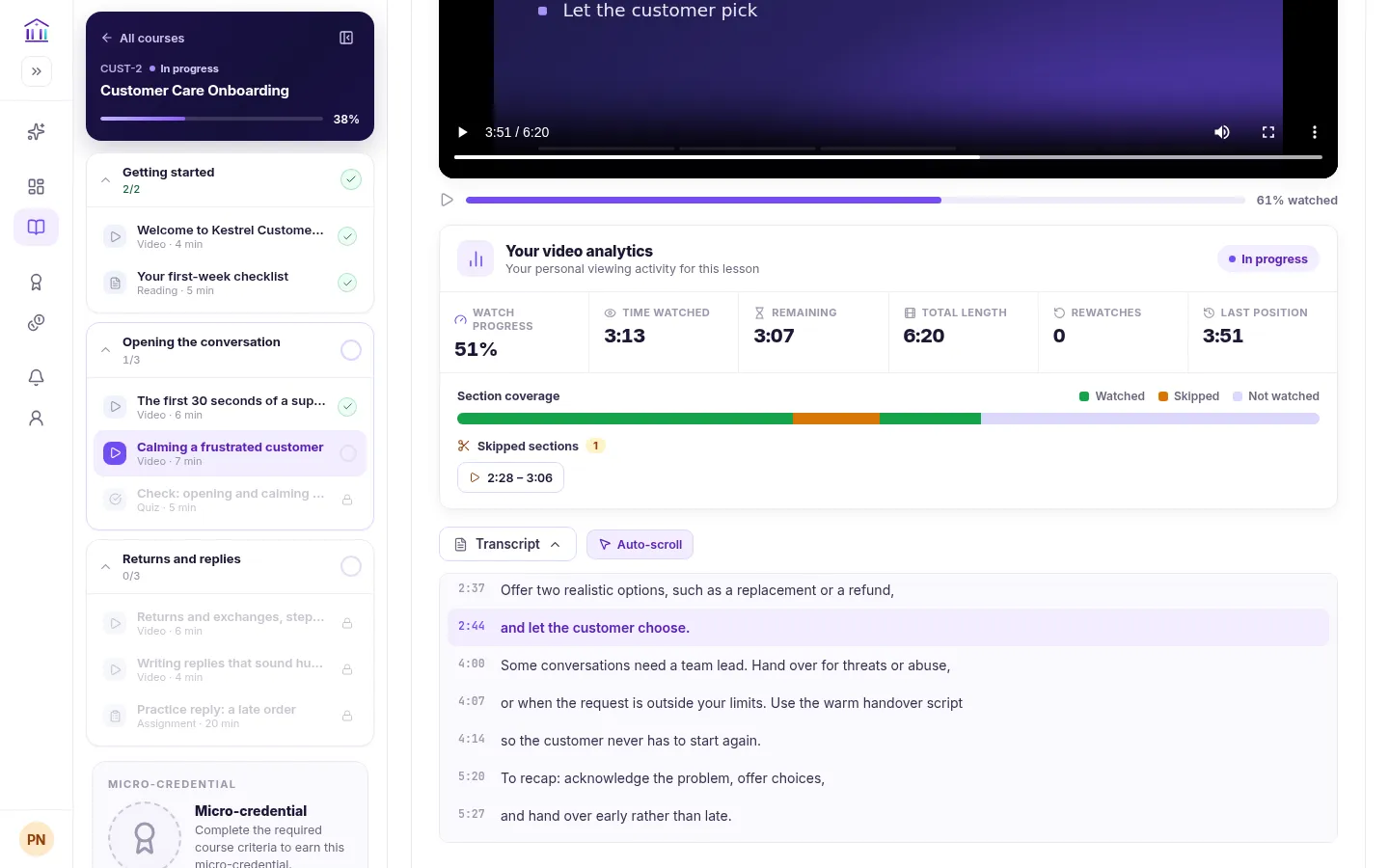
Your viewing. Each learner sees their own viewing for the lesson: how much of the video they’ve watched, time watched and remaining, rewatches, last position, and any sections they skipped, each one a link back to that point.
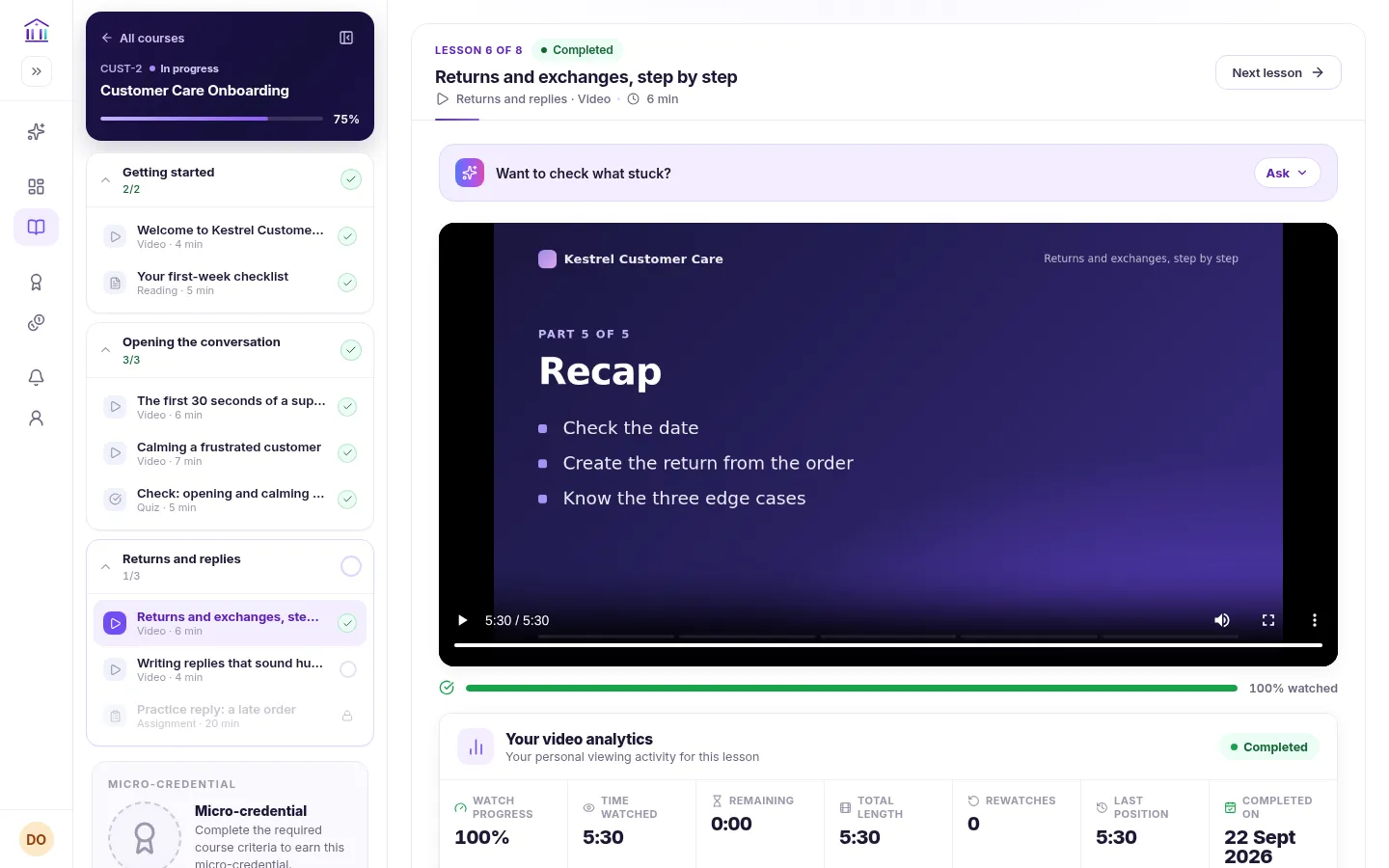
Completion and progress. When the video plays to the end, the lesson is marked complete, course progress updates and the next lesson unlocks. Learners can also mark a video watched themselves, so completion doesn’t on its own prove the whole video was viewed. The viewing figures show that.
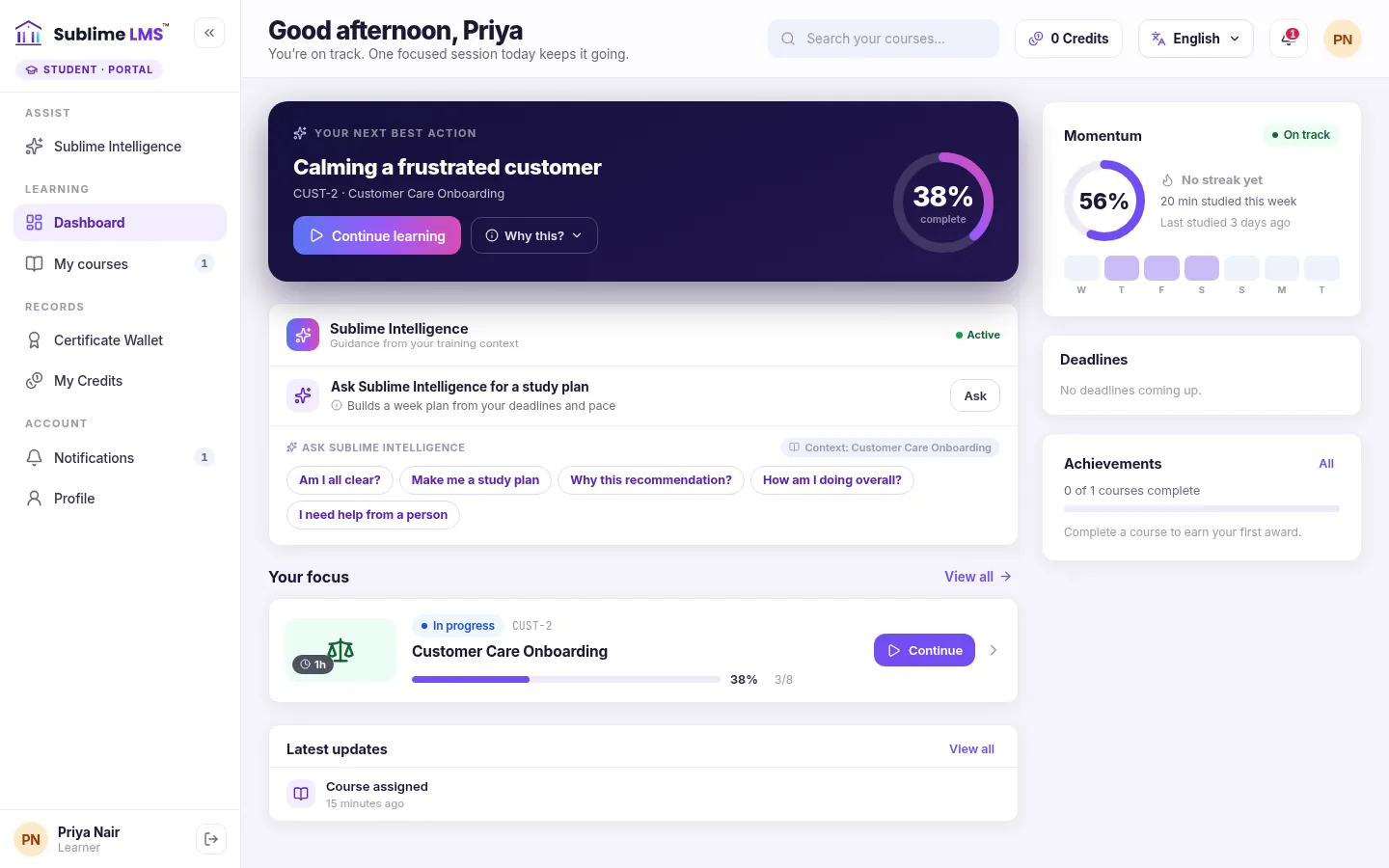
Continue learning. The learner dashboard shows each assigned course with its progress and a Continue button, and highlights the next lesson to pick up.
Set up videos and see how they’re watched
What admins see in the admin portal for the same course.
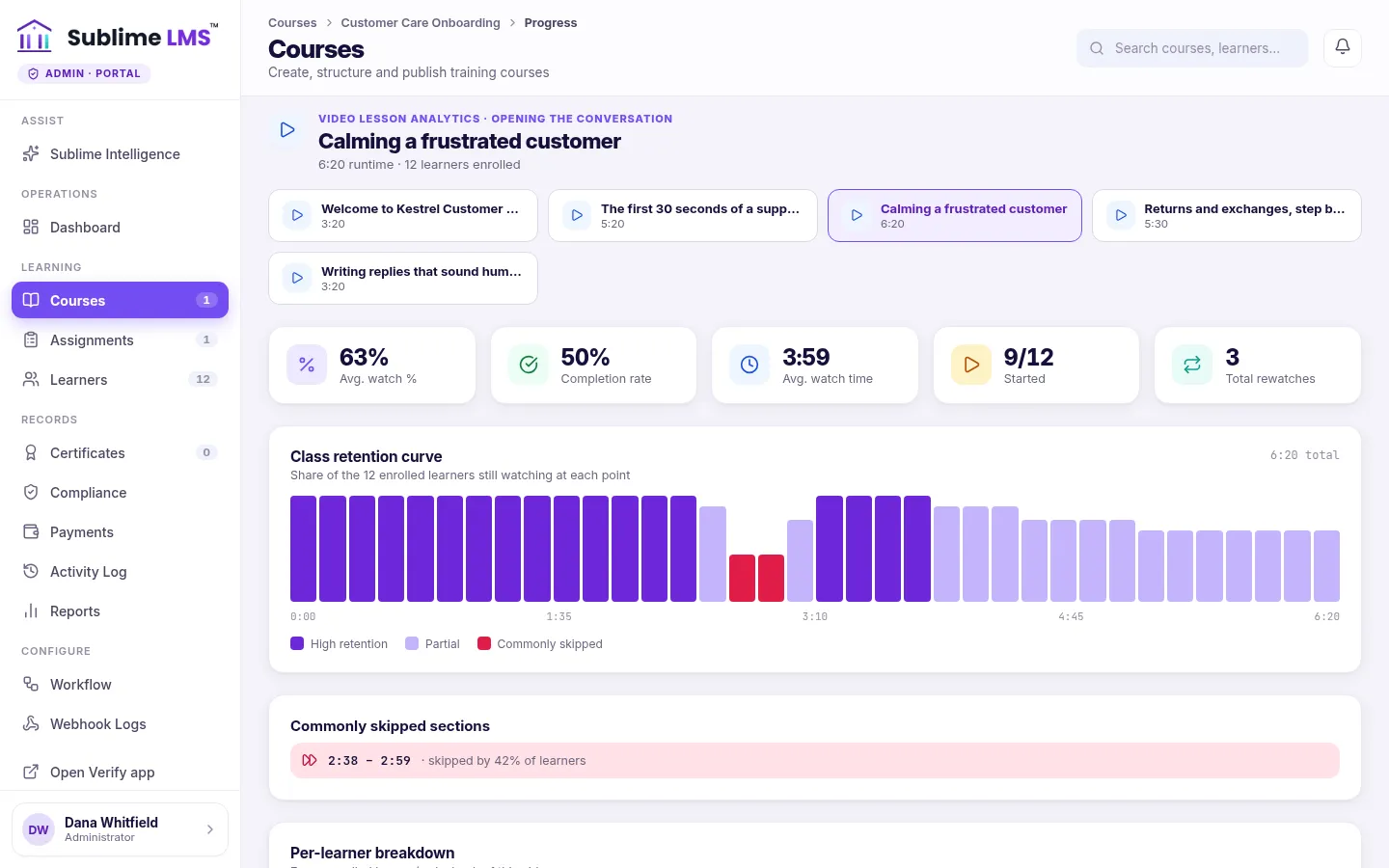
Class video analytics. For each video lesson, admins see average watch percentage, completion rate, average watch time, how many learners started and total rewatches, a retention chart across the runtime, and the sections many learners skipped.
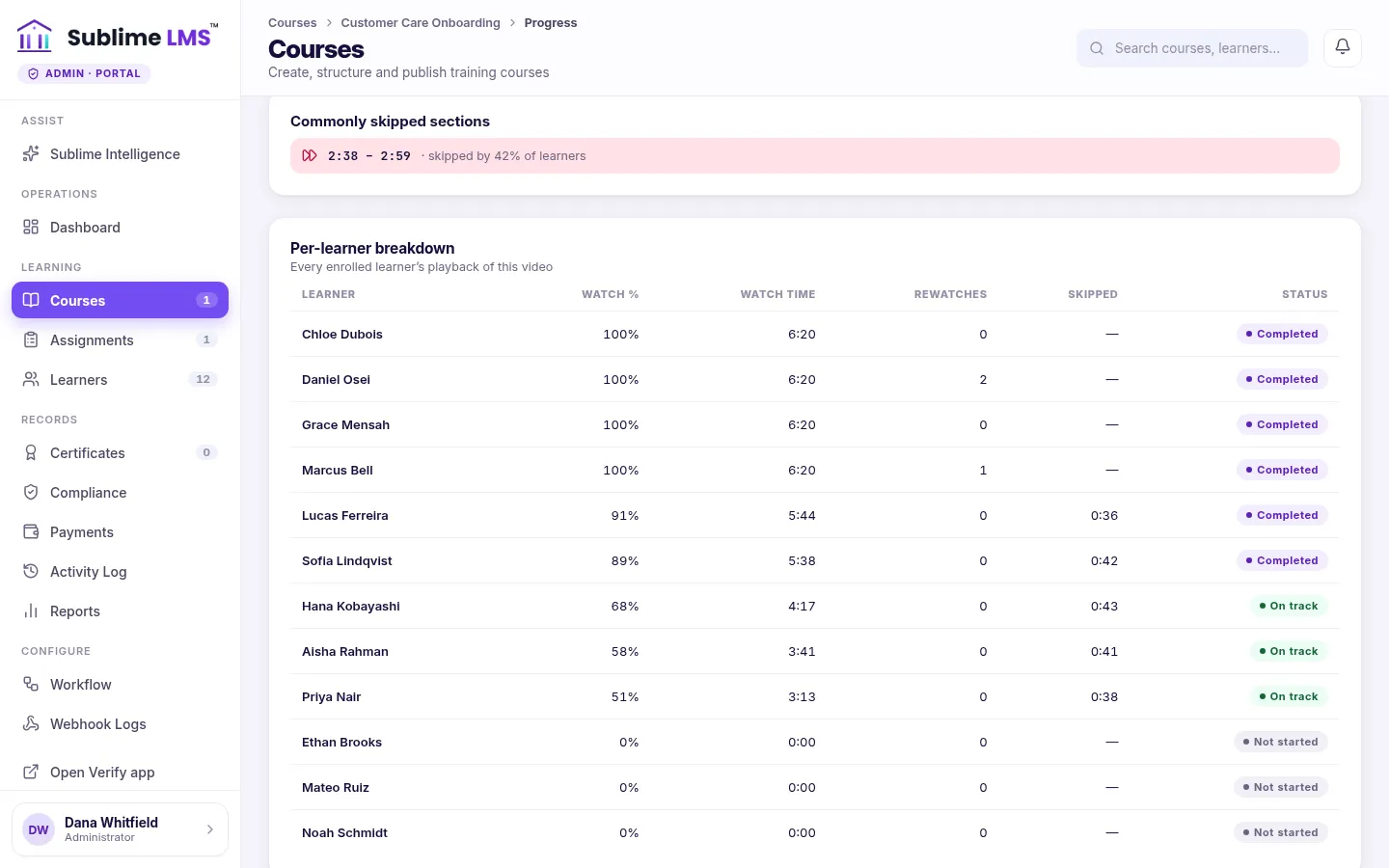
Per-learner breakdown. The same screen lists every enrolled learner with watch percentage, watch time, rewatches, time skipped and status. The cohort console shows the same analytics for one cohort’s learners.
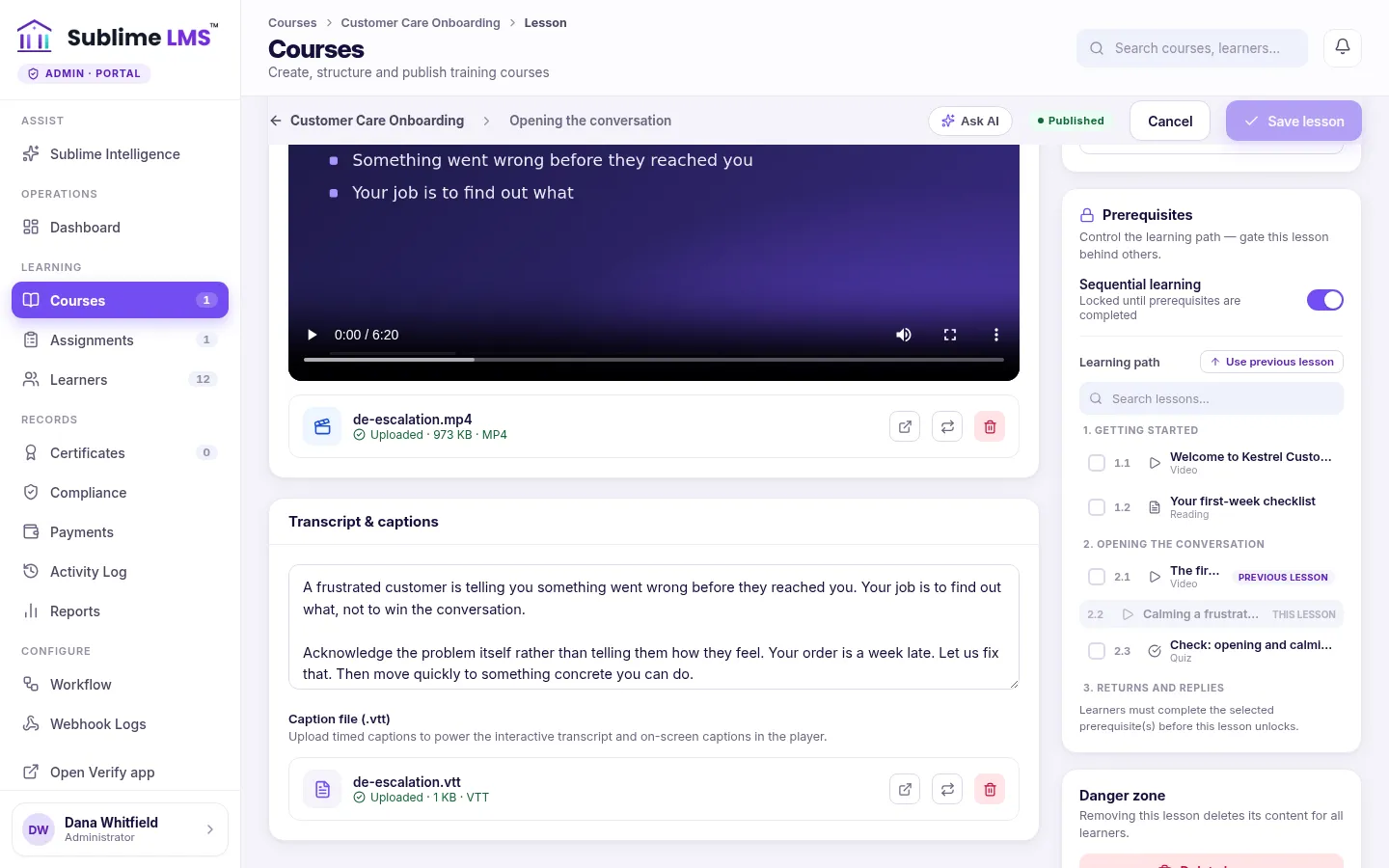
Adding a video. In the lesson editor, upload a video file or paste a YouTube, Vimeo or direct video link, add a transcript, and upload a caption file. Sequential learning keeps the lesson locked until earlier lessons are complete.
Every capability, as it works today
Watching and progress
- Playback
- Uploaded videos and direct video links play in the browser’s own video player. YouTube and Vimeo videos play in their own embedded players.
- Resume
- The last position is saved while the learner watches and restored when they come back, on any device. This works for uploads, direct files, YouTube and Vimeo.
- Captions and transcript
- With a caption file, learners get on-screen captions and an interactive transcript that highlights the current line and jumps to any line they click. A plain-text transcript can be shown instead.
- Your viewing
- Watch progress, time watched and remaining, rewatches, last position and skipped sections, built up across every session.
- Completion
- A video lesson completes when it plays to the end, or when the learner selects Mark video watched. There’s no minimum watch percentage.
- Moving on
- Completing a video updates course progress. Previous and Next buttons move through the course, and lessons set to unlock in order open once the lessons before them are complete.
- With quizzes and assignments
- Videos sit in the same modules as readings, quizzes and assignments, and all of them count toward course completion.
- Learning mentor
- On plans with Sublime Intelligence, learners can ask the mentor about a video lesson. Summaries of a video’s key points need a transcript.
Setting up and tracking
- Video sources
- Upload an MP4, MOV or WebM file, or link a YouTube or Vimeo video or a direct MP4 or WebM file. Uploads are meant for short clips; for longer videos, use a link.
- Captions
- Admins can upload a WebVTT (.vtt) caption file to a video lesson and add a plain-text transcript.
- Lesson order
- Sequential learning, set per lesson, keeps a lesson locked until the lessons before it are complete. Cohorts can also open modules week by week.
- Class analytics
- For each video: average watch percentage, completion rate, average watch time, learners started, rewatches, a retention chart and commonly skipped sections.
- Per-learner detail
- Every enrolled learner’s watch percentage, watch time, rewatches, skipped time and status. Instructors see video viewing for learners in the courses they teach.
- What can be tracked
- Viewing is recorded for every supported source: uploads, direct video files, YouTube and Vimeo. Links from other video hosts aren’t supported, and the editor flags them.
- Who can edit
- Admins manage video lessons across the workspace. Instructors can edit video lessons, including the video and transcript, in the courses they teach.
Video hosting and streaming are subject to your plan’s fair-use limits. See pricing.
Where training videos fit
Employee training
Required training that counts toward completion, with a record of who watched what.
See it in the product — Employee trainingOnboarding videos
A new starter’s first weeks as short videos, unlocked in order and followed by a quick check.
See it in the product — Onboarding videosInstructional lessons
Step-by-step lessons with captions and a transcript learners can search by eye and jump through.
See it in the product — Instructional lessonsProduct and customer training
Link videos you already host on YouTube or Vimeo and still see how far people watch.
See it in the product — Product and customer trainingCohort-based video learning
Weekly modules that open on the cohort’s schedule, with the same video analytics for the cohort.
See it in the product — Cohort-based video learning
A clear, visual format inside structured training
One place to learn
Videos, readings, quizzes and assignments live in the same course, so learners don’t switch between tools.
Progress you can trust
Completion shows who finished a lesson. Viewing data shows how much of the video they actually watched.
Always a next step
Learners resume where they stopped and move straight on to the next lesson in the course.
Put your training videos on a learning path
See how video lessons, progress and viewing analytics fit the training you run.