Keep learning on track with regular knowledge checks
Use weekly quizzes to reinforce learning, check understanding and give learners a clear recurring assessment experience.
- Opens with each cohort week
- Scored the moment it’s submitted
- Per-question results for instructors
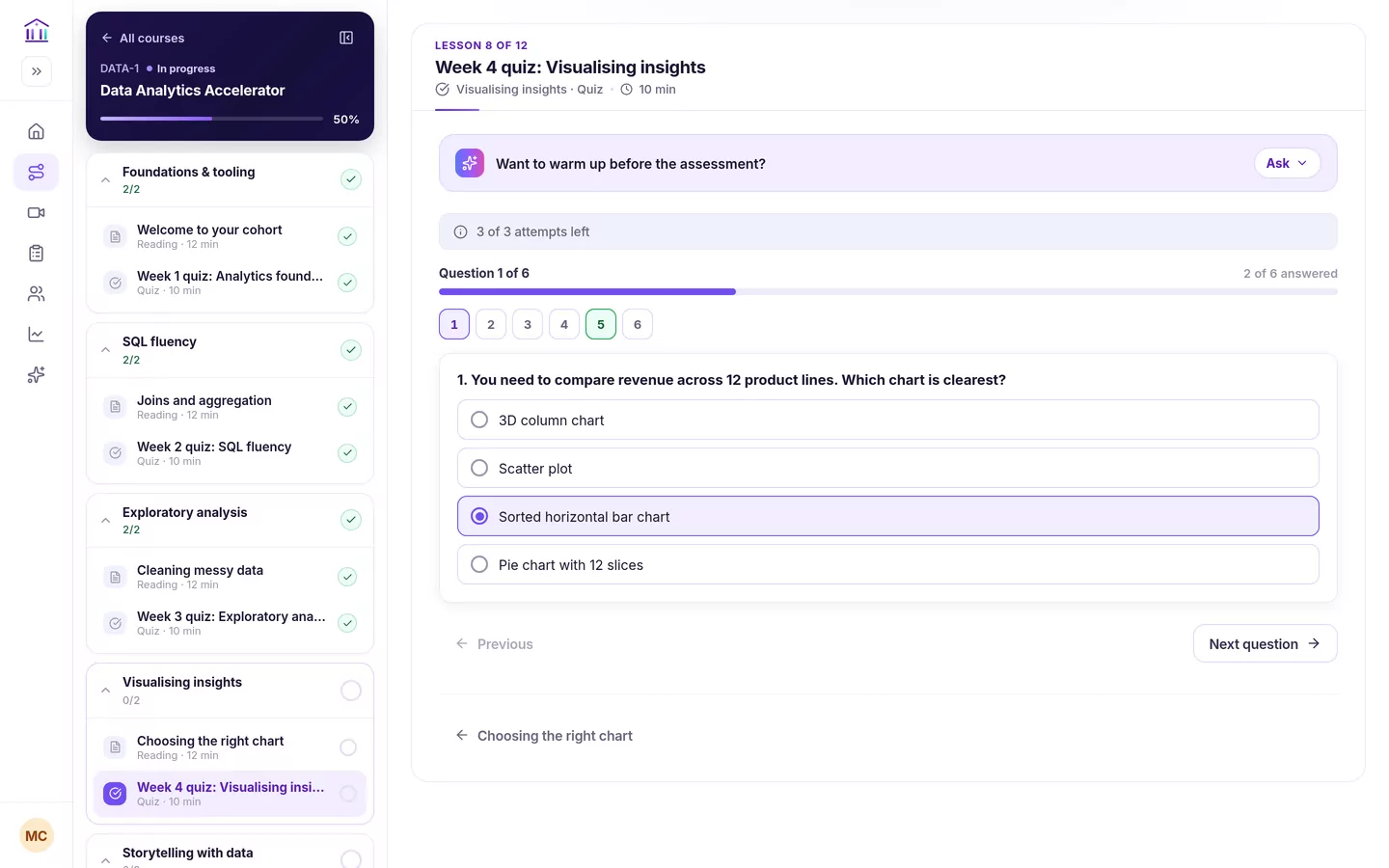
A knowledge check in every week
A quiz is a lesson inside a course module. When a cohort runs the course, each module becomes a week that unlocks on its date, so each week’s quiz opens with it.
Opens with the week
The quiz sits in the week’s module and unlocks for the whole cohort on that week’s date.
Seven question types
Single and multiple choice, true/false, matching, ordering, scenario and short answer.
Pass mark and attempts
Set the score to pass and how many attempts each learner gets, quiz by quiz.
Instant results
Marked on the server as soon as it’s submitted: score, correct answers, pass or not.
Part of the learning path
A passed quiz completes the lesson and counts toward course progress and, where the course issues one, the certificate.
Results for instructors
Average score, pass rate and how the class answered every question.
From opening the week to moving on
What a learner actually goes through. Select a step to see that screen.
-
Week unlocks
The week’s module opens for the cohort, with its quiz listed alongside the lessons.
See the screen -
Open the quiz
Learners see how many attempts they have left before they start.
See the screen -
Answer
One question per screen, or every question on one page.
See the screen -
Submit
Every question needs an answer; a final attempt asks for confirmation.
See the screen -
See the result
Score, correct count and pass mark, with the answers reviewed.
See the screen -
Retake or move on
Retake while attempts remain, or continue to the next lesson.
See the screen
The quiz experience, screen by screen
Real screens from the Sublime LMS student portal, shown with a fictional demo cohort.
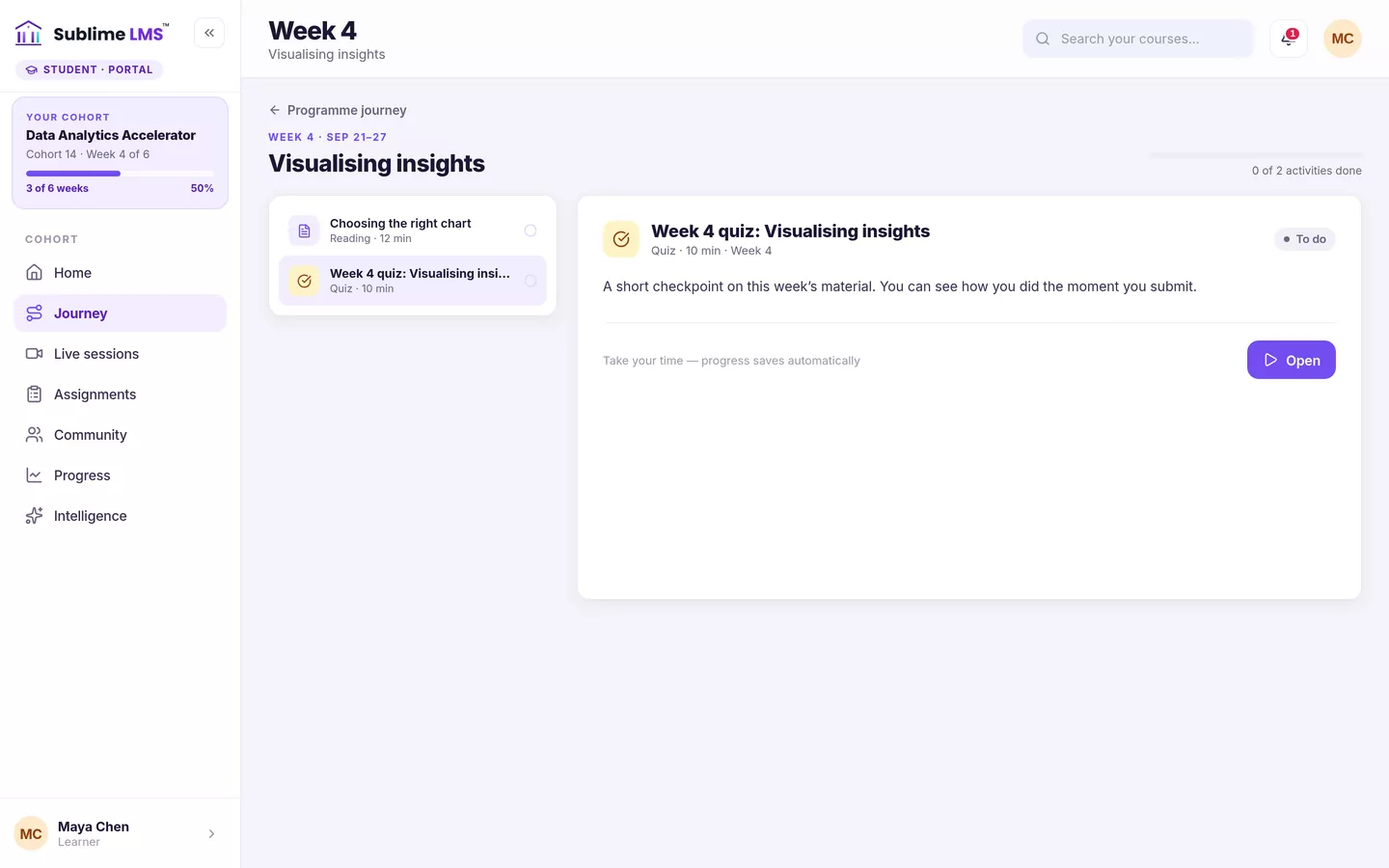
This week’s quiz. Each cohort week lists its activities. The quiz shows its length and whether it is still to do, and opens in the course player.
One question per screen. With one question per screen, learners see “Question X of N”, a progress bar and a numbered strip to jump to any question, and move with Previous and Next.
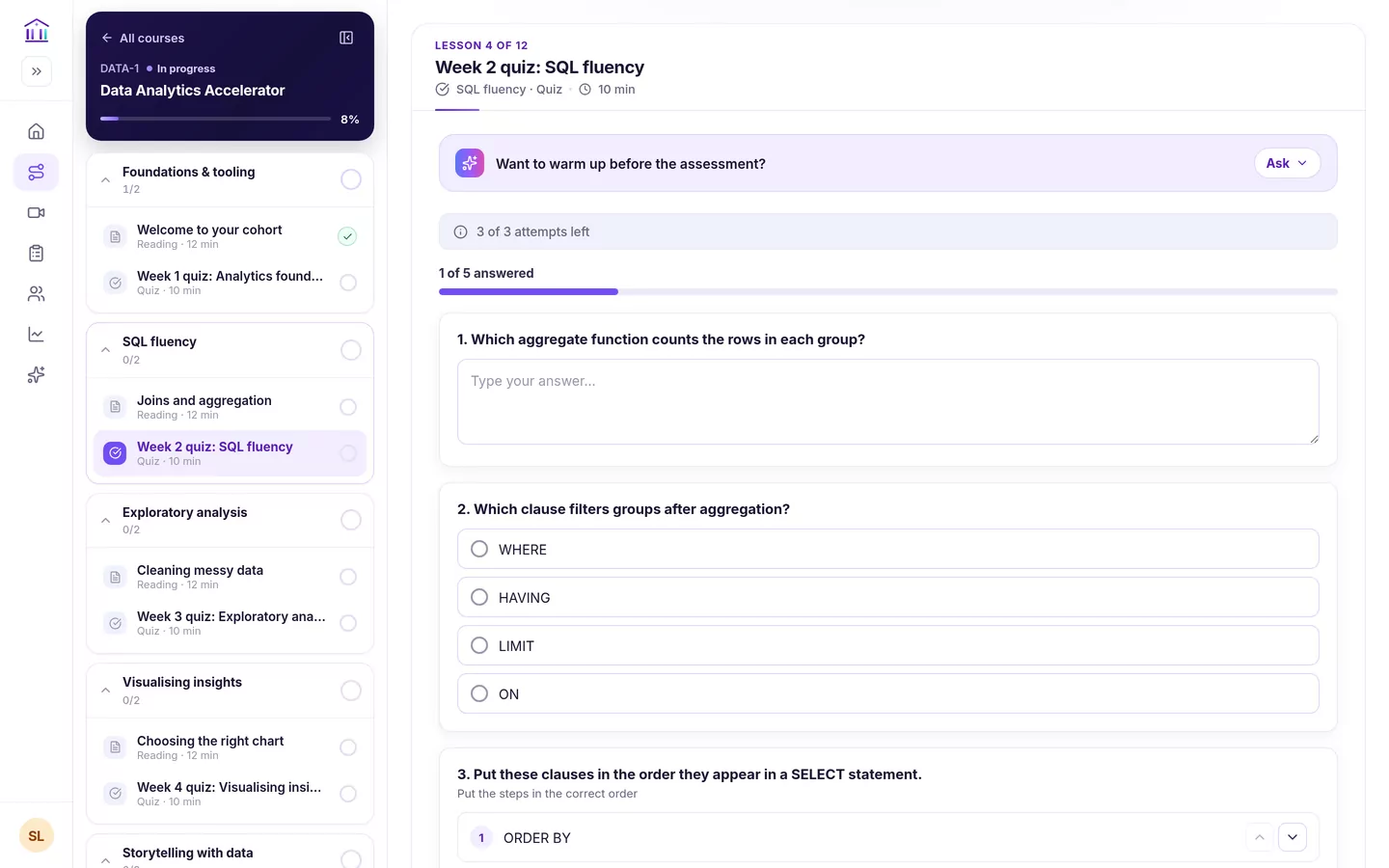
All questions on one page. Or show every question on one page, with a bar counting how many are answered. Short-answer, choice and ordering questions sit together in one quiz.
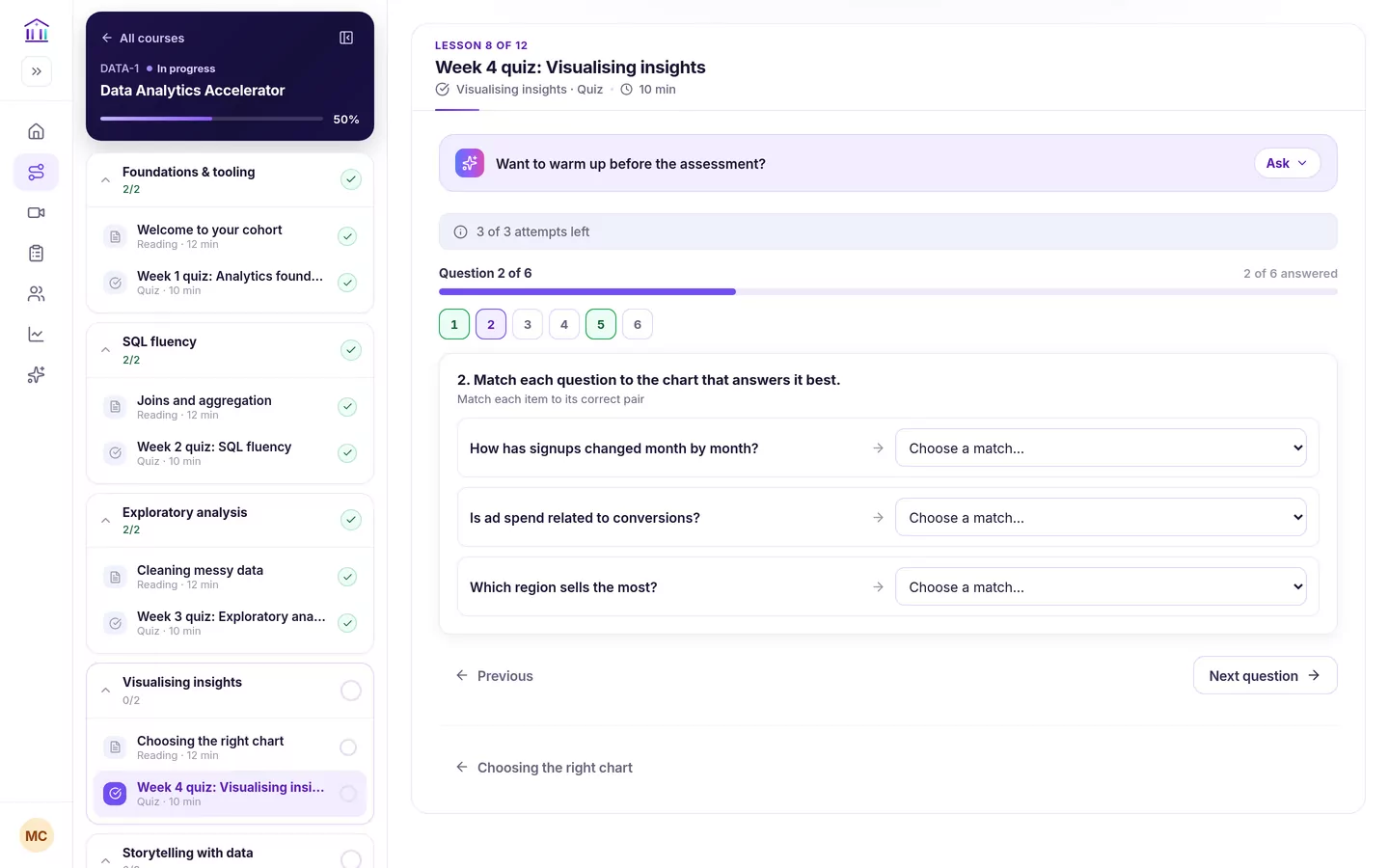
Question types. Seven types: single choice, multiple choice, true/false, matching, ordering, scenario and short answer. Short answers are marked against accepted answers or required keywords.
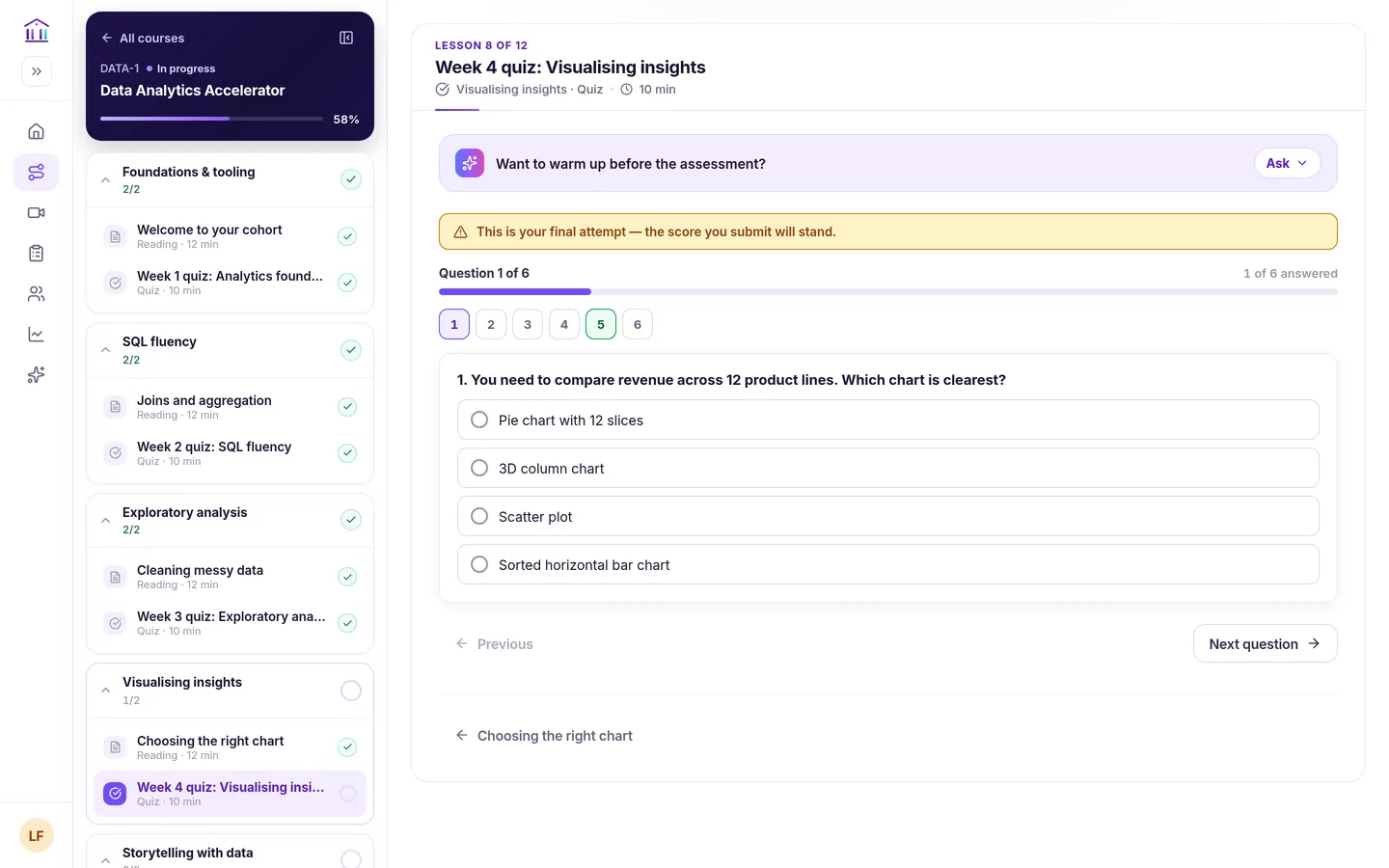
Attempts and submission. Learners always see how many attempts remain. On the last one the quiz says so, and submitting asks for confirmation. Every question must be answered first.
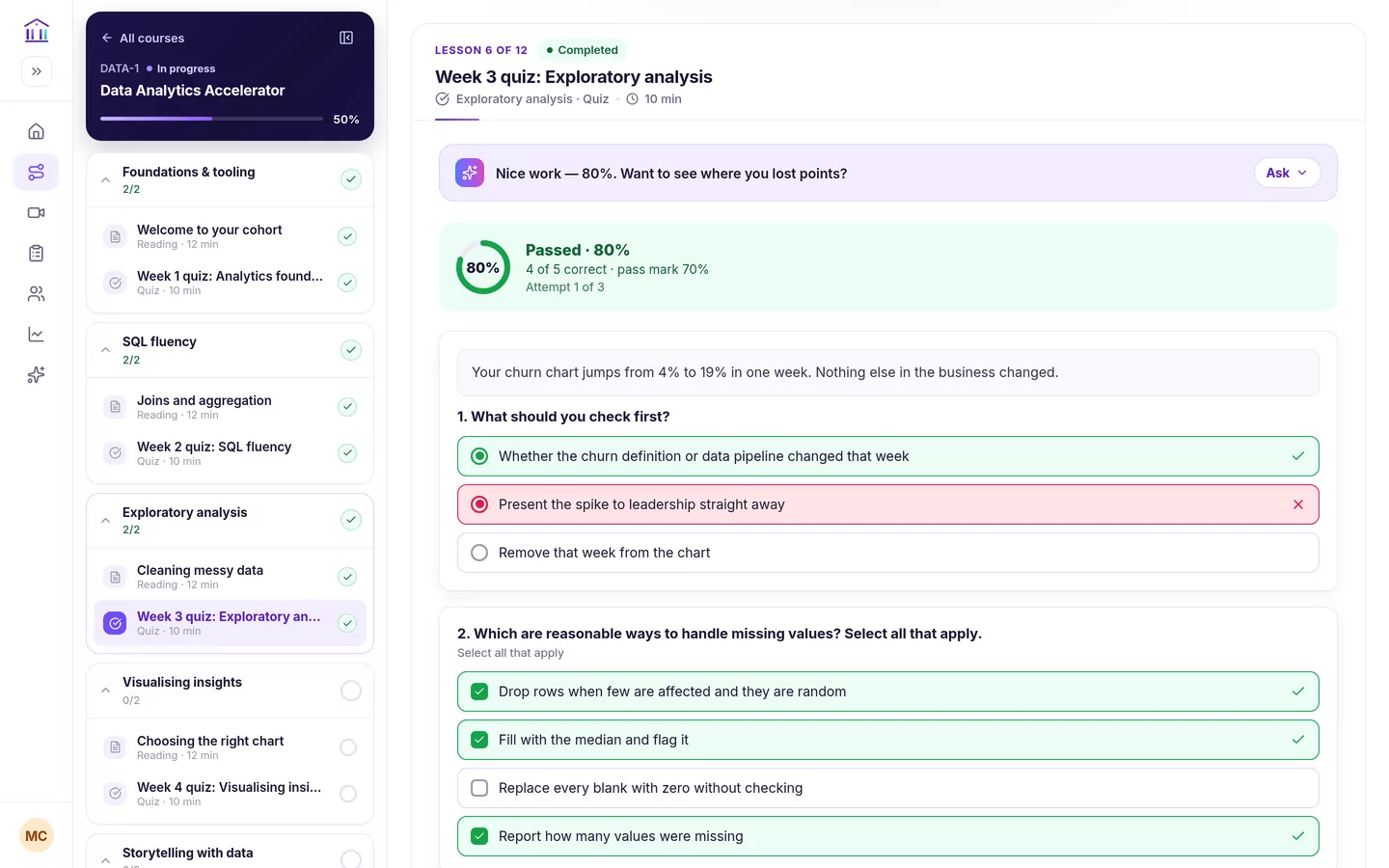
Result and review. The result appears as soon as the quiz is submitted. When the instructor allows it, learners also see the correct answers; otherwise only whether their own answers were right.
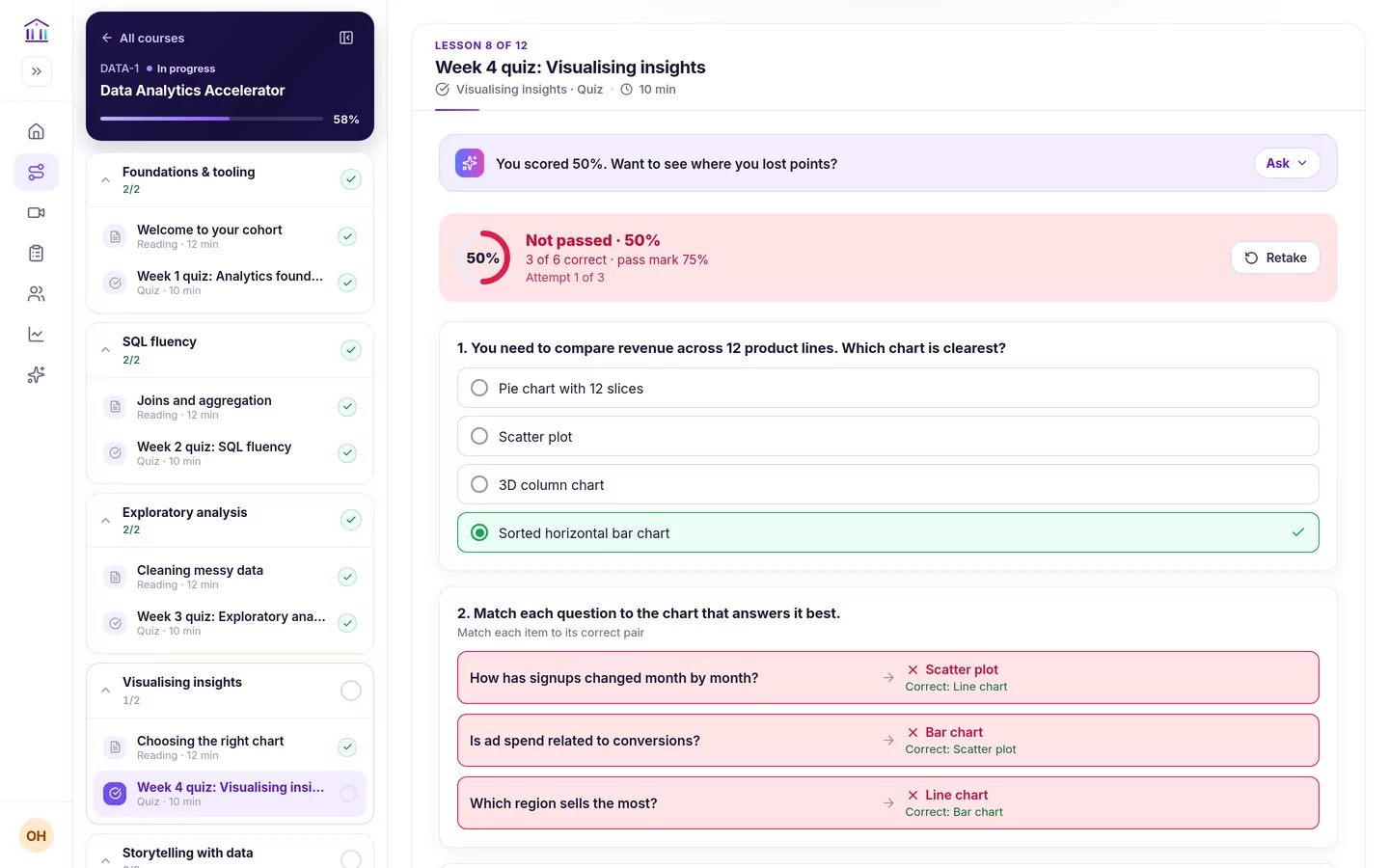
Retake. A learner who doesn’t reach the pass mark sees Retake while they have attempts left. Their best attempt is the one that counts.
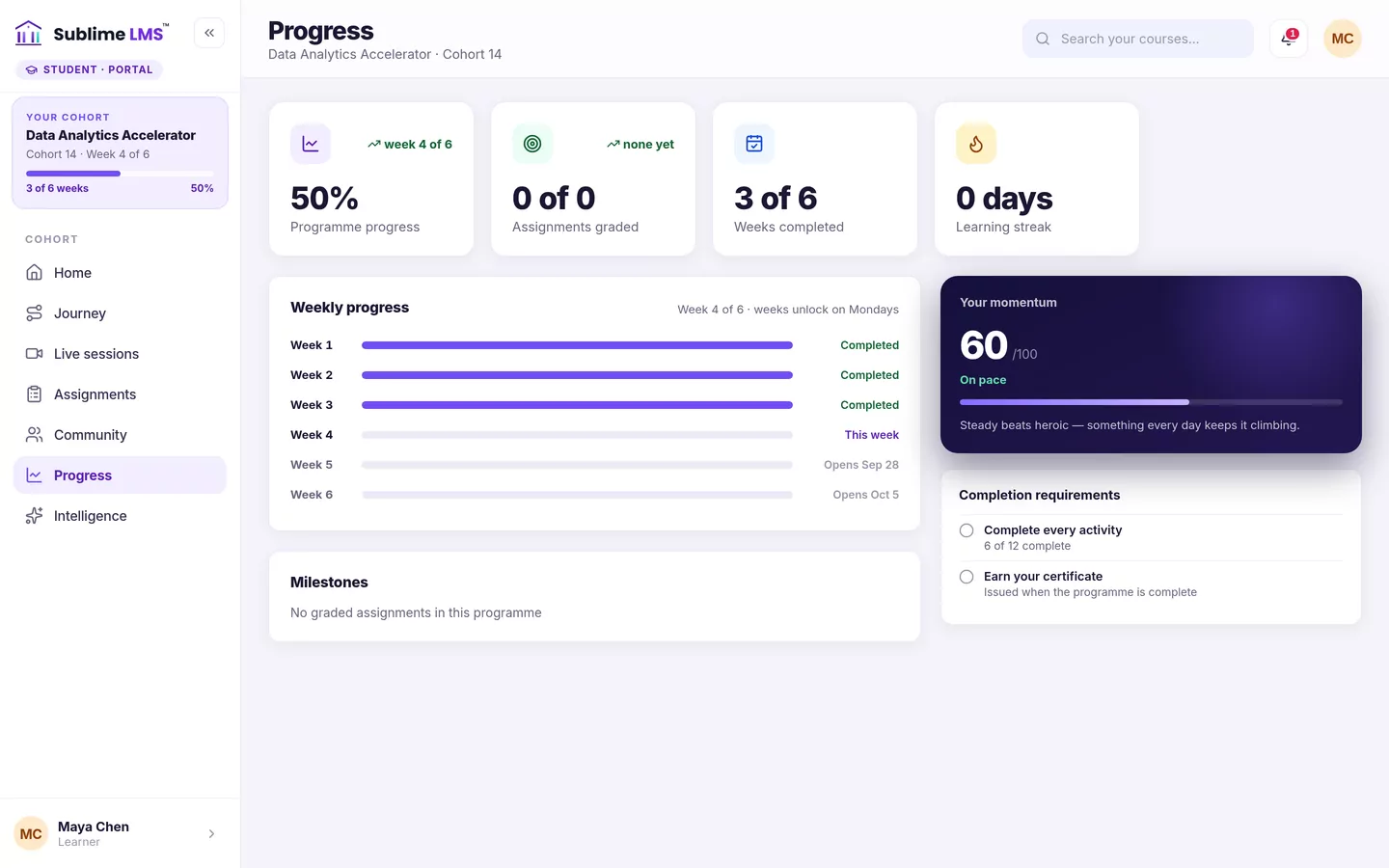
Progress. A passed quiz completes the lesson. Learners see each week’s progress, which weeks are done and when the next ones open.
Set up quizzes and read the results
What workspace admins see in the admin portal.
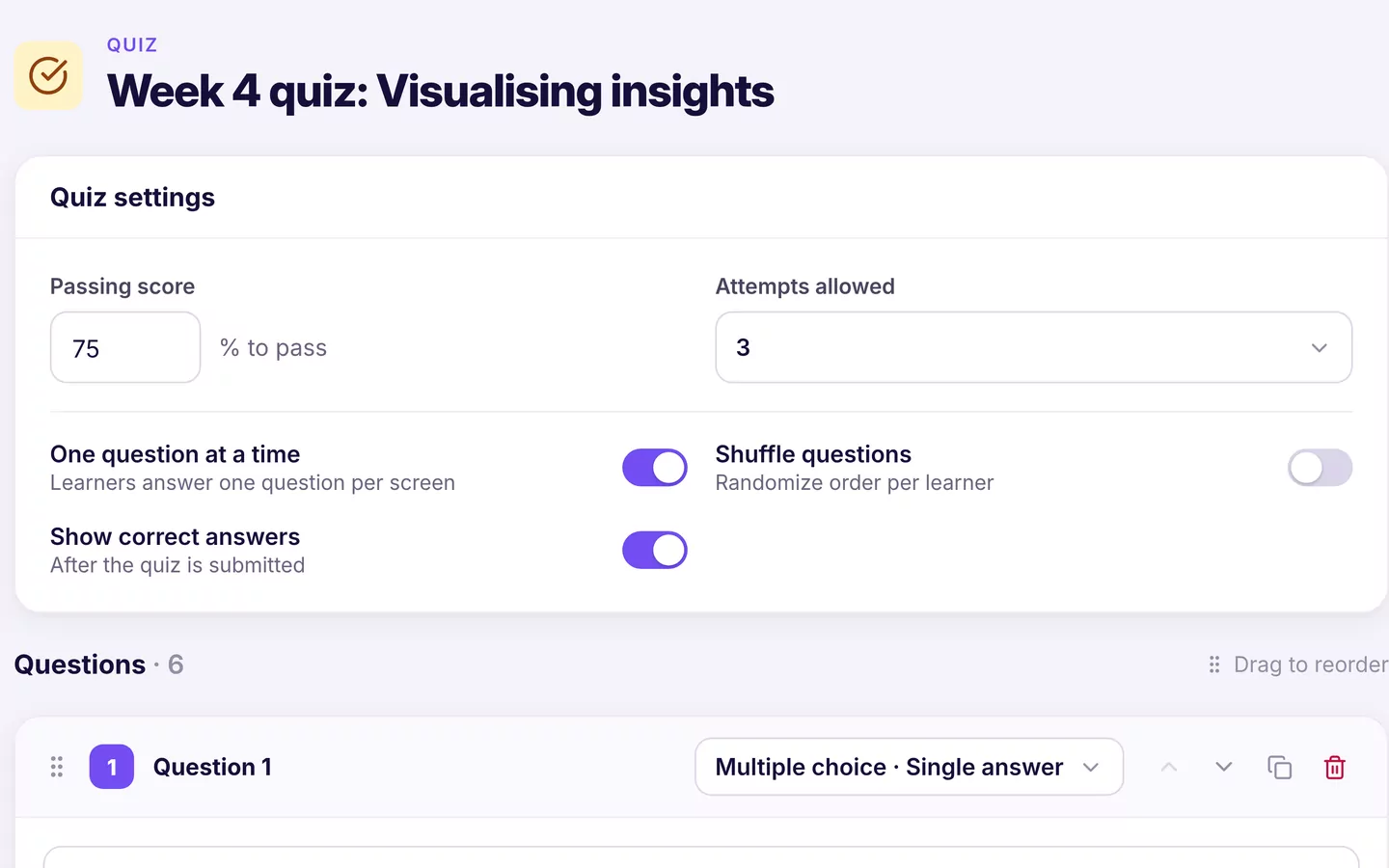
Build and configure. Set the passing score and attempts allowed (1, 2, 3, 5 or unlimited), then choose one question at a time, shuffled questions and whether to show correct answers after submission.
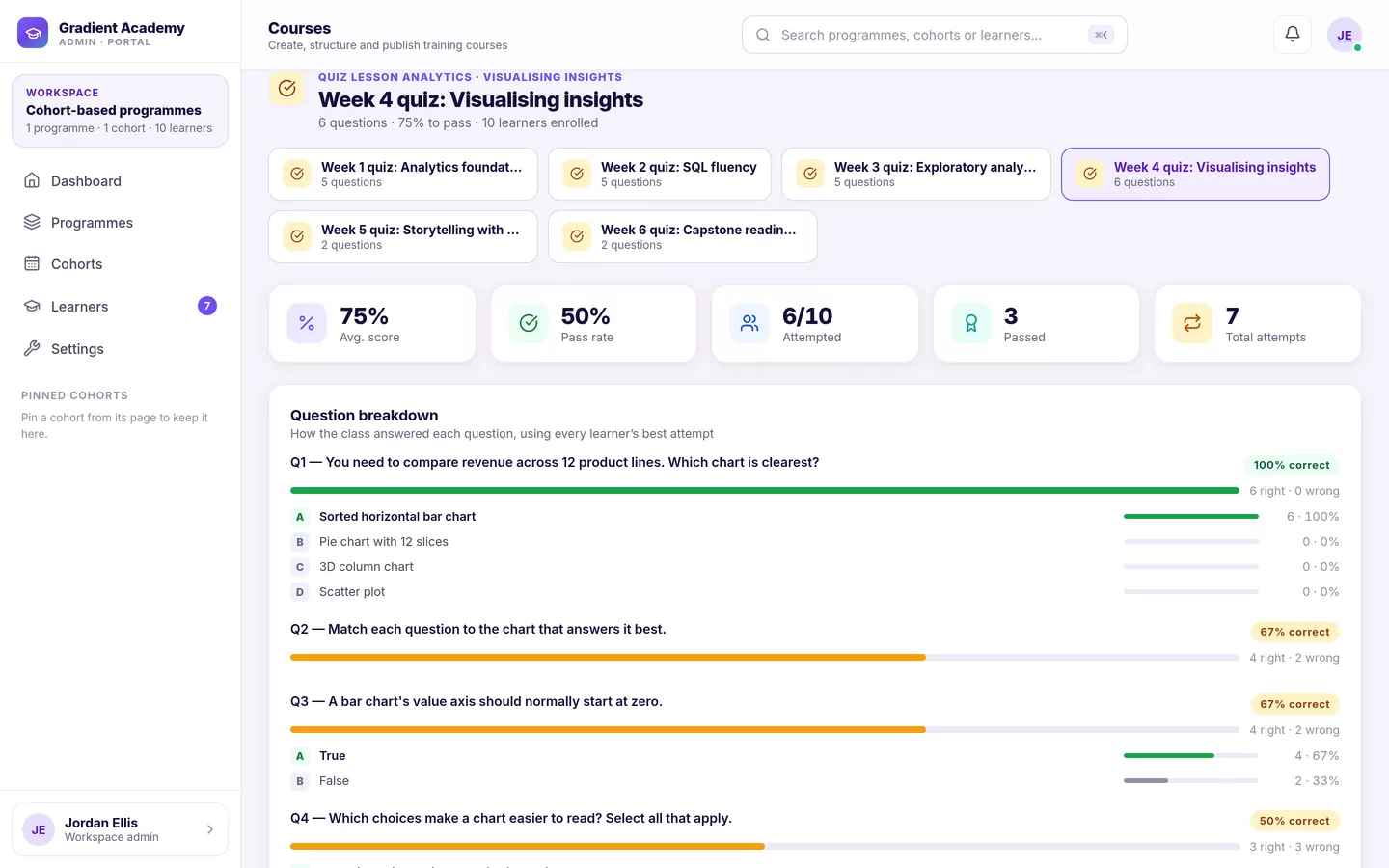
Quiz analytics. For each quiz: average score, pass rate, how many learners attempted and passed, and how the class answered each question, down to how often each option was picked. Opened from a cohort, it covers only that cohort.
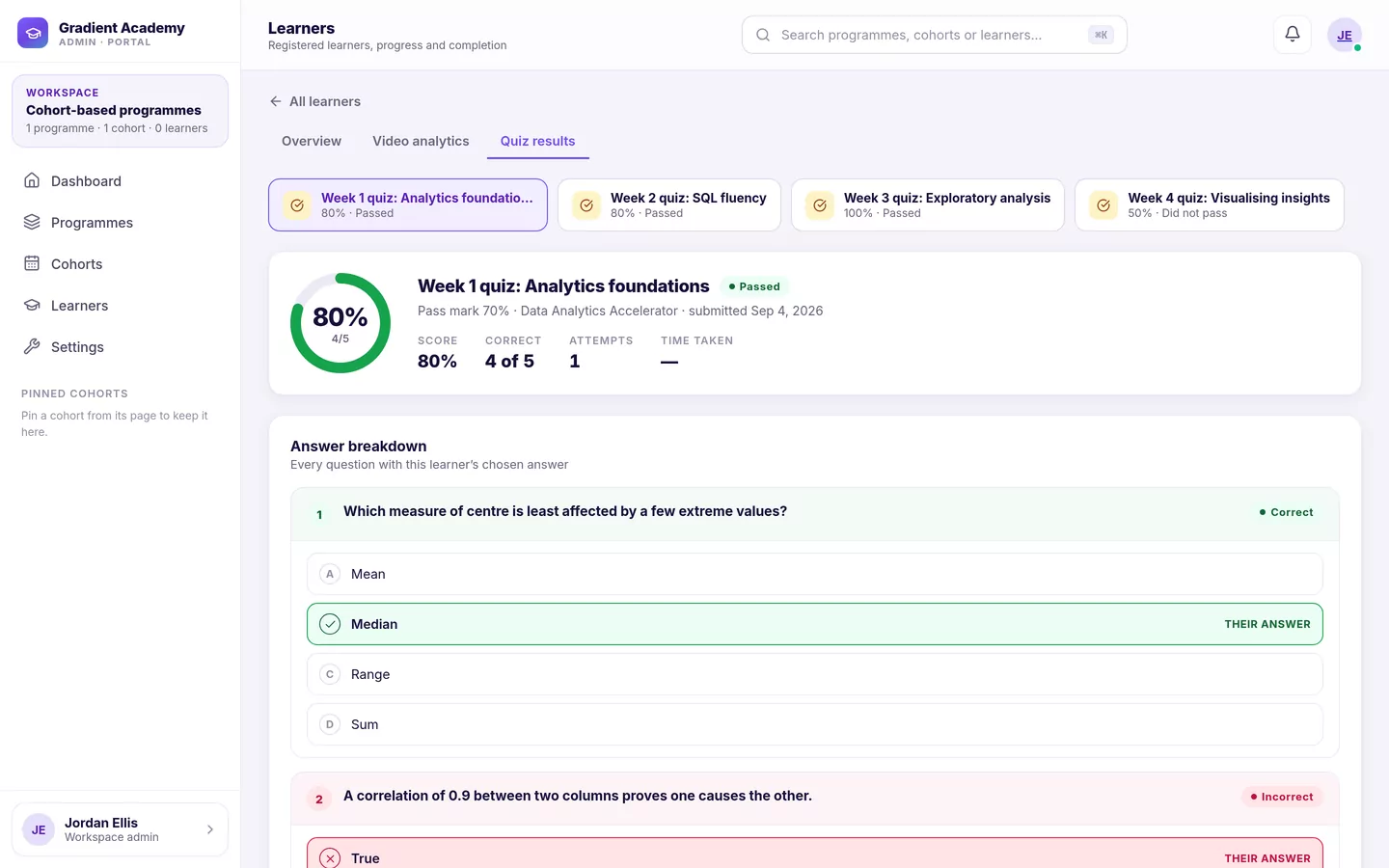
One learner’s results. Open any learner to see their best attempt at every quiz: score, correct count, attempts and each answer they gave, right or wrong.
Every setting, as it works today
For learners
- Availability
- A quiz opens when its week unlocks for the cohort. In a sequential course it also waits for the lesson before it to be completed.
- Question types
- Single choice, multiple choice (every correct option needed), true/false, matching, ordering, scenario and short answer.
- Navigation
- All questions on one page with an answered count and a jump to the first unanswered one, or one question per screen with a numbered strip and Previous/Next.
- Submission
- Every question must be answered before submitting. On the final attempt, learners confirm before it is marked.
- Scoring
- Marked automatically on the server. Each question is right or wrong, and the score is the share answered correctly, against the quiz’s pass mark.
- Attempts
- A limit per quiz, or unlimited. Learners see attempts left, Retake appears after a fail while attempts remain, and the best attempt counts.
- Results and feedback
- Score, correct count, pass mark and attempt number straight after submitting, plus the correct answers when the instructor turns that on.
- Progress
- Passing, or using the last attempt, completes the lesson. It counts toward course completion and, where the course issues one, the certificate.
For instructors and admins
- Authoring
- The admin quiz editor builds all seven question types. The teacher portal editor covers single choice, multiple choice and true/false.
- Settings
- Passing score, attempts allowed, one question at a time, shuffled question order, and whether learners see correct answers. Answer options can be shuffled from the teacher editor; matching and ordering items are always shown shuffled.
- AI drafts
- Where Sublime Intelligence is enabled, the AI course builder can draft quiz questions from your course material for you to review and edit.
- Quiz analytics
- Average score, pass rate, attempted and passed counts, and per-question results with the spread of chosen options. Opened from a cohort, it covers only that cohort’s learners.
- Learner results
- Each learner’s best attempt at every quiz, with the answer they gave to each question.
- Cohort views
- An average quiz score for the cohort, quiz results on the roster, and the quiz average in the roster CSV export.
- Import and export
- Quizzes travel in Common Cartridge import and export, and are included in SCORM exports.
One question per screen, shuffling, showing correct answers, the AI study mentor and quiz analytics are part of the Sublime Live plan; the study mentor and AI drafts also need Sublime Intelligence switched on. Compare plans.
Help with the questions they missed
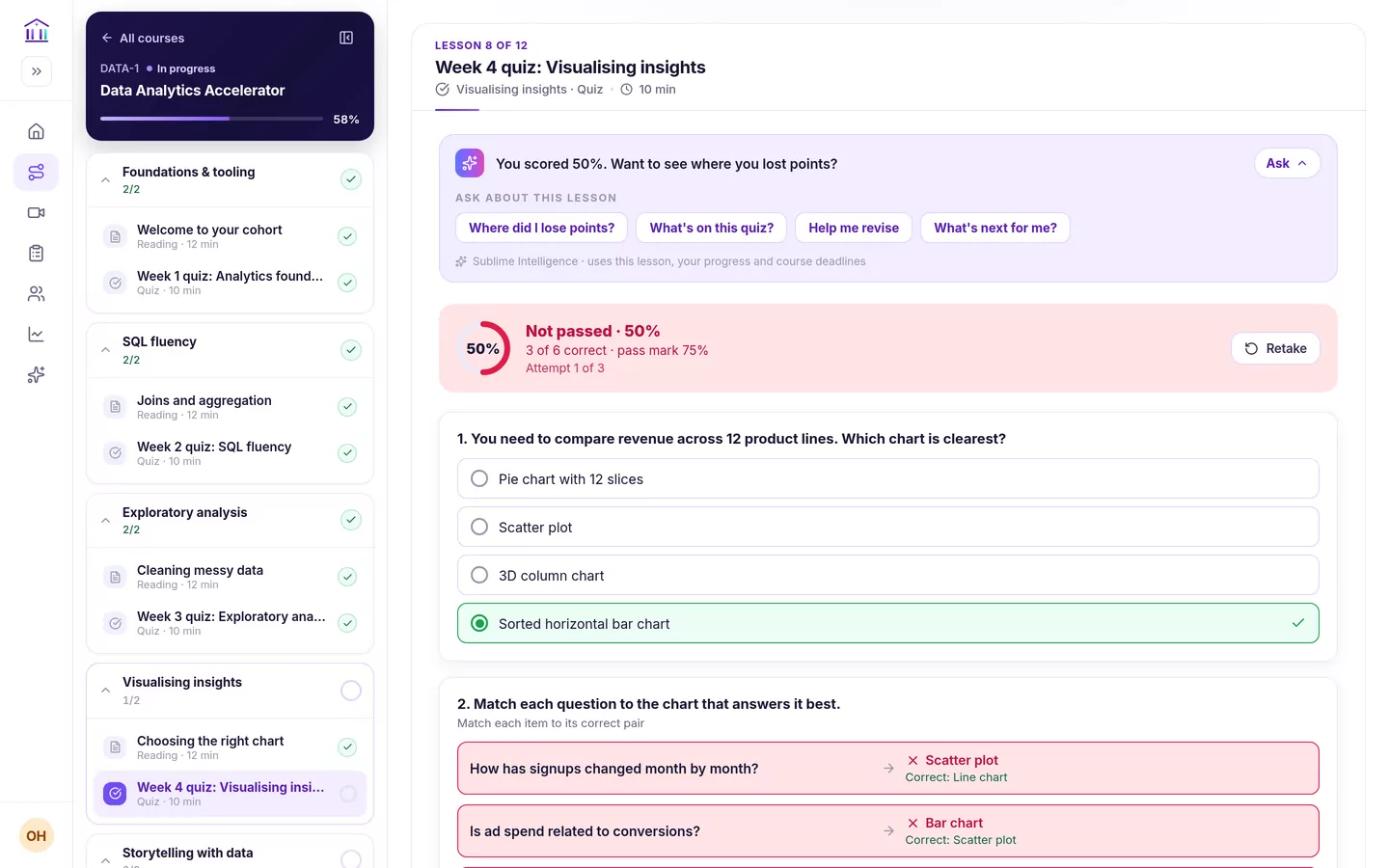
Once a quiz is submitted, the Sublime Intelligence study mentor offers to go through where the learner lost points and what to revise.
- Starts from the result — “You scored 50%. Want to see where you lost points?”
- Suggested questions such as “Where did I lose points?” and “Help me revise”.
- Doesn’t hand over answers — the mentor is never given the quiz’s answer key.
Where weekly quizzes fit
Weekly reinforcement
Close each cohort week with a short quiz on that week’s material, opening on the same day as the week.
See it in the product — Weekly reinforcementCourse knowledge checks
End a module with a graded check and a pass mark, so learners know they are ready to move on.
See it in the product — Course knowledge checksCohort assessments
See how a whole cohort answered each question and follow each learner’s results.
See it in the product — Cohort assessmentsOnboarding checks
Confirm new starters understood the essentials, with a limited number of attempts.
See it in the product — Onboarding checksCertification prep
Practice questions every week, with quizzes counting toward course completion and the certificate.
See it in the product — Certification prepRecurring training
Run the same course for every new cohort. Its weekly quizzes come with it.
See it in the product — Recurring training
A clear checkpoint, week after week
Weekly quizzes give learners and instructors the same regular point to check where things stand.
Regular reinforcement
Learners go back over each week’s material while it is still fresh, not only at the end of the course.
Clear checkpoints
A score, a pass mark and attempts left, straight after submitting. No waiting to find out.
Visible gaps
Instructors see which questions the cohort got wrong and which options they chose.
Inside the learning path
Quizzes live in the course, count toward completion and unlock what comes next.
Give every week a clear checkpoint
See how weekly knowledge checks, instant results and per-question analytics fit the programs you run.