How to launch a cohort program
Take a program from finished content to a running cohort: create the cohort, choose how learners enroll, fill the seats, schedule live sessions and welcome the group.
On this page
What this guide covers
- What a cohort is in Sublime LMS, and what has to exist before you create one
- Every setting in the New cohort form, and which ones you can leave for later
- How the four enrollment modes work and where learners sign up
- The checks worth running during the first weeks, and how to schedule the next intake
Before you start Link to “Before you start”
A cohort in Sublime LMS is one scheduled run of one program. The program holds the content. The cohort adds its own dates, weekly schedule, seats, enrollment rules, price and roster. So a second intake of the same program is a second cohort, not a copy of the course.
The modules of the program become the cohort's weeks, and each week unlocks for learners on schedule. Before you create a cohort, check that the program's modules are in the order you want learners to meet them and that week one is published.
Related feature: Cohort learning
Create the cohort Link to “Create the cohort”
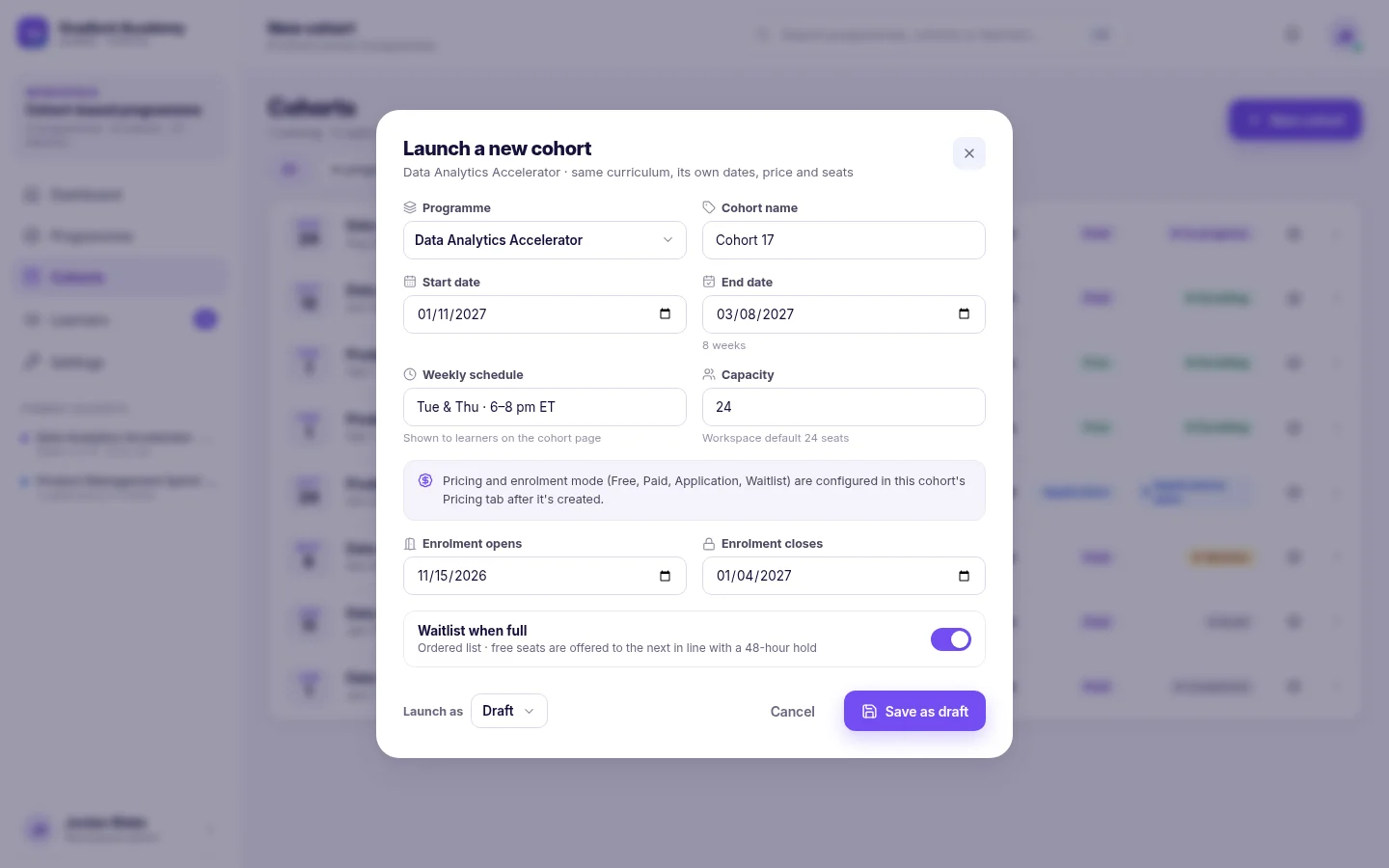
Open Cohorts and choose New cohort. The form asks for everything that makes this run different from the others:
- Choose the program, and give the cohort a name learners will recognise, such as "Cohort 17".
- Set the start and end dates. The form shows how many weeks that covers.
- Describe the weekly schedule, for example "Tue & Thu · 6–8 pm ET". Learners see it on the cohort page.
- Set the capacity, the number of seats in this cohort.
- Set when enrollment opens and closes.
- Decide whether a full cohort keeps a waitlist. Seats that free up are offered to the next person in line.
- Launch it as a draft while you finish setting up, or open it for enrollment straight away.
Related feature: Cohort management
Choose how learners enroll Link to “Choose how learners enroll”
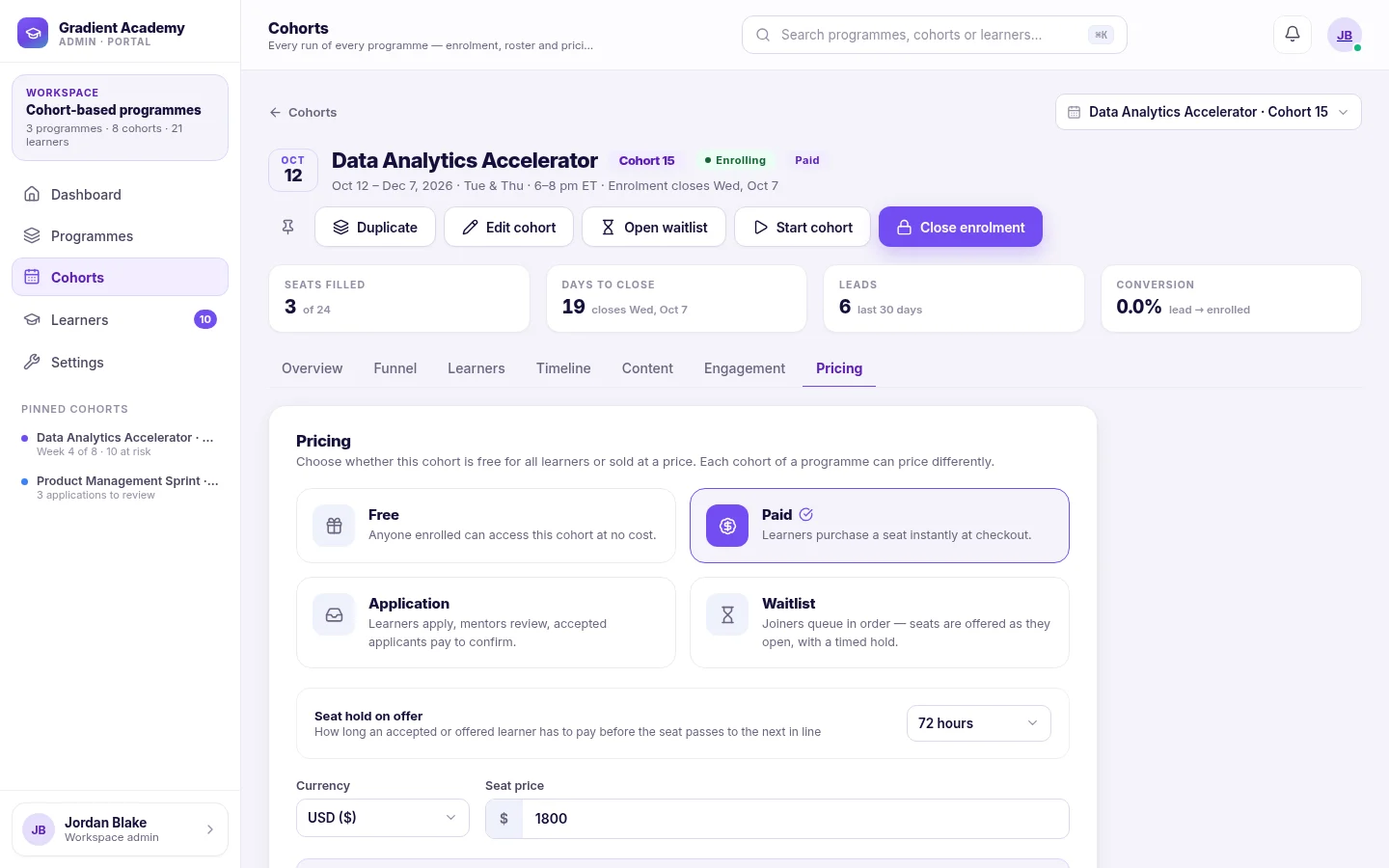
Once the cohort exists, open its Pricing tab to decide how people get a seat. Each cohort of a program can use a different mode and price.
- Free: anyone enrolled can access the cohort at no cost.
- Paid: learners buy a seat at checkout, at the seat price you set.
- Application: learners apply, their applications are reviewed, and accepted applicants pay to confirm.
- Waitlist: people join a queue in order and are offered seats as they open, with a timed hold.
Each cohort also has a public cohort page showing its dates, schedule, price and seats left, which learners can enroll from. Link to that page from your own site or emails.
Related feature: Cohort management
Add learners Link to “Add learners”
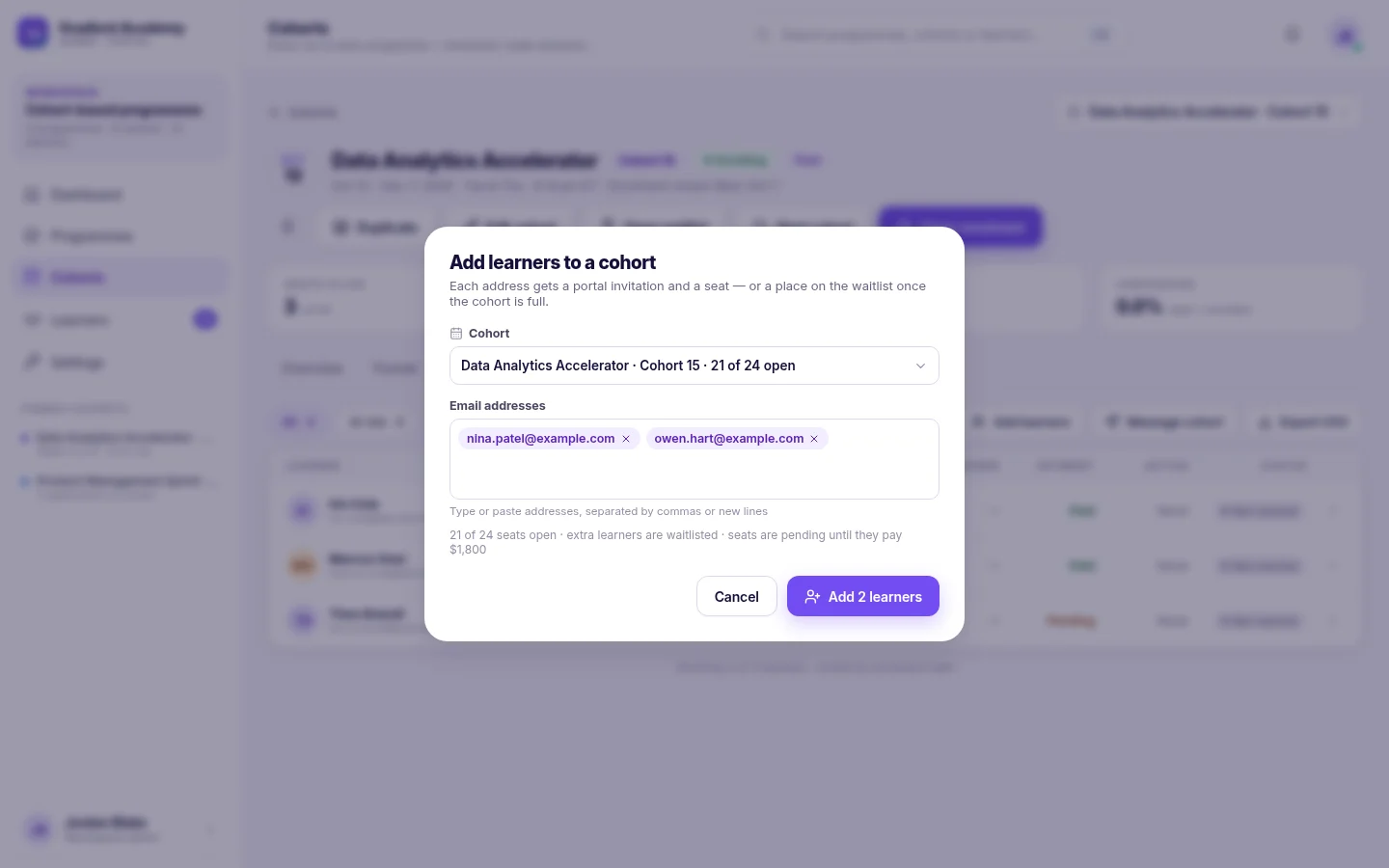
To enroll people yourself, open the cohort and choose Add learners, then paste in as many email addresses as you need. Seats are filled in the order the addresses are listed. When the cohort is full, the rest join the waitlist, or are turned away if the cohort has no waitlist. In a paid cohort, a seat is held until the learner pays.
Applications and the waitlist are handled one learner at a time on the cohort's Funnel tab, where you review or decline applications and offer waitlisted learners a seat. To withdraw someone who can no longer take part, open their learner profile.
Related feature: Cohort management
Schedule live sessions Link to “Schedule live sessions”
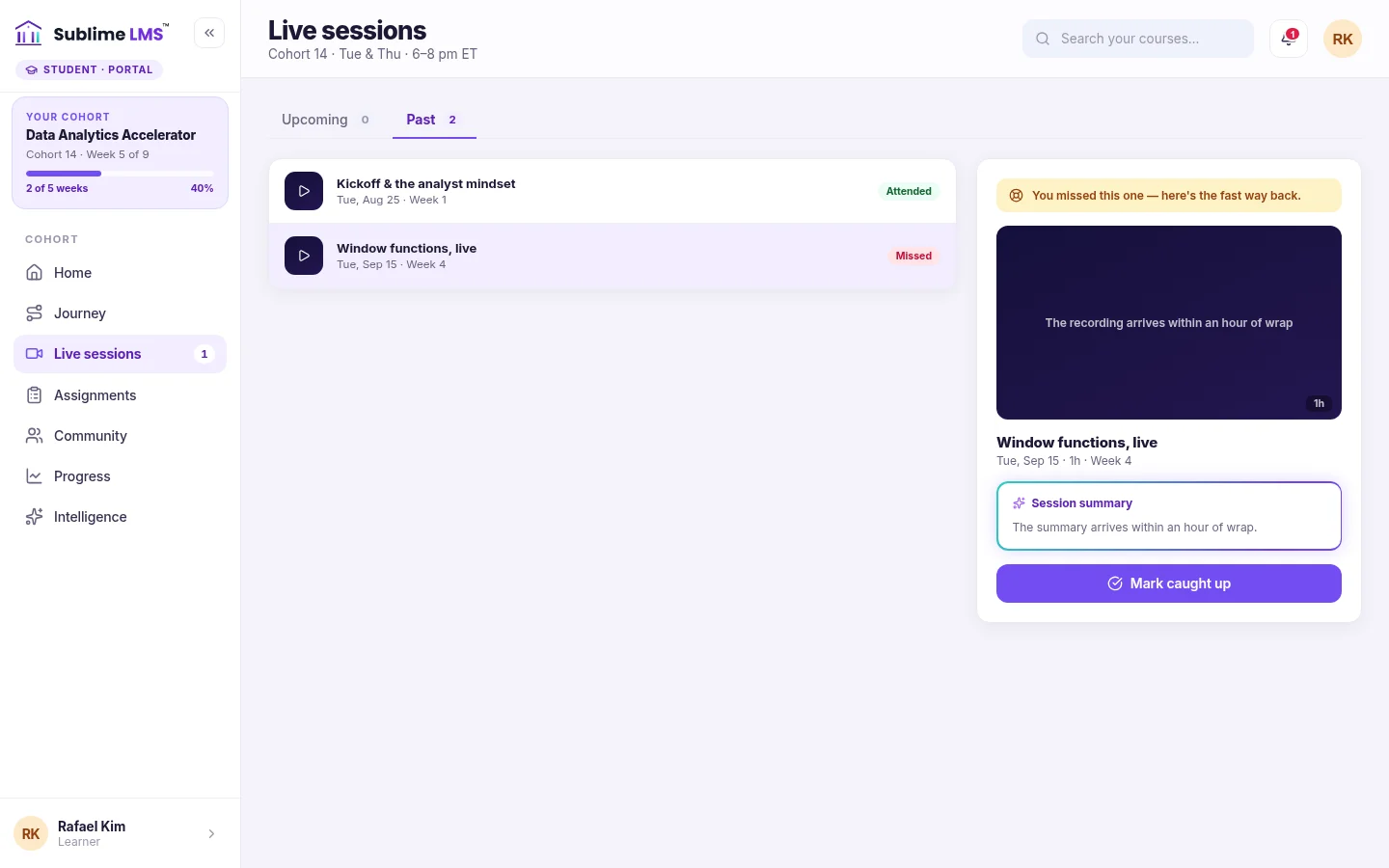
Live sessions are planned on the cohort's Timeline, alongside the weeks and their unlock dates. Each session has a topic, date, start time, duration, host and join link. Learners see it on their Live sessions page, where they can add it to their calendar or ask for a reminder. When a recording is added, it stays on the learner's Live sessions page.
After a session, record who attended. Anyone not marked present is shown the session as missed, together with the recording and a Mark caught up button.
Related feature: Cohort learning
Open the cohort and welcome the group Link to “Open the cohort and welcome the group”
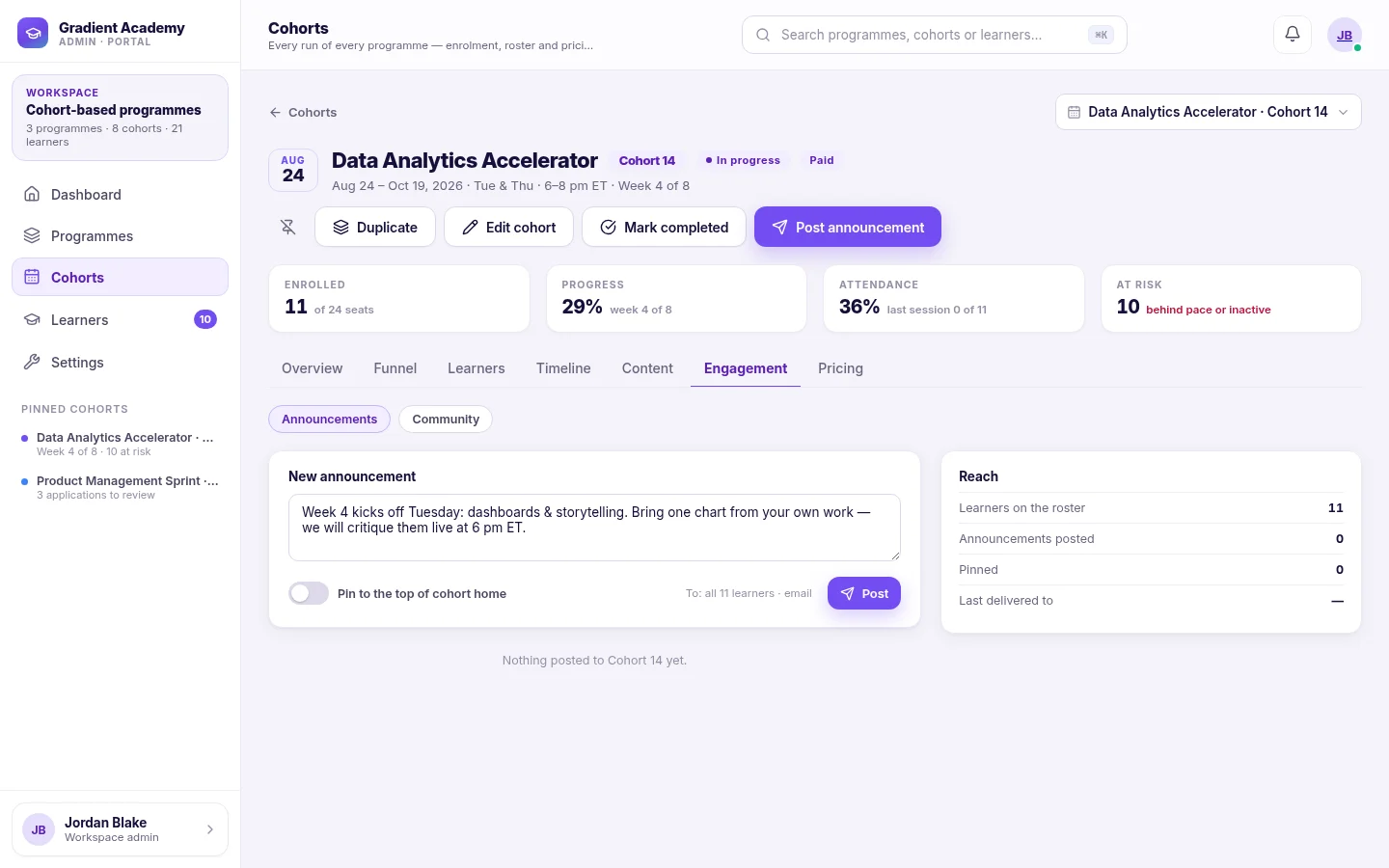
When the cohort is ready, open it for enrollment and, on the first day, start it. Use an announcement to welcome the group: announcements are emailed to everyone on the roster, can be pinned to the top of the cohort home, and show up in the cohort's community feed.
For anything more direct, Message cohort sends a message to the whole roster.
Related feature: Cohort management
Watch the first weeks Link to “Watch the first weeks”
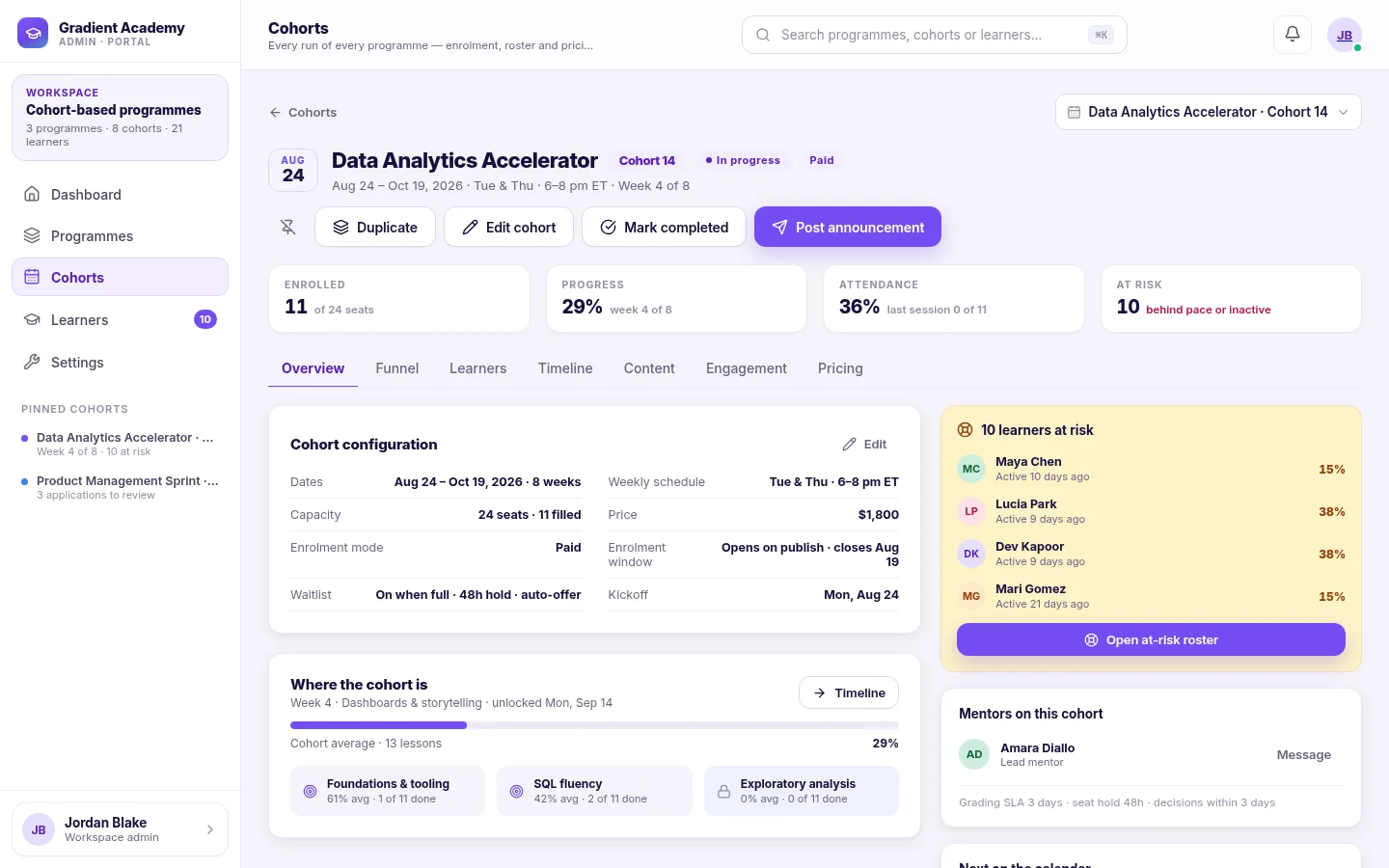
The cohort's Overview shows seats filled, progress, live-session attendance and how many learners are at risk. Every learner has a status: Not started, On track, At risk or Completed. Filter the roster to At risk to see who needs a hand.
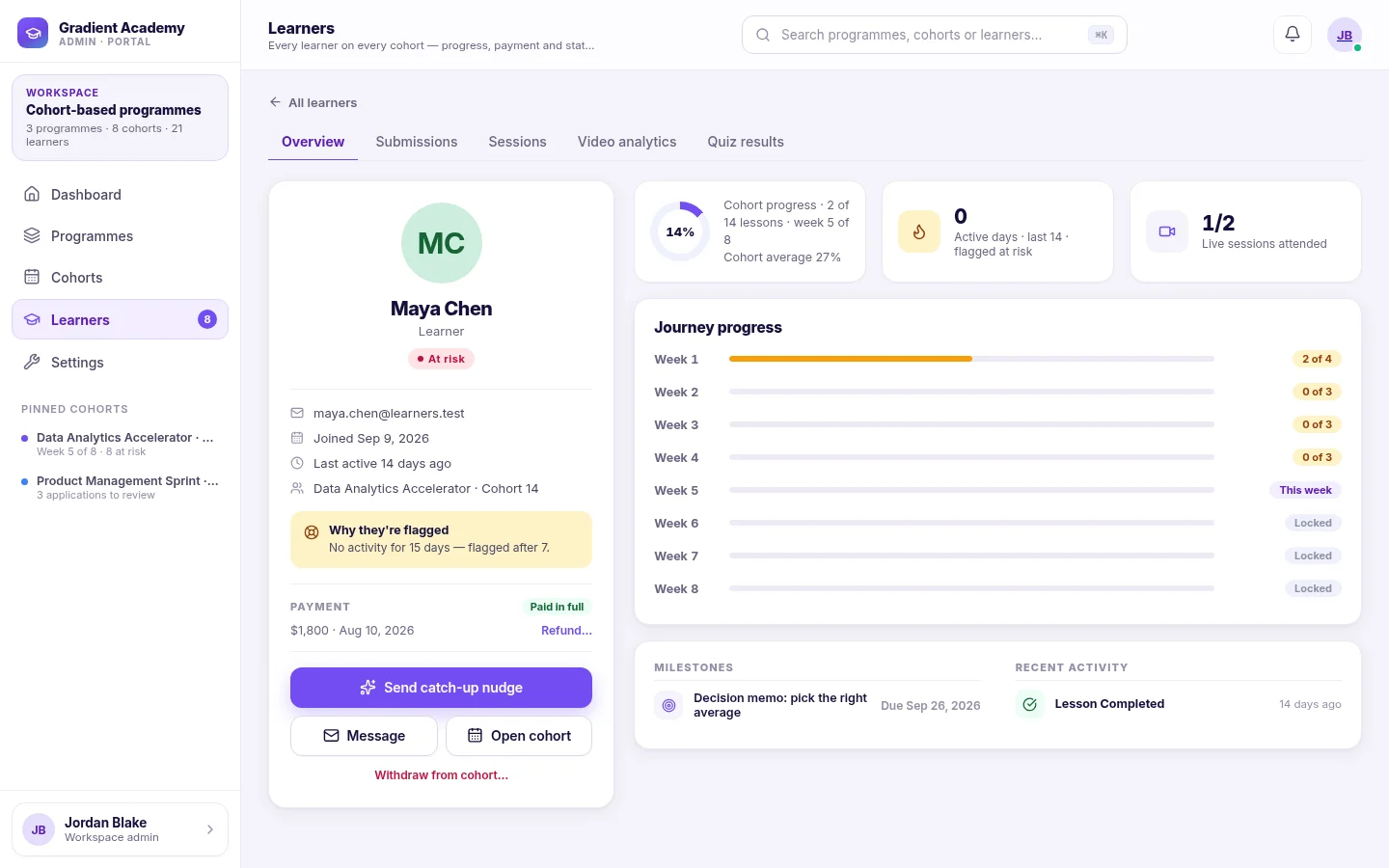
A quick check at the start of each week catches problems while they are still small. The guide on supporting learners who fall behind covers what the at-risk status means and what to do about it.
You can export the roster as a CSV whenever you need it outside Sublime LMS.
Related feature: Progress tracking
Schedule the next intake Link to “Schedule the next intake”
When it's time for another run, duplicate the cohort. The copy keeps the schedule, capacity and pricing, so you only change the name and dates.
Related feature: Cohort management
Related guides
-
 Supporting learners who fall behind
How Sublime LMS decides a learner is at risk, where to see why, who can reach out, and what the learner sees on their way back.
4 min read
7 sections
Supporting learners who fall behind
How Sublime LMS decides a learner is at risk, where to see why, who can reach out, and what the learner sees on their way back.
4 min read
7 sections
-
 Setting up, reviewing and grading assignments
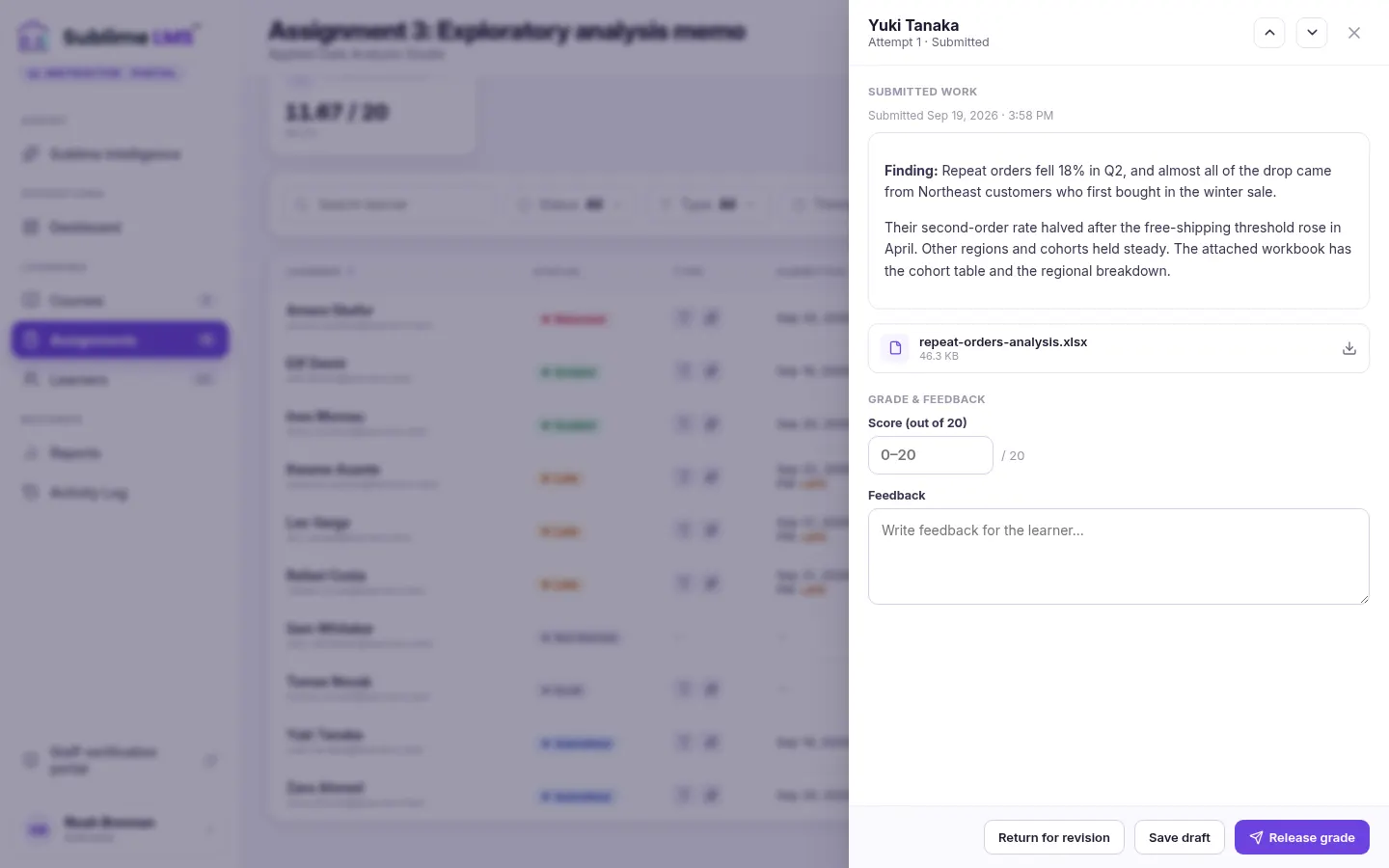
Configure an assignment learners can't misread, work through submissions quickly, and release grades and feedback in a way that keeps completion accurate.
4 min read
7 sections
Setting up, reviewing and grading assignments
Configure an assignment learners can't misread, work through submissions quickly, and release grades and feedback in a way that keeps completion accurate.
4 min read
7 sections
-
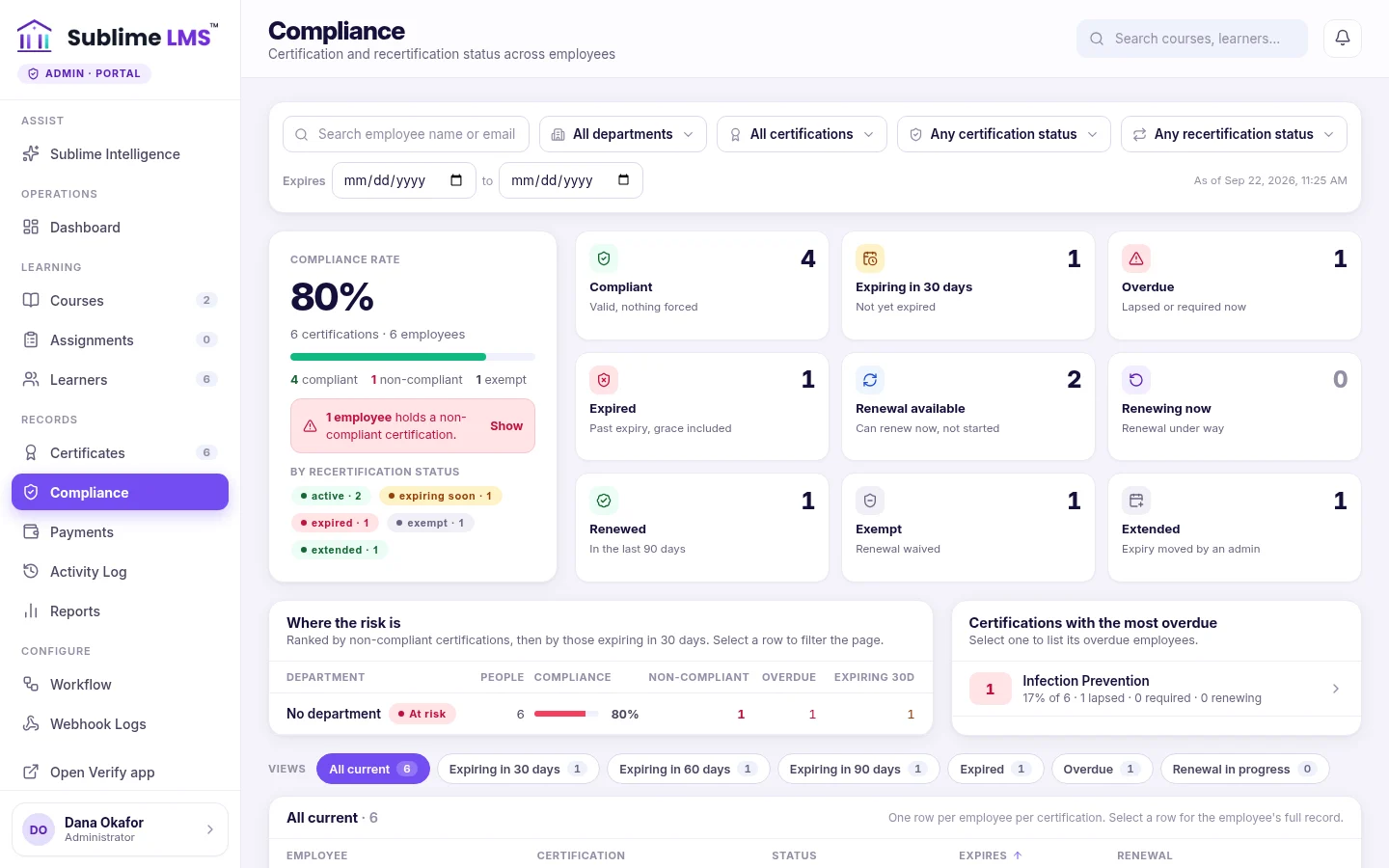 Setting up certificate renewal and recertification
Make certifications expire and renew on a schedule: write the policy, understand each status, handle exceptions, and keep an eye on compliance across the organization.
3 min read
5 sections
Setting up certificate renewal and recertification
Make certifications expire and renew on a schedule: write the policy, understand each status, handle exceptions, and keep an eye on compliance across the organization.
3 min read
5 sections