Setting up, reviewing and grading assignments
Configure an assignment learners can't misread, work through submissions quickly, and release grades and feedback in a way that keeps completion accurate.
On this page
What this guide covers
- Which assignment settings matter most and what each one does
- How late work is handled, and how to set a hard cutoff
- The difference between Save draft, Release grade and Return for revision
- When a graded assignment counts toward completion
Set up the assignment Link to “Set up the assignment”
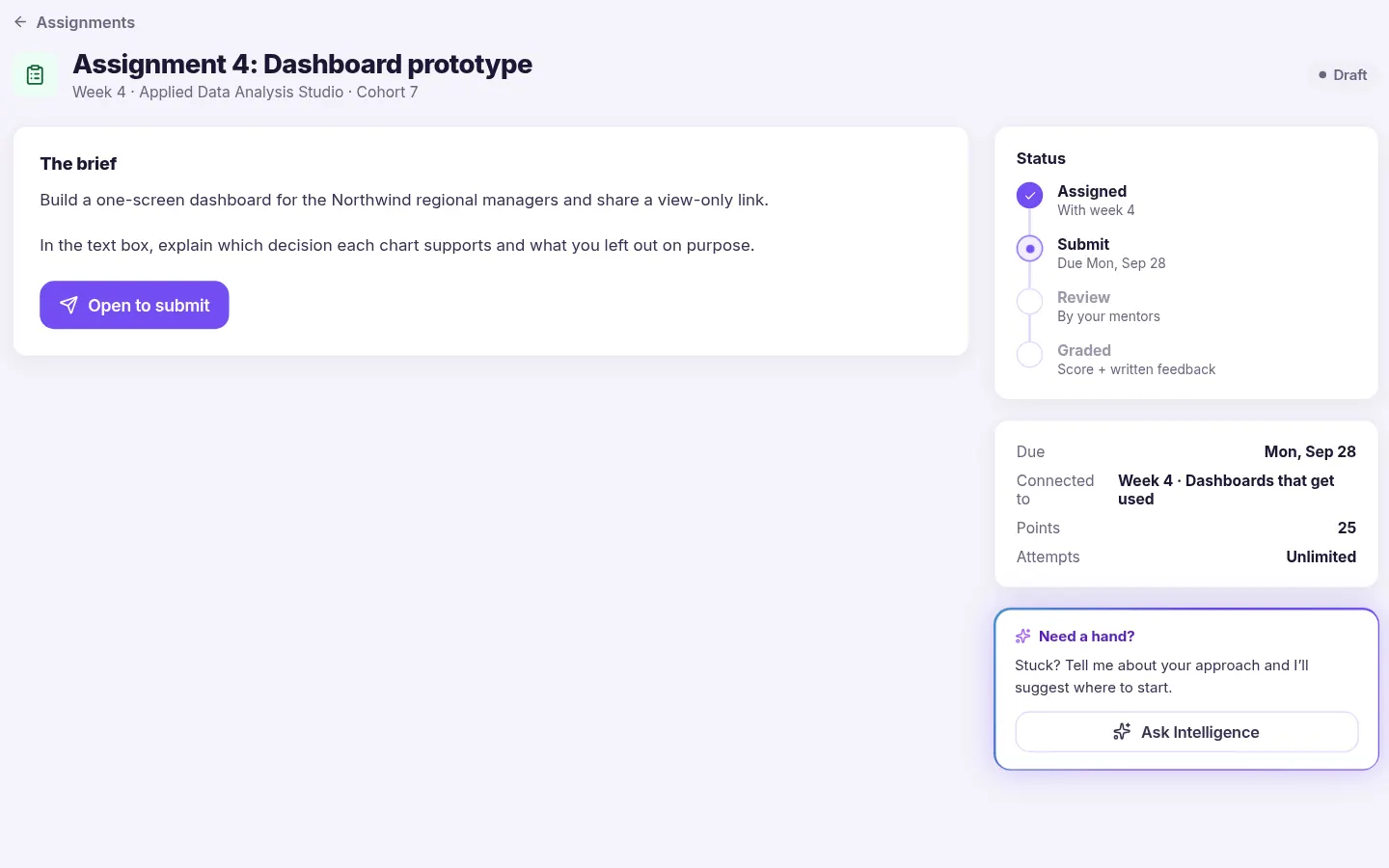
An assignment is a lesson in the course. Instructors can create and edit assignments in the courses they teach, and administrators can do so anywhere. The settings that shape the learner's experience:
- The brief: formatted instructions shown to learners before they start.
- Submission types: a written response, file upload, external link, or any combination of these.
- Files: several files per attempt, with the accepted file types and maximum size set per assignment (20 MB by default). Files are checked when they are uploaded.
- Points: the score the assignment is marked out of. An assignment can also have no points.
- Dates: a due date, and optional open and close dates that control when work can be submitted.
- Attempts: a fixed number or unlimited.
Related feature: Assignments & feedback
Deadlines and late work Link to “Deadlines and late work”
Work handed in after the due date is accepted and marked Late, both for you and for the learner. If you need a hard cutoff after which nothing can be submitted, set a close date. Submissions are only accepted between the open and close dates.
Learners can save a draft and come back to it. They confirm before submitting, so nothing is handed in by accident.
Related feature: Assignments & feedback
Work through submissions Link to “Work through submissions”
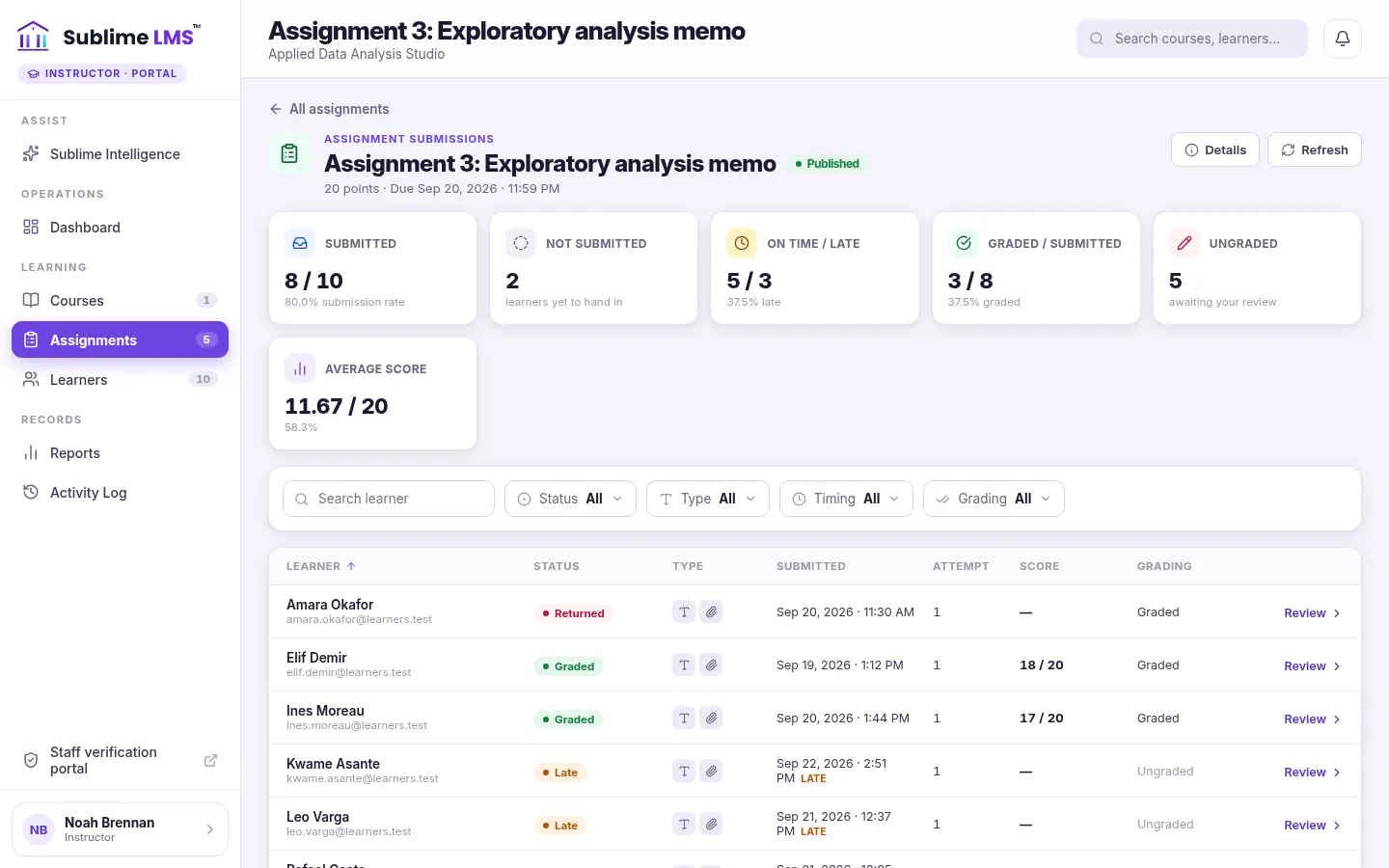
Instructors are notified in their workspace when work comes in, with late submissions marked and a shortcut straight to the review.
Each assignment's submissions view starts with summary cards: submitted, not submitted, on time and late, graded, ungraded and the average score. Below them is the list of learners, which you can filter by status, submission type, on time or late, and graded or ungraded, and search by learner.
Related feature: Instructor workspace
Grade and give feedback Link to “Grade and give feedback”
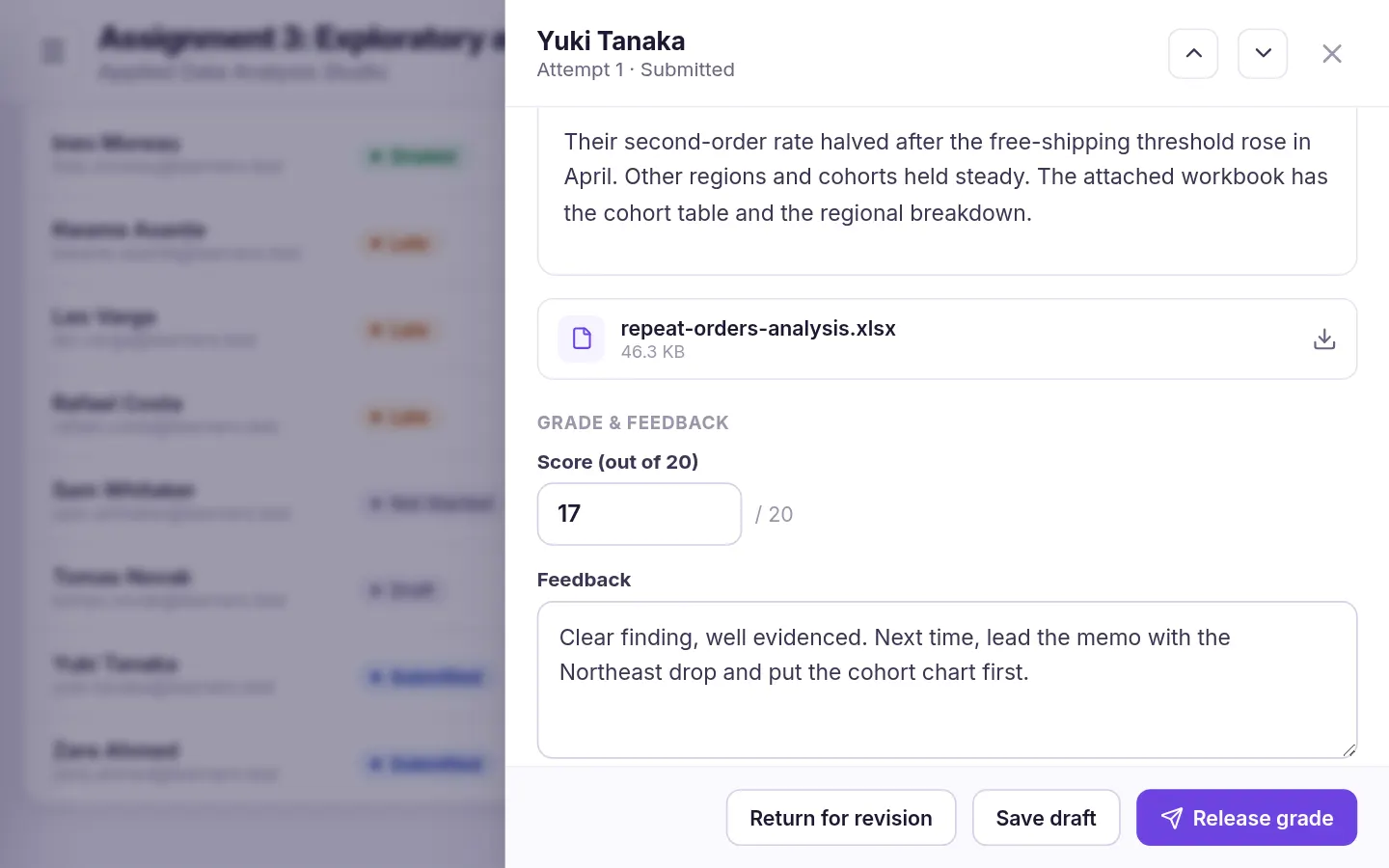
Open a submission to see the learner's work, download any files, and check which attempt it is and whether it was late. Enter a score out of the assignment's points (it can't go above the maximum) and write your feedback. Then choose one of three actions:
- Save draft keeps the grade and feedback private while you finish reviewing.
- Release grade shows the grade and feedback to the learner.
- Return for revision sends the work back with your feedback so the learner can hand in a new attempt.
Previous and next buttons take you through the learners without going back to the list.
Related feature: Assignments & feedback
Revisions and attempts Link to “Revisions and attempts”
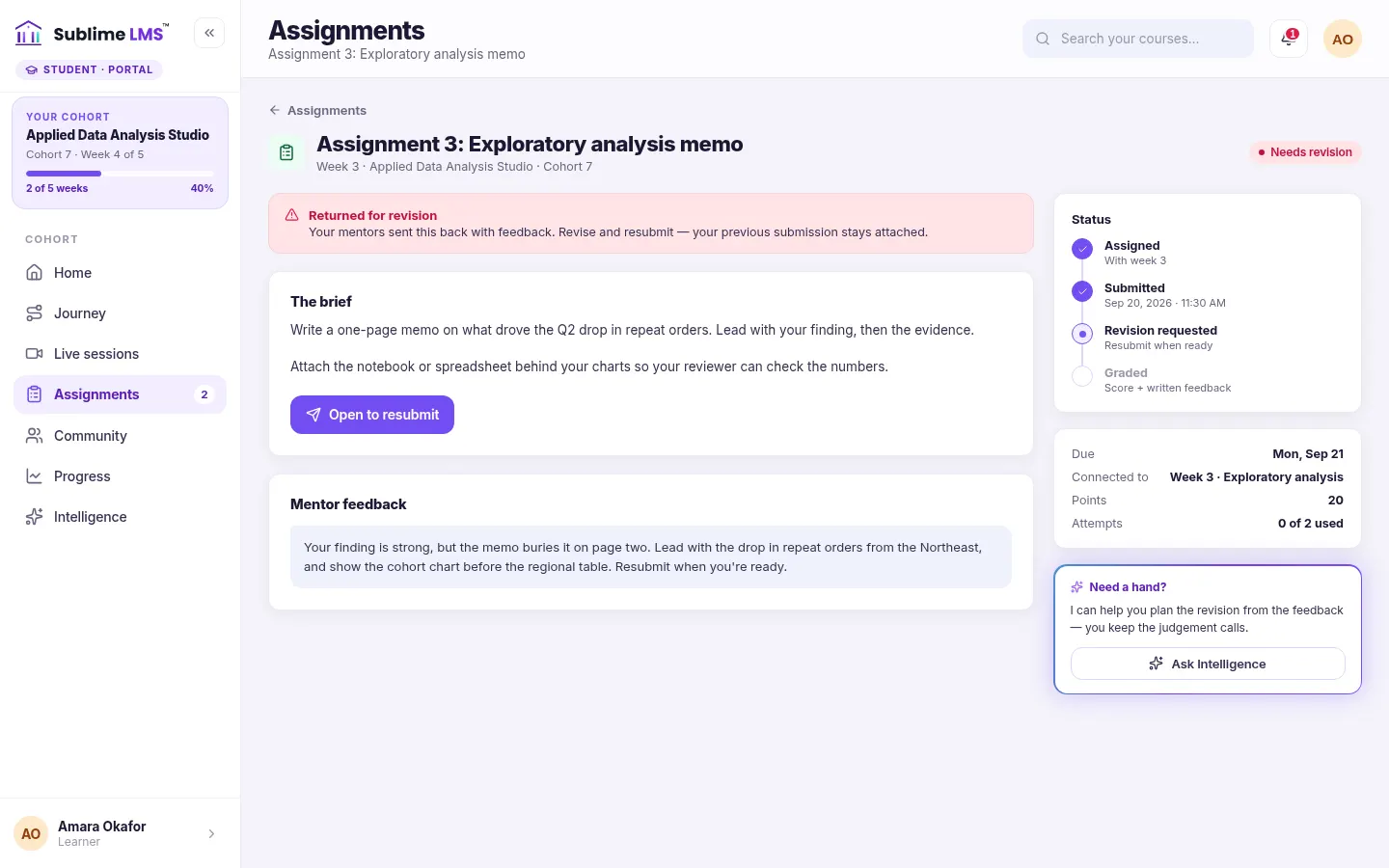
A returned attempt doesn't count against the attempt limit, and every attempt is kept, so you can see how the work changed. Learners see a returned assignment as "Needs revision", with your feedback beside the brief.
Related feature: Assignments & feedback
How assignments count toward completion Link to “How assignments count toward completion”
A graded assignment counts toward the learner's completion once its grade is released and passes the course pass mark. An assignment without points counts as soon as it is released. Until then, it stays open in the learner's progress, even if the work has been submitted.
This is why unreleased grades matter. If learners are waiting on certificates, check for submissions graded as drafts but never released.
Related feature: Progress tracking
Who can do what Link to “Who can do what”
Instructors review and grade in the courses they teach. Administrators can see assignments across the whole organization and grade anywhere. Learners, instructors and administrators each get in-app notifications for the steps that concern them: work received, graded or returned, and new submissions.
Related feature: Instructor workspace
Related guides
-
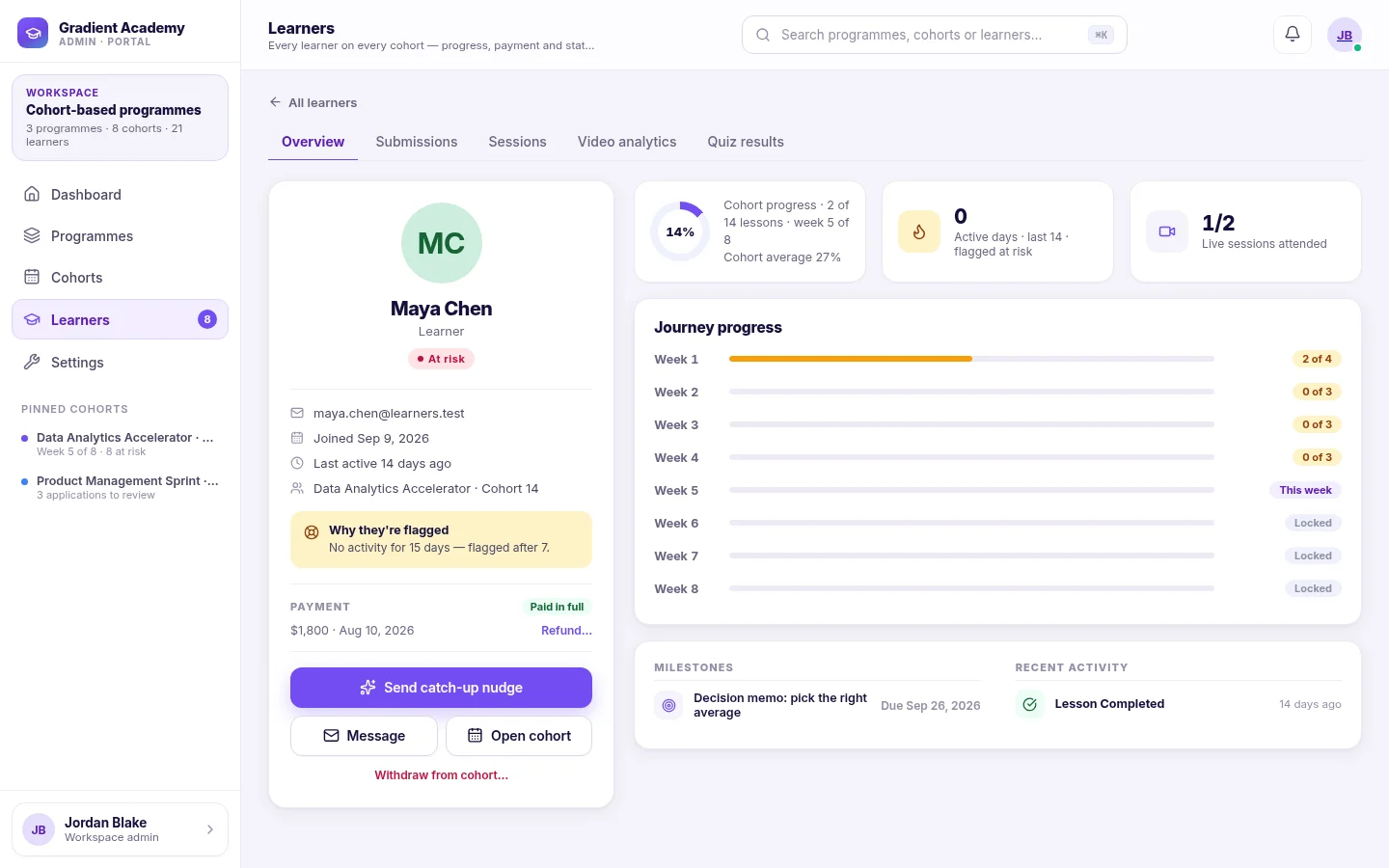 Supporting learners who fall behind
How Sublime LMS decides a learner is at risk, where to see why, who can reach out, and what the learner sees on their way back.
4 min read
7 sections
Supporting learners who fall behind
How Sublime LMS decides a learner is at risk, where to see why, who can reach out, and what the learner sees on their way back.
4 min read
7 sections
-
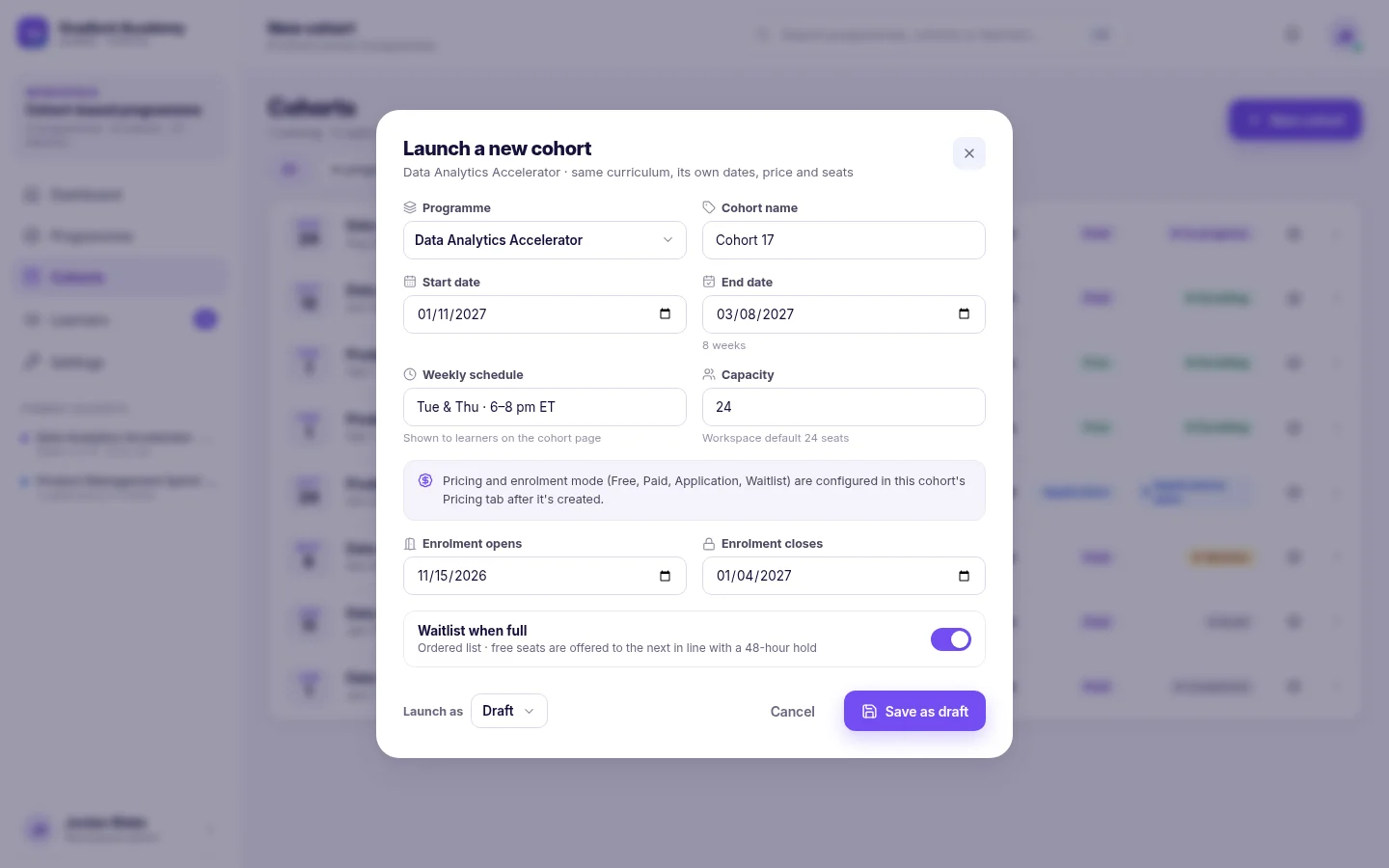 How to launch a cohort program
Take a program from finished content to a running cohort: create the cohort, choose how learners enroll, fill the seats, schedule live sessions and welcome the group.
5 min read
8 sections
How to launch a cohort program
Take a program from finished content to a running cohort: create the cohort, choose how learners enroll, fill the seats, schedule live sessions and welcome the group.
5 min read
8 sections
-
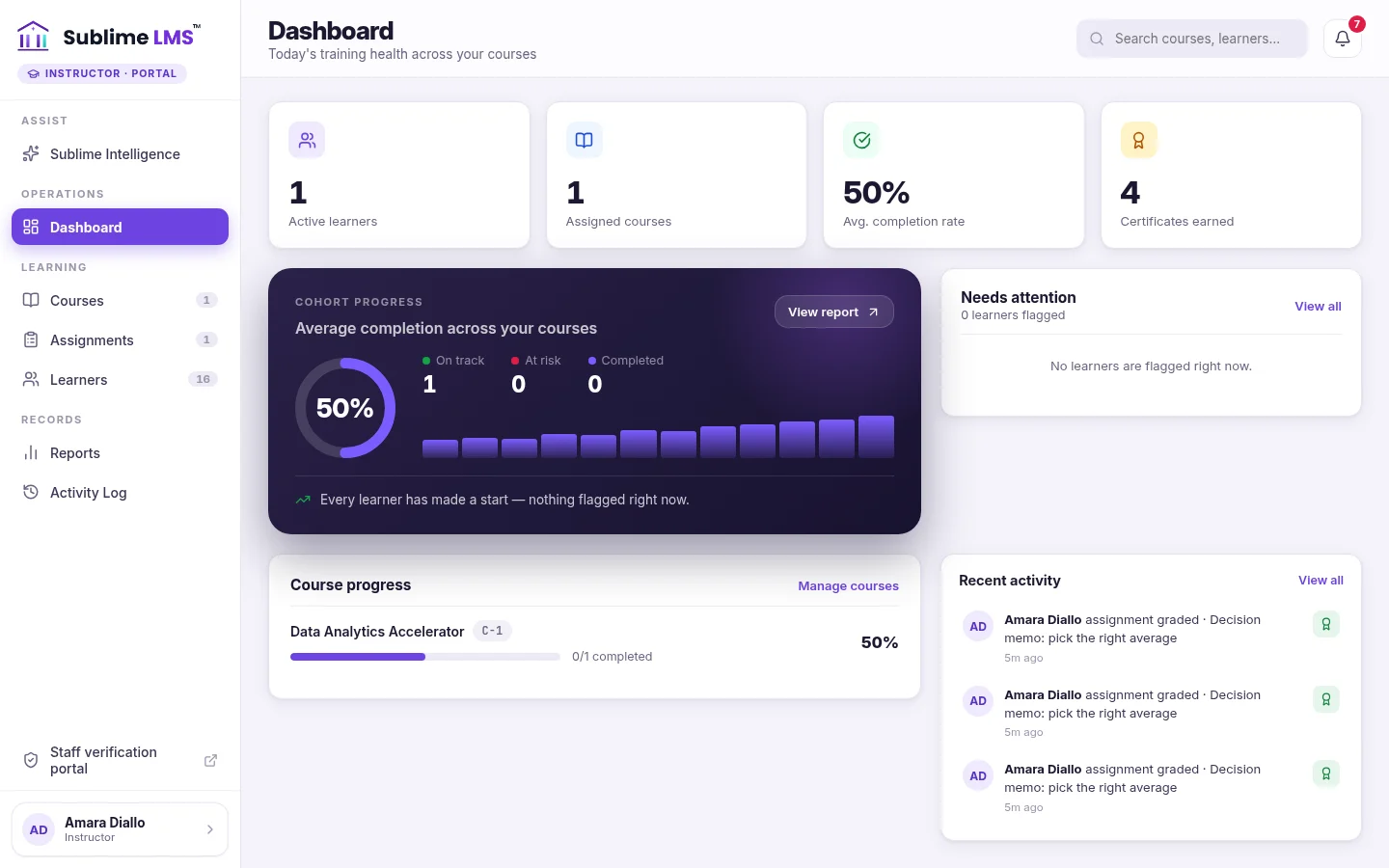 A weekly routine for instructors
A practical tour of the instructor workspace, organized as a routine: what to check first, where to find each learner's story, and which reports to pull.
3 min read
5 sections
A weekly routine for instructors
A practical tour of the instructor workspace, organized as a routine: what to check first, where to find each learner's story, and which reports to pull.
3 min read
5 sections