Sell your courses: turn on payments
Enable Payments to sell courses with Stripe checkout, set prices on each course, and follow revenue, refunds and invoices on the Payments screen.
Turn on payments Link to “Turn on payments”
- Open Settings and choose Payments.
- Switch on Enable Payments. This allows paid courses, Stripe checkout, pricing, the Payments screen and refunds across your account.
- Open a course's Pricing tab to set its price. In a cohort workspace, set the price on each cohort's Pricing tab.
Track payments Link to “Track payments”
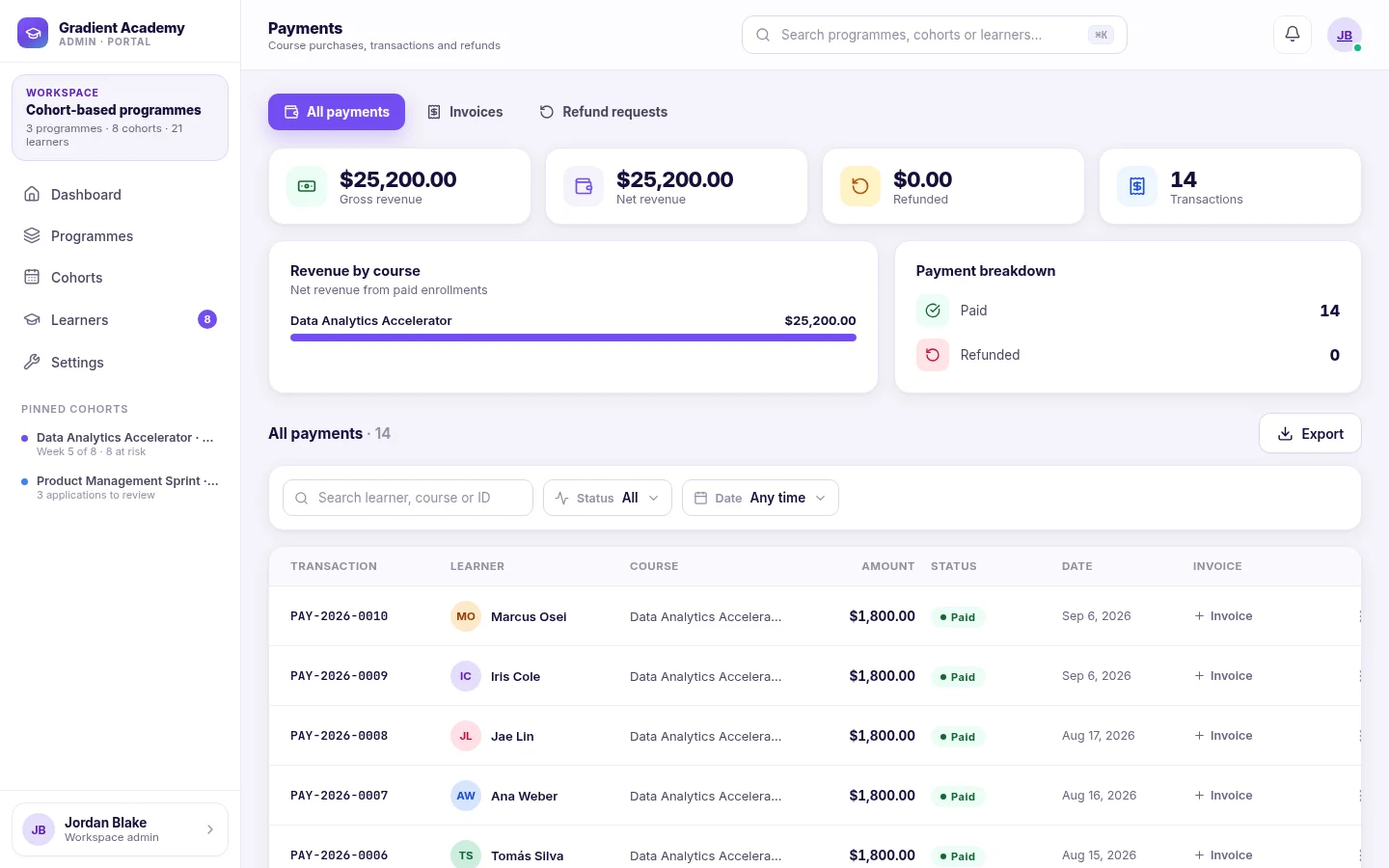
The Payments screen shows gross and net revenue, refunds and transactions, revenue by course, and a table of payments with the learner, course, amount, status, date and invoice.
Was this article helpful?
Still need help?
Ask the Sublime AI Assistant. It answers what it can straight away, and passes the conversation to our team, with your contact details and the question, when a person is needed.