Add a video lesson with captions
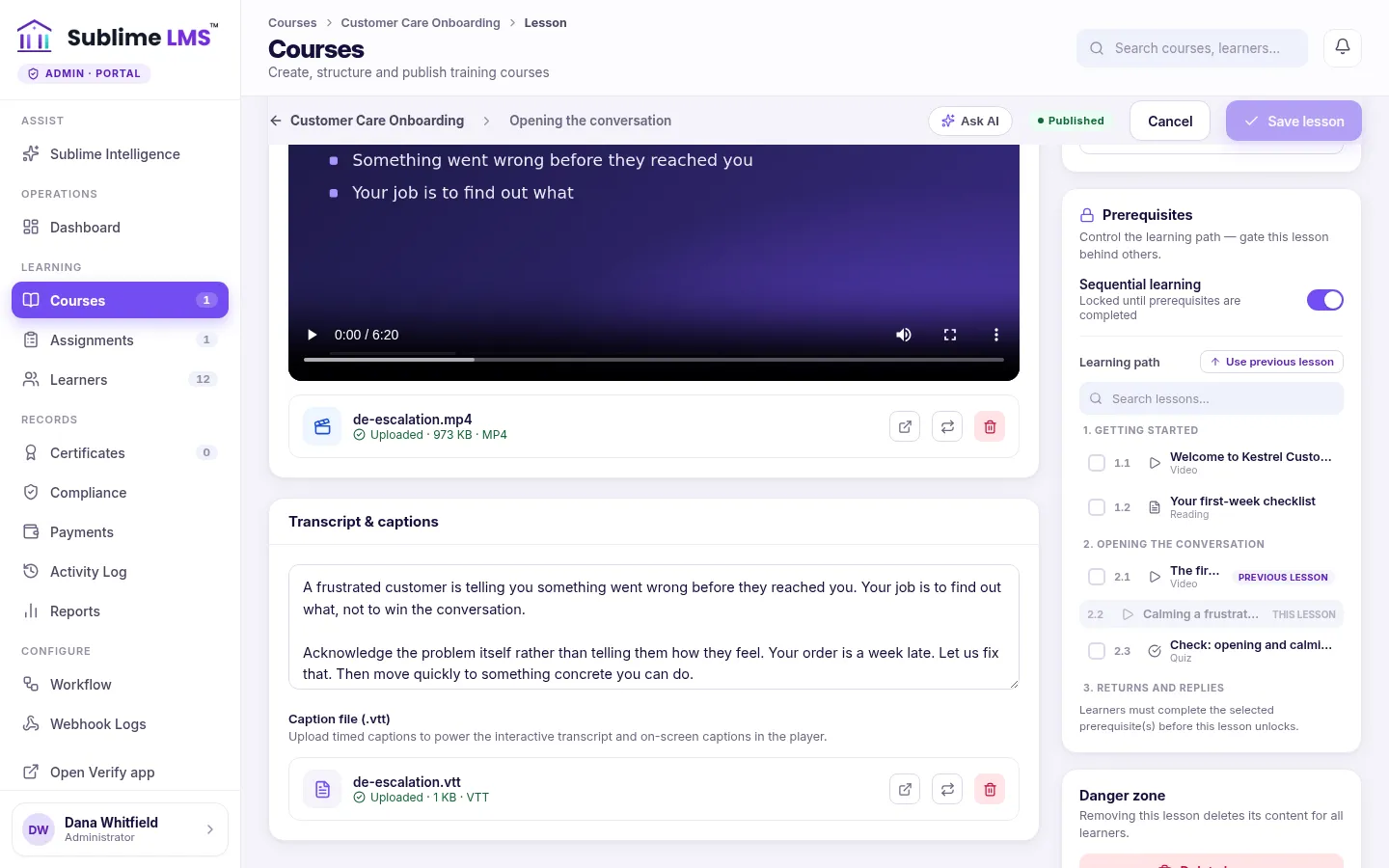
Upload a short video or link a YouTube, Vimeo or direct video URL, then add a transcript and a caption file so learners get captions and an interactive transcript.
On this page
Add the video Link to “Add the video”
- In the course's Content tab, add a lesson and choose Video.
- Under Video source, choose Upload file to upload an MP4, MOV or WebM file of up to 8 MB.
- Or choose Embed URL and paste a YouTube, Vimeo or direct .mp4 or .webm link. Use a link for anything larger than 8 MB.
- Save the lesson.
Related feature: Training videos
Add a transcript and captions Link to “Add a transcript and captions”
Under Transcript & captions, paste the transcript text and upload a timed caption file: WebVTT (.vtt) or SubRip (.srt), up to 2 MB. The caption file powers on-screen captions and the interactive transcript in the player.
Good to know Link to “Good to know”
Was this article helpful?
Still need help?
Ask the Sublime AI Assistant. It answers what it can straight away, and passes the conversation to our team, with your contact details and the question, when a person is needed.