Set up and grade assignments
Create an assignment with a brief, submission types, due date and points, then score it, give feedback, and release the grade or return the work for revision.
On this page
Set up the assignment Link to “Set up the assignment”
Add a lesson of type Assignment and configure it:
- The brief: formatted instructions learners see.
- Submission types: text entry, file upload, an external link, or any combination. For files, set the accepted file types and the maximum size.
- A due date, and optional dates when submissions open and close.
- Points, and how many attempts are allowed.
Related feature: Assignments & feedback
Review and grade Link to “Review and grade”
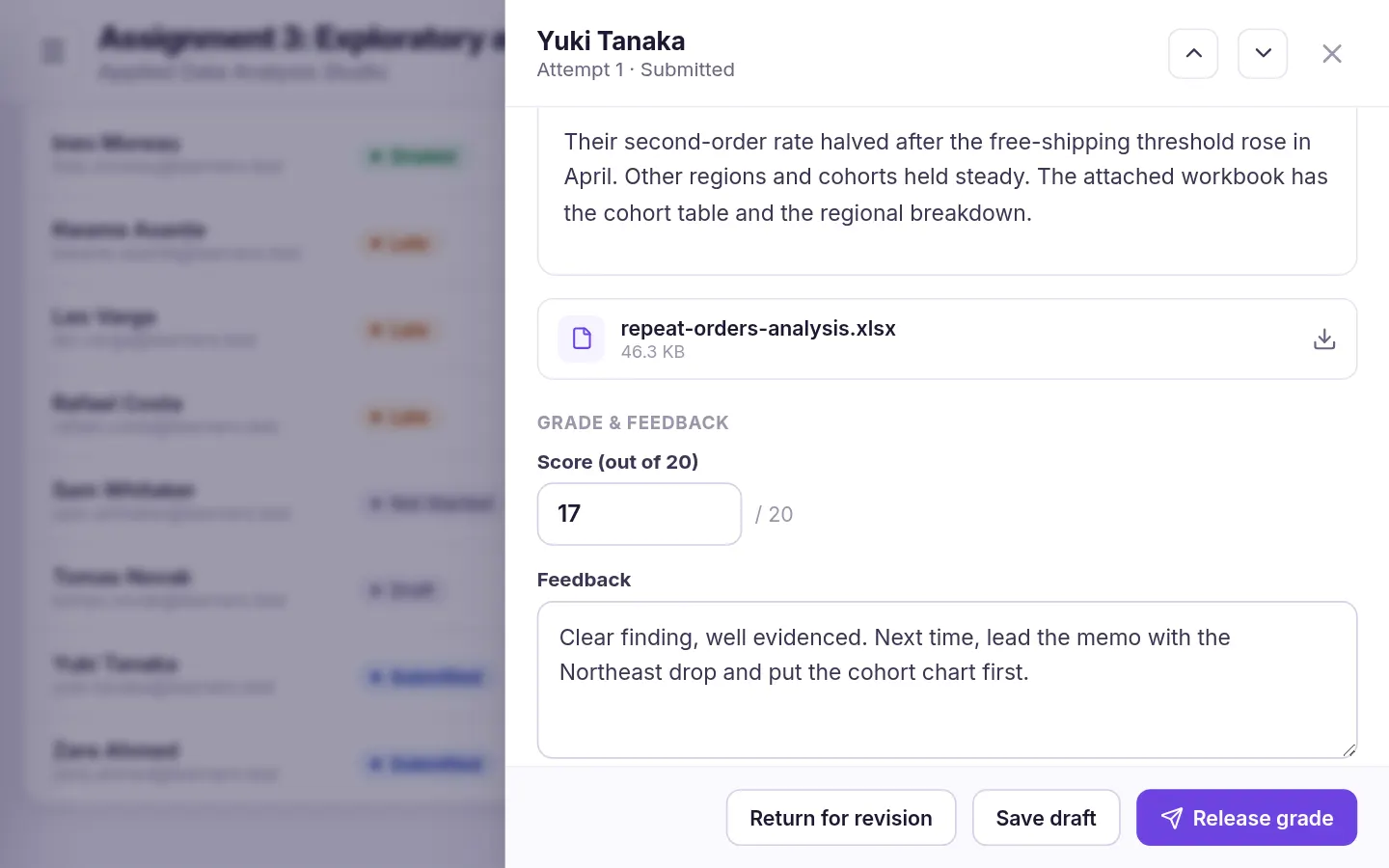
Open the submissions for the assignment, filter by status and open a learner's work. Enter a score out of the assignment's points and written feedback, then choose:
- Save draft: keep the grade private for now.
- Release grade: the learner sees the score and feedback.
- Return for revision: send it back. A returned attempt doesn't count against the attempt limit, and earlier attempts are kept.
Grades and completion Link to “Grades and completion”
An assignment counts toward completion once its grade is released and meets the course pass mark. Instructors grade in the courses they teach; administrators can grade anywhere.
Was this article helpful?
Still need help?
Ask the Sublime AI Assistant. It answers what it can straight away, and passes the conversation to our team, with your contact details and the question, when a person is needed.