Add learners to a cohort
Add learners to a cohort by pasting their email addresses, handle applications and the waitlist on the Funnel tab, and withdraw a learner when needed.
Add learners by email Link to “Add learners by email”
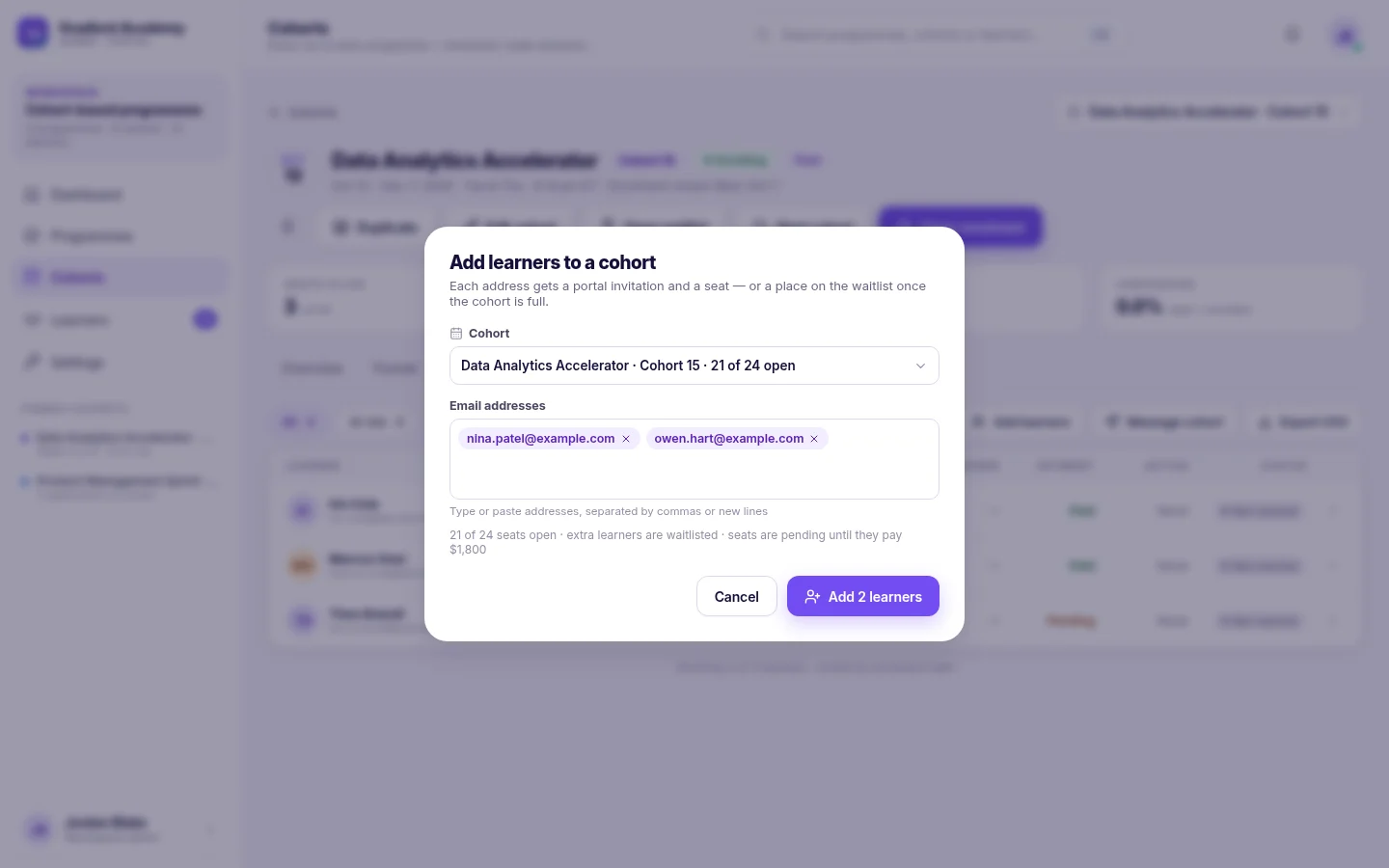
- Open the cohort and choose Add learners.
- Paste in the email addresses. The dialog shows how many seats are left.
- Confirm. Seats fill in the order the addresses are listed.
When the cohort is full, the remaining people join the waitlist, or are turned away if the cohort has no waitlist. In a paid cohort, a seat is held until the learner pays.
Related feature: Cohort management
Applications and the waitlist Link to “Applications and the waitlist”
Applications and waitlisted learners are handled one person at a time on the cohort's Funnel tab, where you review or decline applications and offer waitlisted learners a seat.
Withdraw a learner Link to “Withdraw a learner”
Open the learner's profile to withdraw someone who can no longer take part. Learners can also enroll themselves from the cohort's public page, depending on its enrollment mode.
Was this article helpful?
Still need help?
Ask the Sublime AI Assistant. It answers what it can straight away, and passes the conversation to our team, with your contact details and the question, when a person is needed.