Schedule live sessions and record attendance
Add live sessions to a cohort's Timeline with a join link, let learners add them to their calendar, record attendance and add the recording afterwards.
On this page
Add a live session Link to “Add a live session”
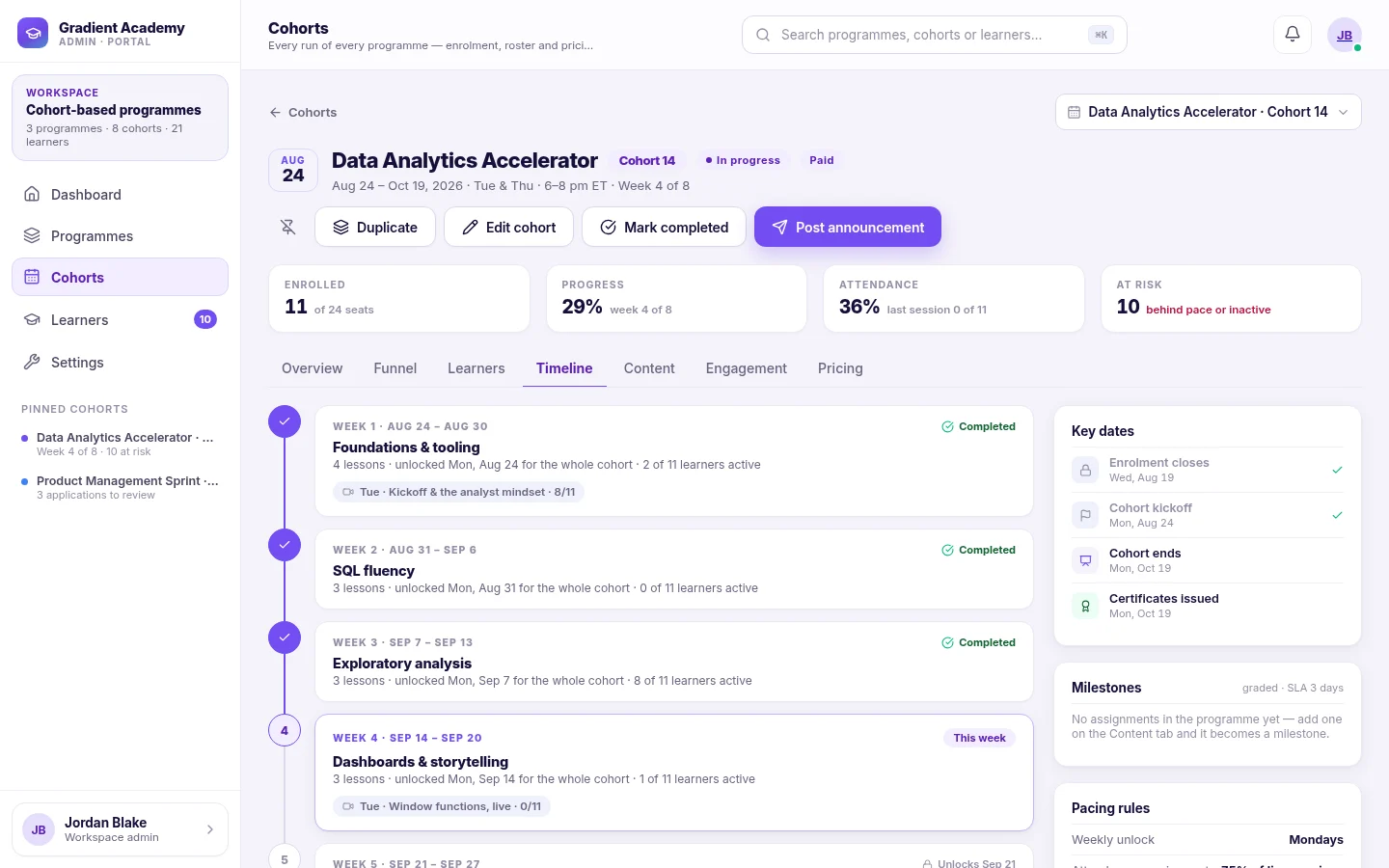
Live sessions belong to a cohort and appear on its Timeline tab alongside the weeks, key dates and pacing rules.
- Open the cohort and its Timeline tab.
- Add a session with its topic, date, start time, duration, host and join link.
- Save it. Learners see it in Live sessions in their cohort.
Related feature: Cohort management
What learners can do Link to “What learners can do”
Learners can add a session to their calendar or choose Remind me, and join from the link when it starts. Once you add the recording link, it appears on the session for anyone who missed it.
Record attendance Link to “Record attendance”
Staff record who attended each session. Anyone not marked as attending counts as missed, and you can mark a learner as caught up once they have watched the recording.
Was this article helpful?
Still need help?
Ask the Sublime AI Assistant. It answers what it can straight away, and passes the conversation to our team, with your contact details and the question, when a person is needed.